
Overview
This guide provides step-by-step instructions for setting up voicemail (VM) and adding email recipients for voicemail notifications in the EvoVoice app.
Prerequisites
-
Ensure the client is a new or existing customer in the EvoVoice system.
-
Gather the following details from the client:
-
Full Name
-
Company Name
-
Email Address
-
Steps to Set Up Voicemail
1. Create a New Endpoint for the User
-
Log in to the EvoVoice platform.
-
Navigate to Endpoints.
-
Click on New Endpoint and select User.
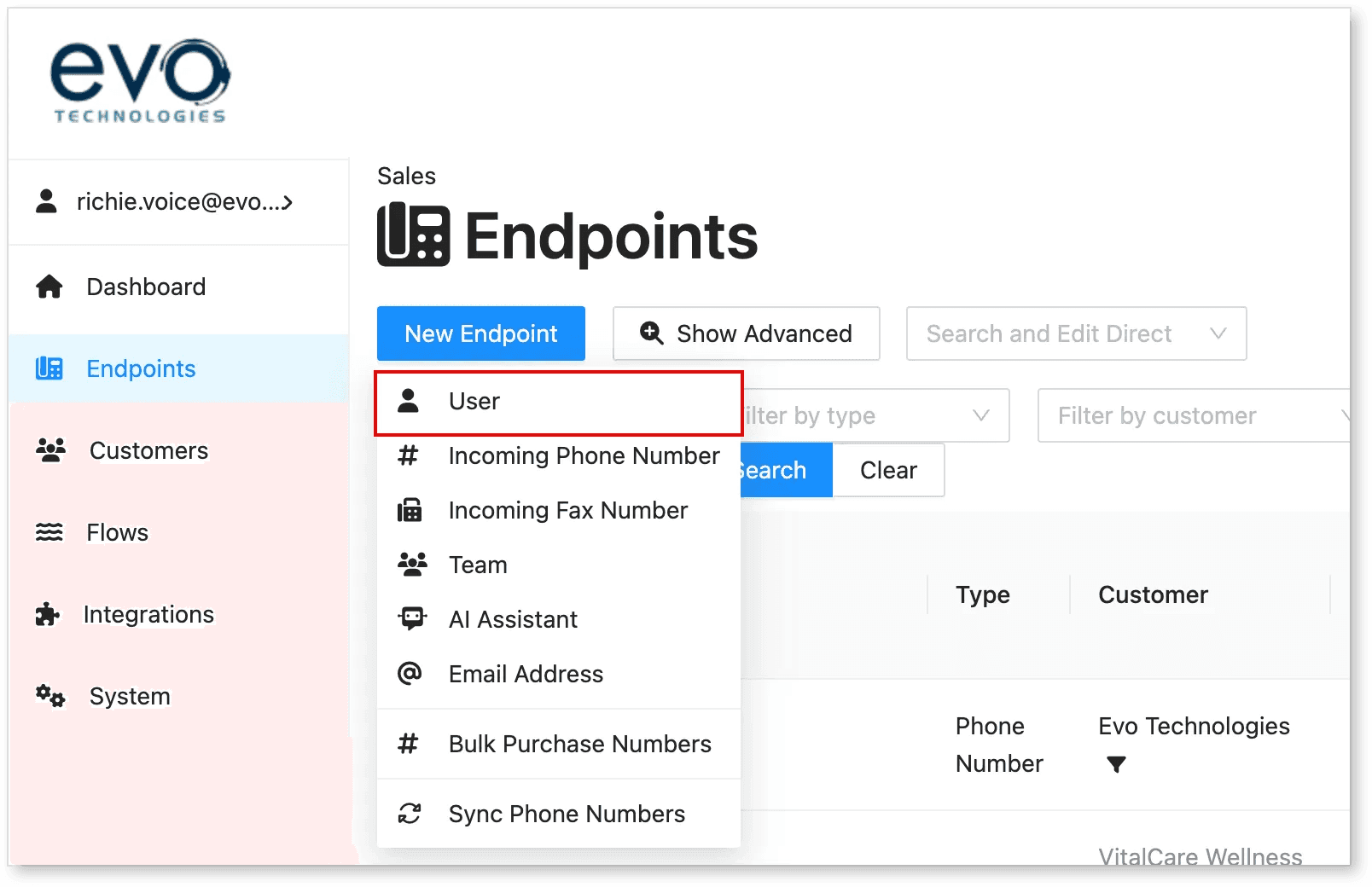
- Enter the following details:
-
Customer Name
-
First Name
-
Last Name
-
Mode: Select Data Only for VM Box.
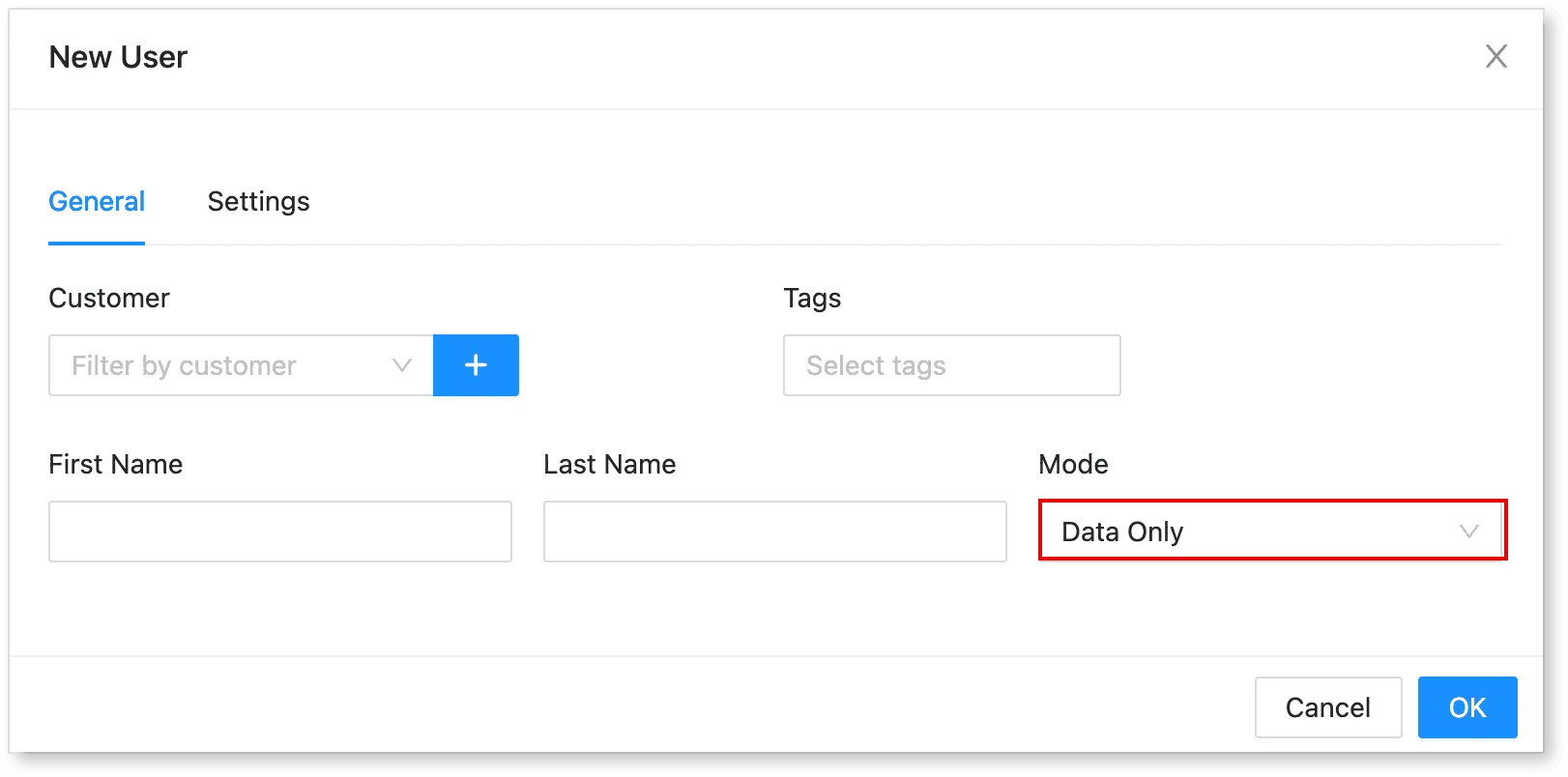
Note: If this is a new customer, click the + icon to create a new customer. Set the Center Name as the Parent.
2. Configure Voicemail Settings
-
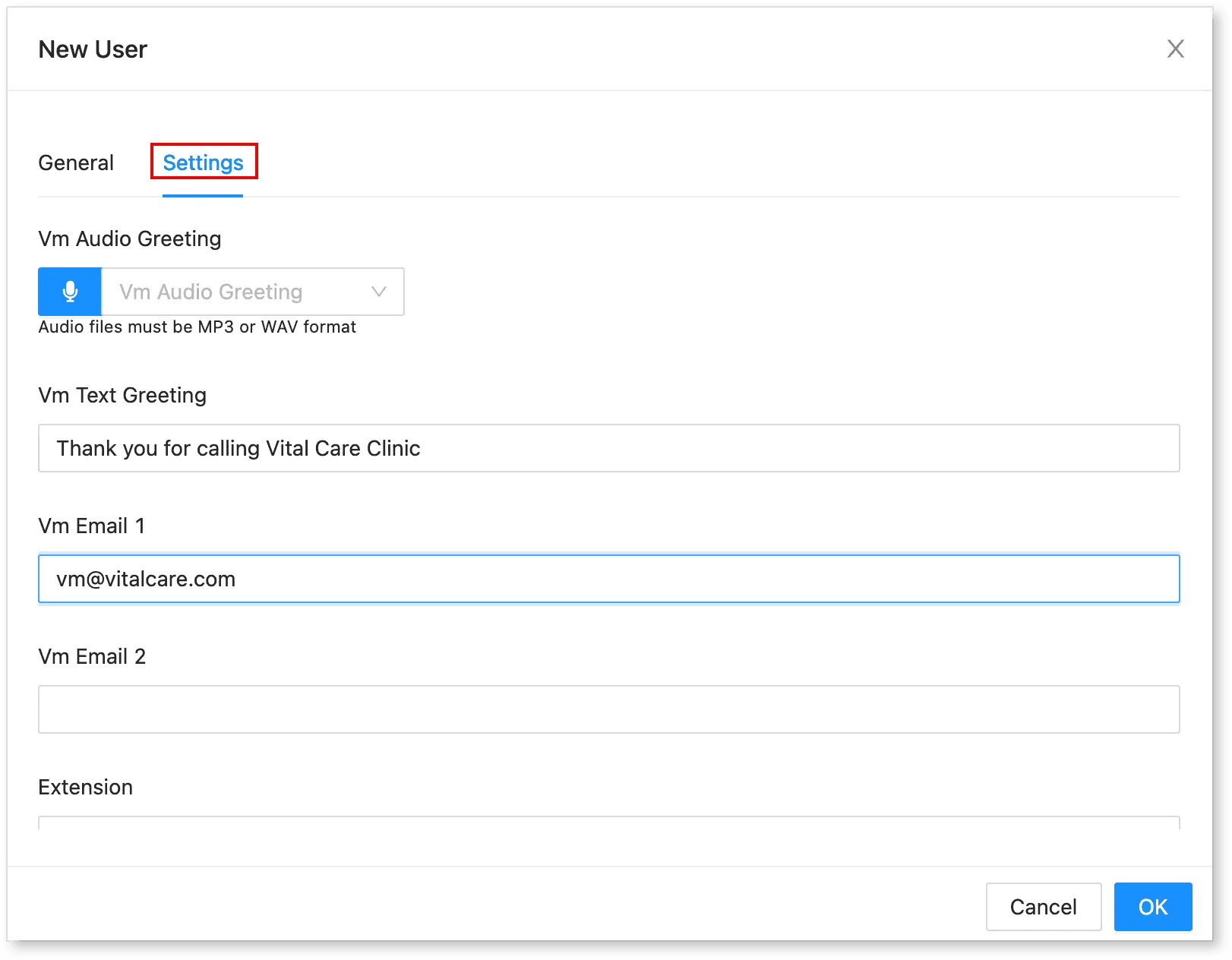
Click on Settings and enter the required details:
-
VM Extension: Ensure no other user is using the same extension.
-
VM Greeting: Enter a voicemail greeting that will be played when calls reach the voicemail.
-
VM Audio: Alternatively, upload a voicemail audio file.
-
VM Email: Enter the email address of the client who wishes to receive voicemail notifications.
-
-
Click OK.
-
Click Save to apply the changes.
Conclusion
The voicemail setup is now complete. The client will receive voicemail notifications at the configured email address. If any issues arise, verify that the VM extension is unique and that the correct email has been entered