
Follow these clear, step-by-step instructions to access the Yealink web interface and configure it to work with HostedSuite.
Access the Yealink Web Interface
-
Find the IP Address of Your Yealink Phone:
-
Press the OK button on your phone when it is idle. The IP address will appear on the screen.
-
Alternatively, go to Menu > Status to locate the IP address.
-
-
Enter the IP Address in Your Web Browser:
-
Open a web browser on a computer connected to the same network as your Yealink phone.
-
Type the IP address into the browser’s address bar and press Enter.
-
If the page doesn’t load, try these alternatives:
-
Add
/api#/loginafter the IP address (e.g.,http://192.168.1.100/api#/login). -
Use
https://before the IP address (e.g.,https://192.168.1.100).
-
-
-
Log In to the Web Interface:
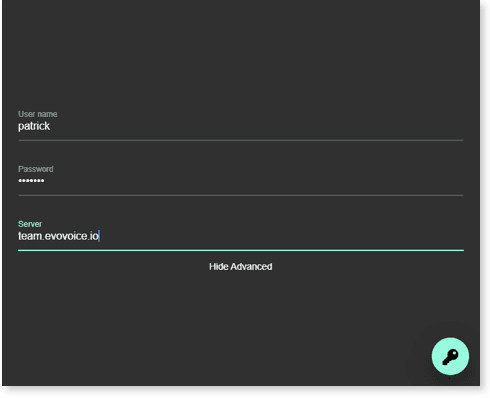
-
When prompted, enter the following credentials:
-
Username:
admin -
Password:
admin
-
-
If these default credentials do not work, use the last six digits of the phone's MAC address (found on the bottom of the device) as the password.
-
Access and Configure Settings:
- Once logged in, you can modify various settings for your Yealink phone.
Configure Yealink for HostedSuite
-
Access the Account Settings:
- Click the Account dropdown menu and select Register.
-
Enter Account Information:
-
Account Name: Enter a name you can easily recognize (e.g., "Meeting Room 221").
-
Enable the toggle button next to Line Active to activate the line.
-
-
Configure Display Information:
-
Label: Enter a label for the phone (e.g., "Meeting Room 221").
-
Display Name: Enter the name to be displayed.
-
-
Enter Server and Credentials:
-
Server Host:
evovoice-a8aqb.sip.us1.twilio.com -
Register Name and Username: Use the details provided by EvoTech.
-
Set NAT Settings:
- Scroll to the bottom and set NAT to STUN.
-
Save the Configuration:
- Click Confirm to register your settings and activate the configuration.
By following these steps, your Yealink phone should be successfully set up and configured to work with HostedSuite. If you encounter any issues, double-check the credentials or contact support for assistance.