
Enabling e911 Emergency Calling in Evo Voice
By default, SIP extensions in Evo Voice do not support emergency (911) calling. Enabling e911 links an incoming phone number with a SIP user, ensuring that the associated address is sent to emergency services during a 911 call.
This guide outlines the steps required to enable and test e911 functionality.
Overview of Steps
-
Create an Emergency Address
-
Enable Emergency Dialing on the Incoming Phone Number
-
Associate the SIP User with the Emergency Phone Number
-
Update the Phone's SIP Domain Setting
-
Test the Configuration
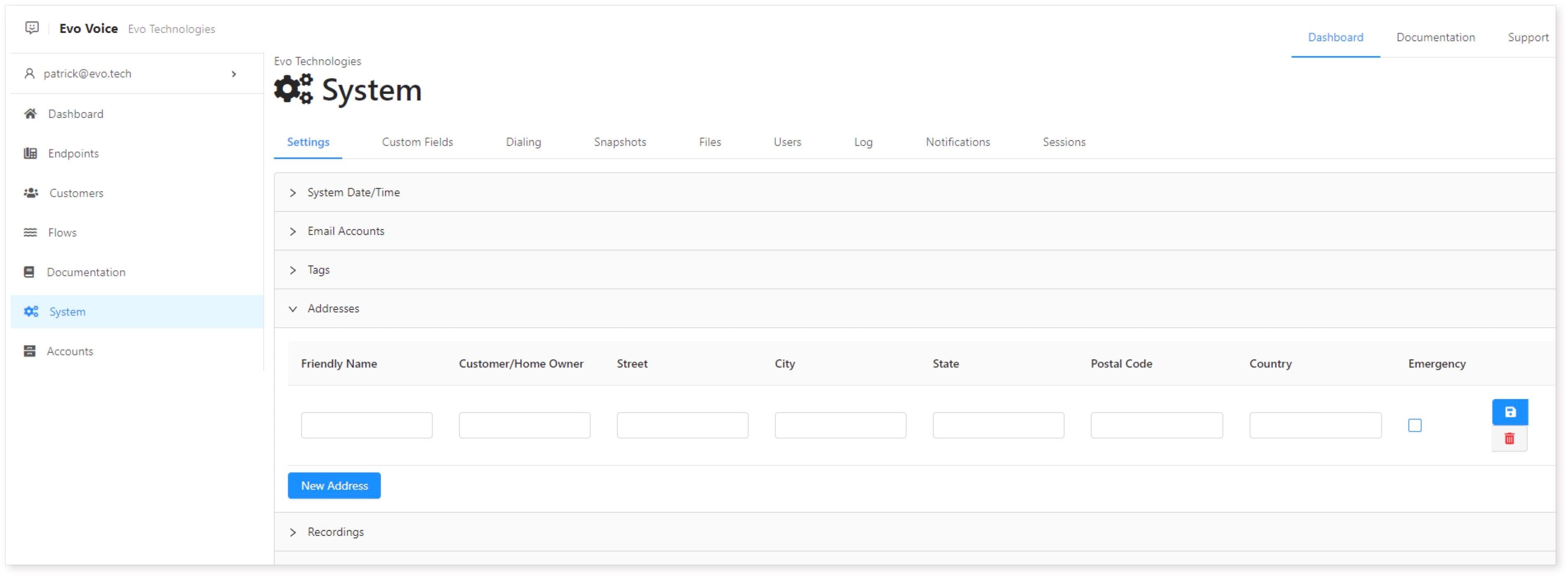
Step 1: Create an Emergency Address
-
Navigate to the Addresses Section
-
Go to System > Settings > Addresses.
-
Expand the Addresses section.
-
-
Add a New Address
-
Click New Address.
-
Enter:
-
Friendly Name (e.g., "Business Office").
-
Homeowner/Business Name.
-
Complete Address Fields.
-
Check the Emergency Address box.
-
-

-
Address Validation
- If you receive an error message, ensure the fields match the required format and re-save.

Step 2: Enable Emergency Dialing on an Incoming Phone Number
-
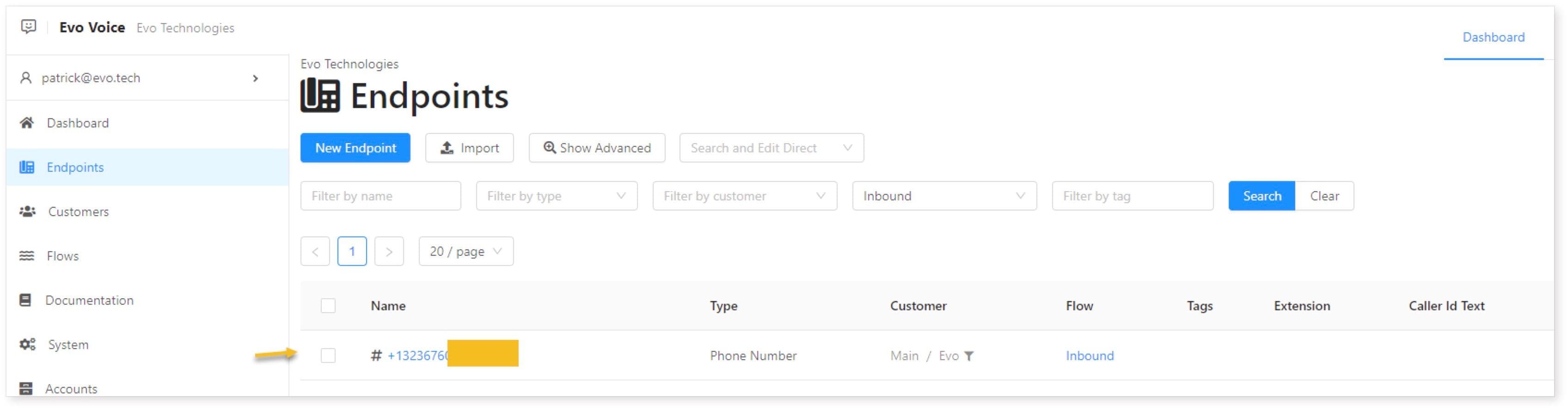
Locate the Phone Number
-
Go to Endpoints and search for the number to enable e911 on.
-
Ensure this number is assigned to a Flow (e.g., a "Dial User" flow).
-
-
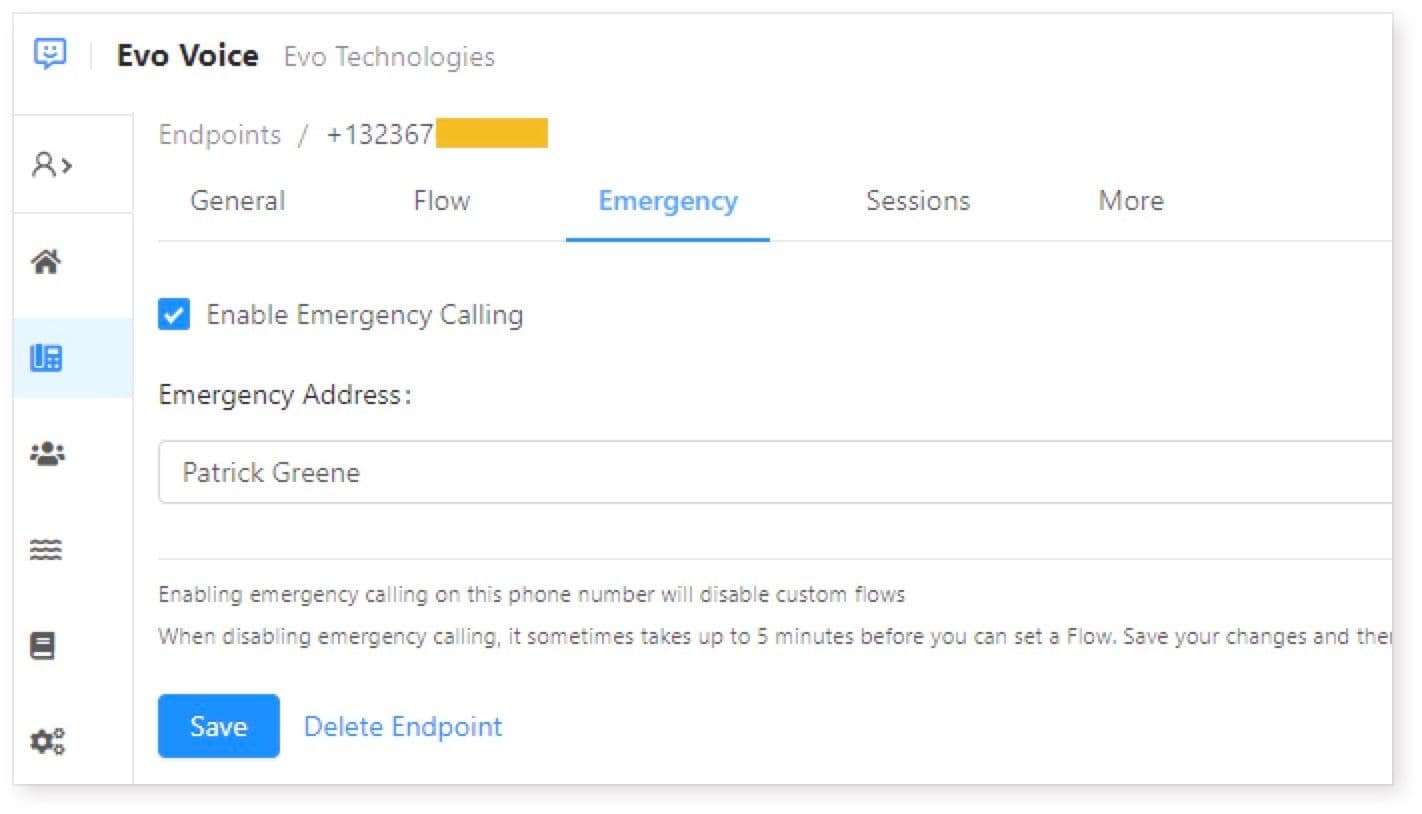
Enable Emergency Calling
-
Edit the number and go to the Emergency Tab.
-
Check the Enable Emergency Calling box.
-
Select the previously created emergency address.
-
-
Recommended Flow Configuration
- Use a Dial User flow so emergency call-back numbers ring directly to the SIP user.
Step 3: Associate the SIP User with the Emergency Phone Number
-
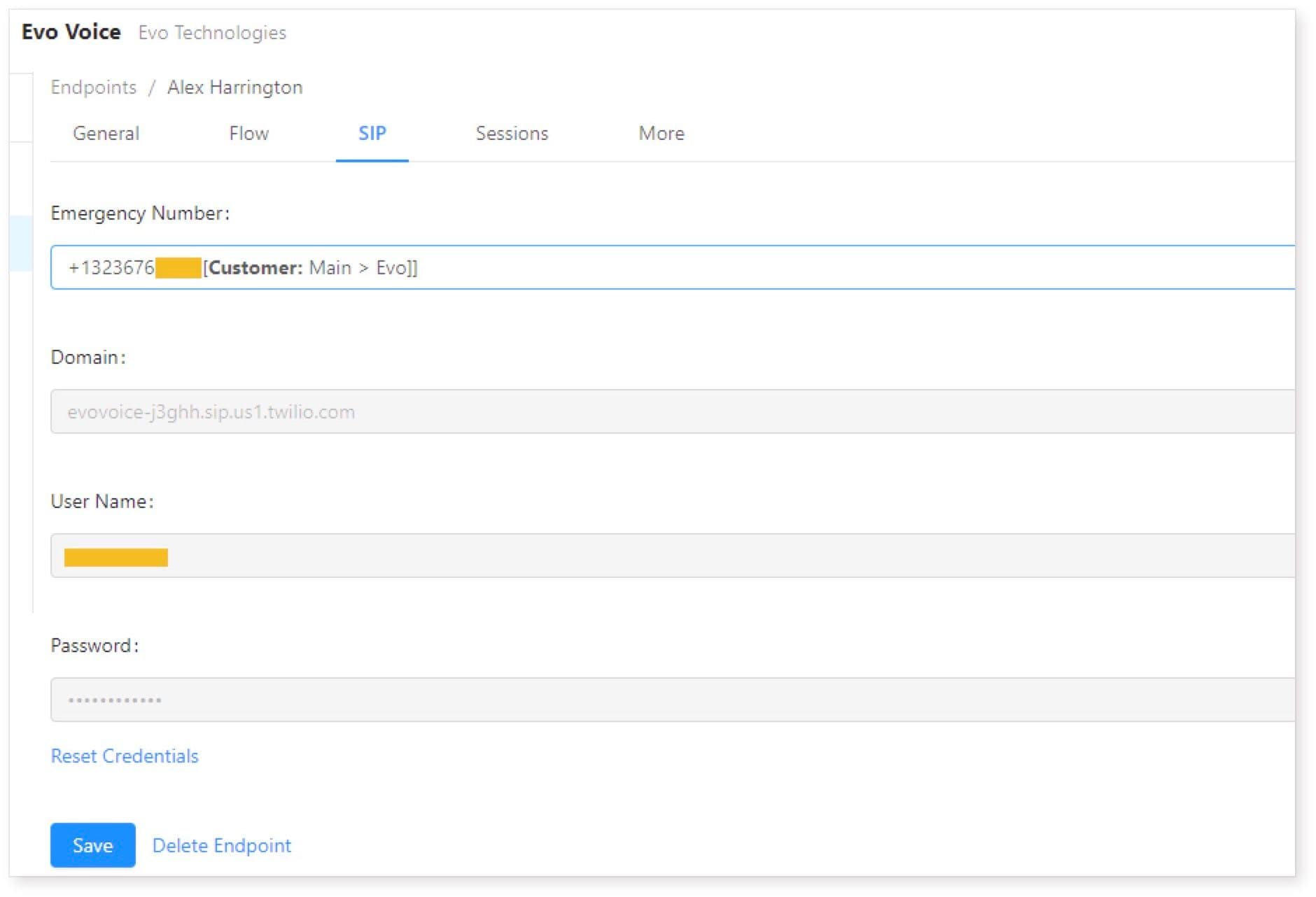
Edit the SIP User
-
In Endpoints, locate and select the SIP user.
-
Navigate to the SIP Tab.
-
-
Assign Emergency Number
-
In the Emergency Number field, search for and select the configured phone number.
-
Save the changes.
-
-
Update the SIP Domain
-
After assigning the emergency number, the SIP domain will change.
-
Update the domain settings on the SIP device to match the new configuration.
-
Step 4: Test the Configuration
-
Wait for Changes to Propagate
- Allow up to 10 minutes for the SIP handset to sync.
-
Test Emergency Calling
-
Dial 933: A recorded message will confirm the caller ID and associated emergency address.
-
Optionally, dial 911: Inform the operator that this is a test call and request verification of the address.
- Note: Some areas require scheduling test calls. Check local regulations.
-
-
If Testing Fails
- Contact your Evo Voice support representative for assistance.
Important Notes
-
Multiple phone numbers can share the same emergency address.
-
Ensure the address is accurate and validated during setup.
-
Misconfigured settings can result in failed emergency calls, so test thoroughly.
By following these steps, you can ensure e911 functionality is correctly set up for SIP devices in Evo Voice.