
Overview
Blocking a phone number in EvoVoice prevents unwanted calls from reaching the system. This process must be followed precisely, as changing other settings may disrupt the system flow.
Prerequisites
-
Obtain the phone number that needs to be blocked from the IA (Interactive Agent).
-
Ensure the phone number is in the correct format (+1XXXXXXXXXX).
Steps to Block a Phone Number
1. Retrieve the Number to Block
-
Request the phone number from the IA that needs to be blocked.
-
Confirm the format is +1XXXXXXXXXX before proceeding.
2. Add the Number to the Blocked List
-
Log in to EvoVoice.
-
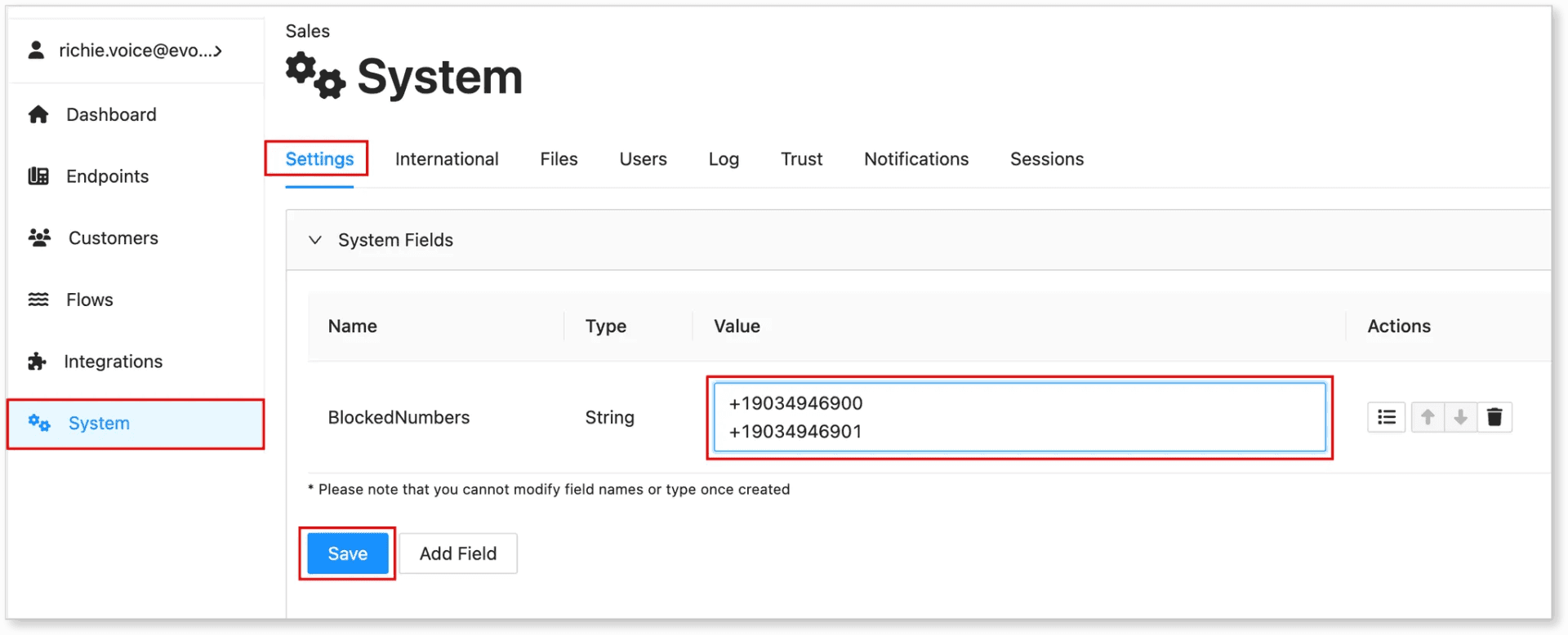
Navigate to System > Settings.
-
Click on System Fields to expand the dropdown menu.
-
Scroll down and locate the BlockedNumbers field. This should be created already. If not, please request it from our support team.
-
Enter the phone number in the Value field with required format (+1XXXXXXXXXX). You can add multiple phone numbers separated by the return (Enter) key or on the next line.
-
Click Save to apply the changes.
Important Notes
-
Do not modify any other settings in System Fields, as this may cause disruptions to the system or call flows.
-
Double-check the phone number format before saving to avoid errors.
Conclusion
Blocking phone numbers in EvoVoice helps manage unwanted calls effectively. If issues arise, ensure the number is entered correctly and no unintended settings are changed