
Device Configuration Guide
This guide provides examples and screenshots for configuring common device types to work with Evo Voice.
Preparation
Before configuring your device, ensure the following:
-
Factory Reset:
We recommend performing a factory reset on your phone to eliminate any residual settings from previous configurations.
-
Required Information:
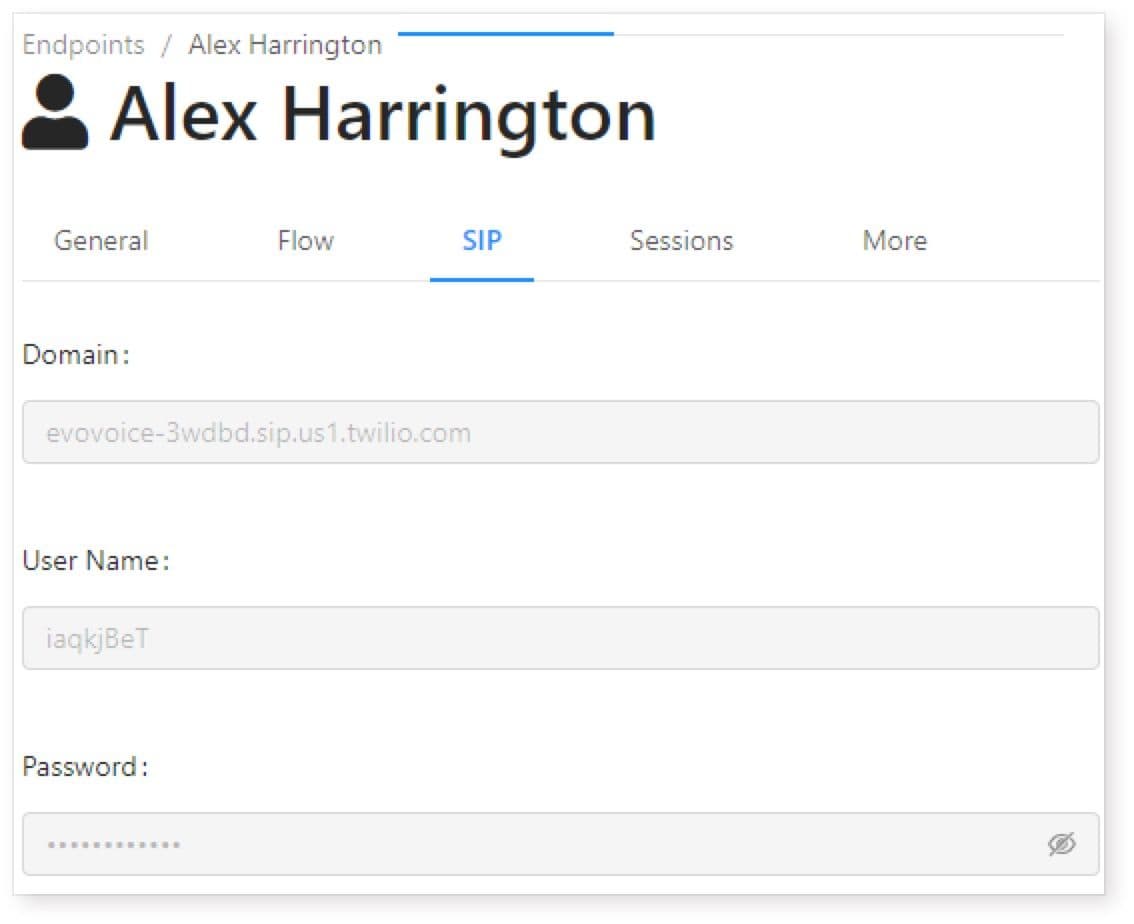
Obtain the following details from the SIP tab on the Endpoint details screen:
-
SIP Domain
-
Username
-
Password (Click the eye icon on the Password field to reveal it)
Example Screenshot:
-
Example Settings
For demonstration purposes, we will use the following sample settings. Be sure to replace these with your actual SIP credentials:
-
Domain:
evovoice-3wdbd.sip.us1.twilio.com -
Username:
iaqkjBeT -
Password:
12345
Important Notes
-
Customized SIP Settings: Always use the SIP details specific to your Evo Voice account. These examples are placeholders.
-
Secure Your Credentials: Keep your SIP credentials confidential to prevent unauthorized access.
Polycom VVX Setup
Note: We recommend factory resetting your phone before configuring it for Evo Voice.
Steps to Configure Polycom VVX Phones
-
Access the Web Interface:
- Log in to the Polycom phone's web interface.
-
Settings for Line 1:
- Navigate to Settings > Lines > Line 1.
Configuration Sections
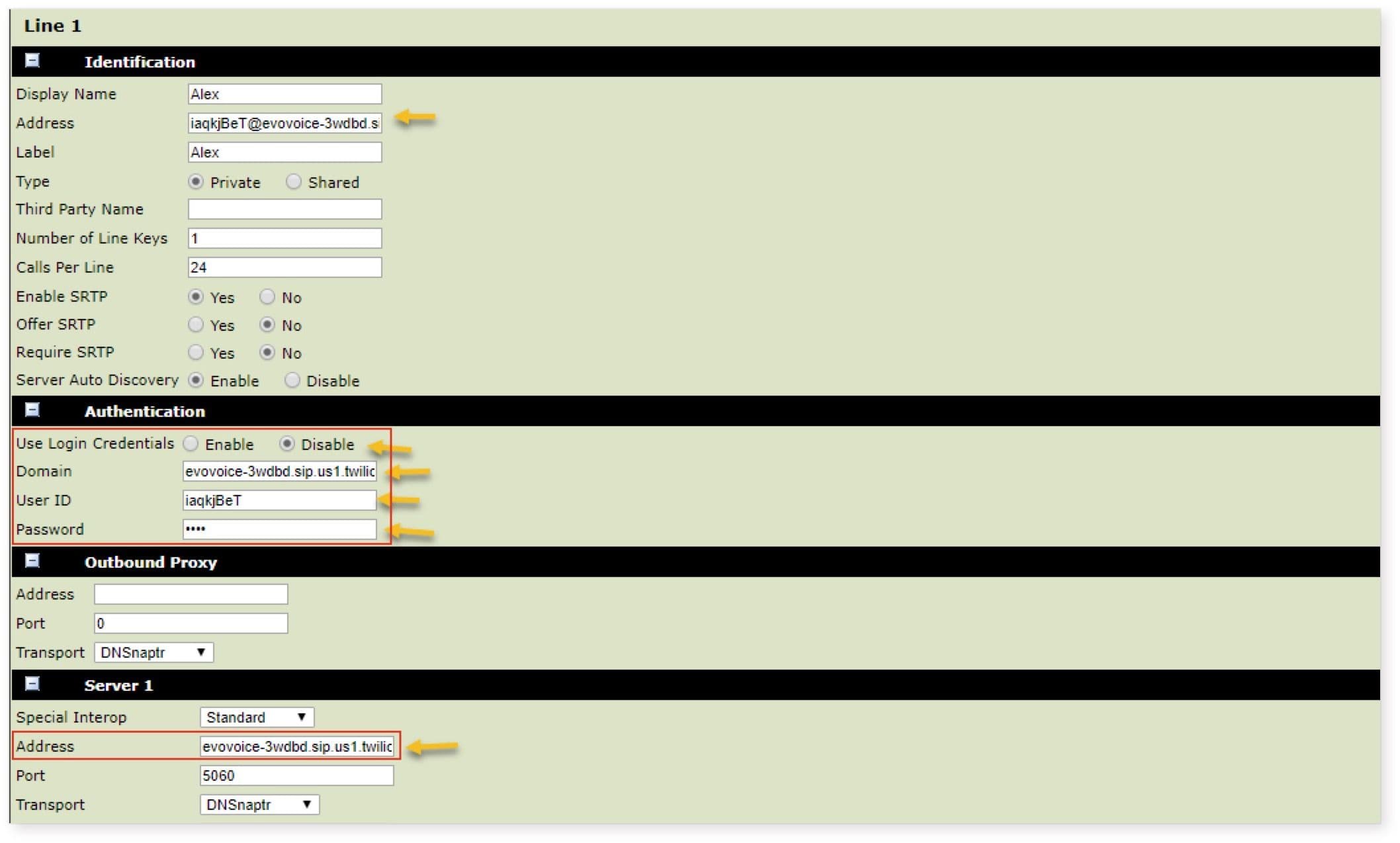
Identification Section
-
Display Name: Enter the name you want displayed on this line (e.g., Alex).
-
Address: Use the format
user@sipdomain, e.g.,iaqkjBeT@evovoice-3wdbd.sip.us1.twilio.com.
Authentication Section
-
Use Login Credentials: Disable.
-
Domain: Enter your SIP domain (e.g.,
evovoice-3wdbd.sip.us1.twilio.com). -
User ID: Enter your SIP username (e.g.,
iaqkjBeT). -
Password: Enter your SIP password (e.g.,
12345).
Server 1 Section
- Address: Enter your SIP domain (e.g.,
evovoice-3wdbd.sip.us1.twilio.com).
Your settings should look like this:
Click Save.
NAT Settings
-
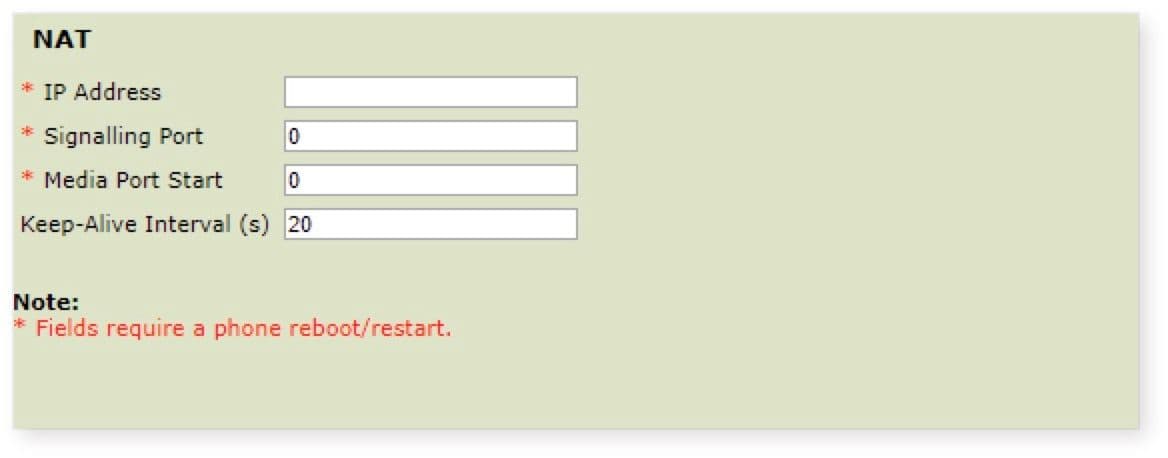
Navigate to Settings > Network > NAT.
-
Set the Keep Alive Interval to
20.
Example:
Click Save and reboot the phone. The Polycom should now be registered and ready to make/receive calls.
Troubleshooting
-
DNS Issues:
Occasionally, Polycom phones may fail to register with Twilio servers due to DNS problems. You might see an error like:
DNS lookup failed for ztp.polycom.comThis can be verified under Diagnostics > View and Download Logs.
-
Fixing DNS Issues:
-
Go to Settings > Network > Ethernet.
-
Change the DNS server to
8.8.8.8.
-
Reboot the phone after making changes.
---
SNOM Phone Configuration Guide
Follow this guide to configure your SNOM phone for Evo Voice.
Preparation
-
Factory Reset:
Perform a factory reset on the SNOM phone to remove any previous configurations.
-
Required Information:
-
SIP Domain
-
SIP Username
-
SIP Password
These details can be found in the SIP tab on the Endpoint details screen.
-
Configuration Steps
1. Log In to the Web Interface
Access the SNOM phone's web interface.
2. Configure Identity 1
-
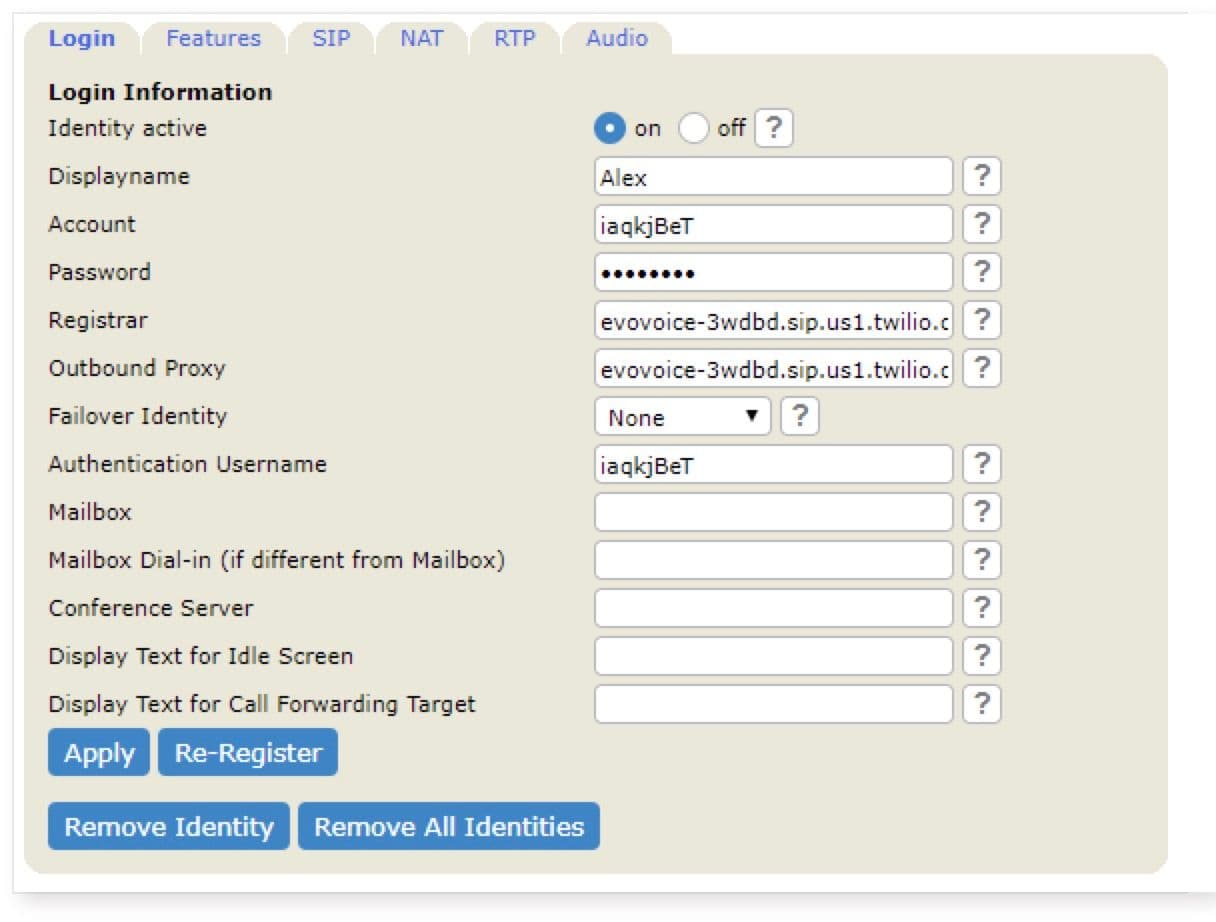
Navigate to Identity 1 and complete the following fields in the Login Tab:
Login Tab Fields
-
Display Name: Enter the name to display on the phone (e.g., "Alex").
-
Account: Enter your SIP username (e.g.,
iaqkjBeT). -
Password: Enter your SIP password (e.g.,
12345). -
Registrar: Enter your SIP domain (e.g.,
evovoice-3wdbd.sip.us1.twilio.com). -
Outbound Proxy: Enter your SIP domain (e.g.,
evovoice-3wdbd.sip.us1.twilio.com). -
Authentication Username: Enter your SIP username (e.g.,
iaqkjBeT).
Example settings:
-
-
Click Apply to save the settings.
3. Configure NAT Settings
-
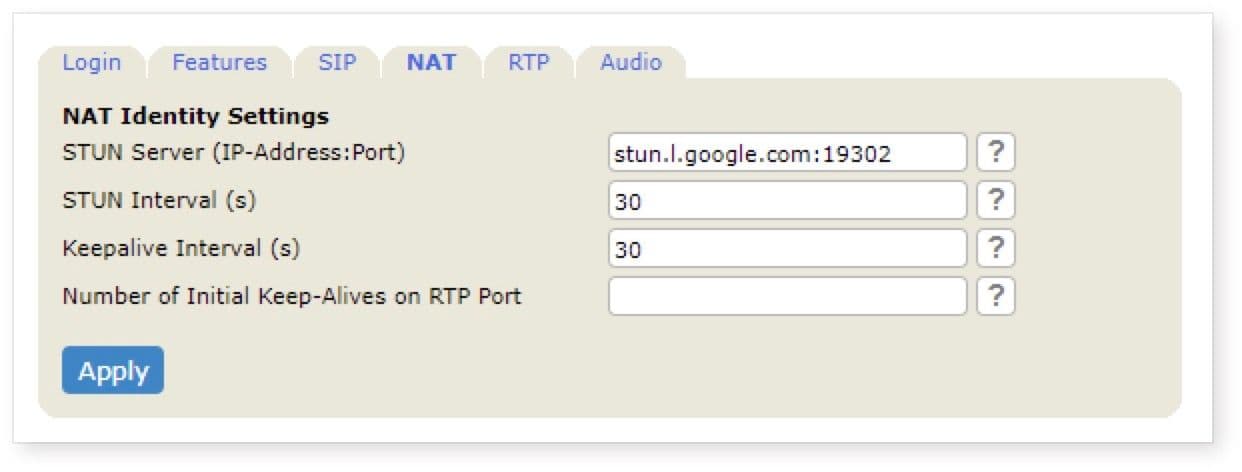
Switch to the NAT Tab and complete the following fields:
NAT Tab Fields
-
STUN Server: Enter
stun.l.google.com:19302. -
STUN Interval: Set to
30. -
Keepalive Interval: Set to
30.
Example settings:
-
-
Click Apply to save the settings.
Final Steps
After completing the above configuration:
-
The SNOM phone should now be registered.
-
Test the phone to ensure it can make and receive calls.
---
Grandstream Phone Configuration Guide
Follow this guide to configure your Grandstream phone for Evo Voice.
---
Preparation
1. Factory Reset:
Perform a factory reset on the Grandstream phone to clear any existing settings.
2. Required Information:
- SIP Server (Domain)
- SIP User ID (Username)
- Authentication Password
These details can be found in the SIP tab on the Endpoint details screen.
---
Configuration Steps
1. General Settings
1. Log in to the Grandstream phone's web interface.
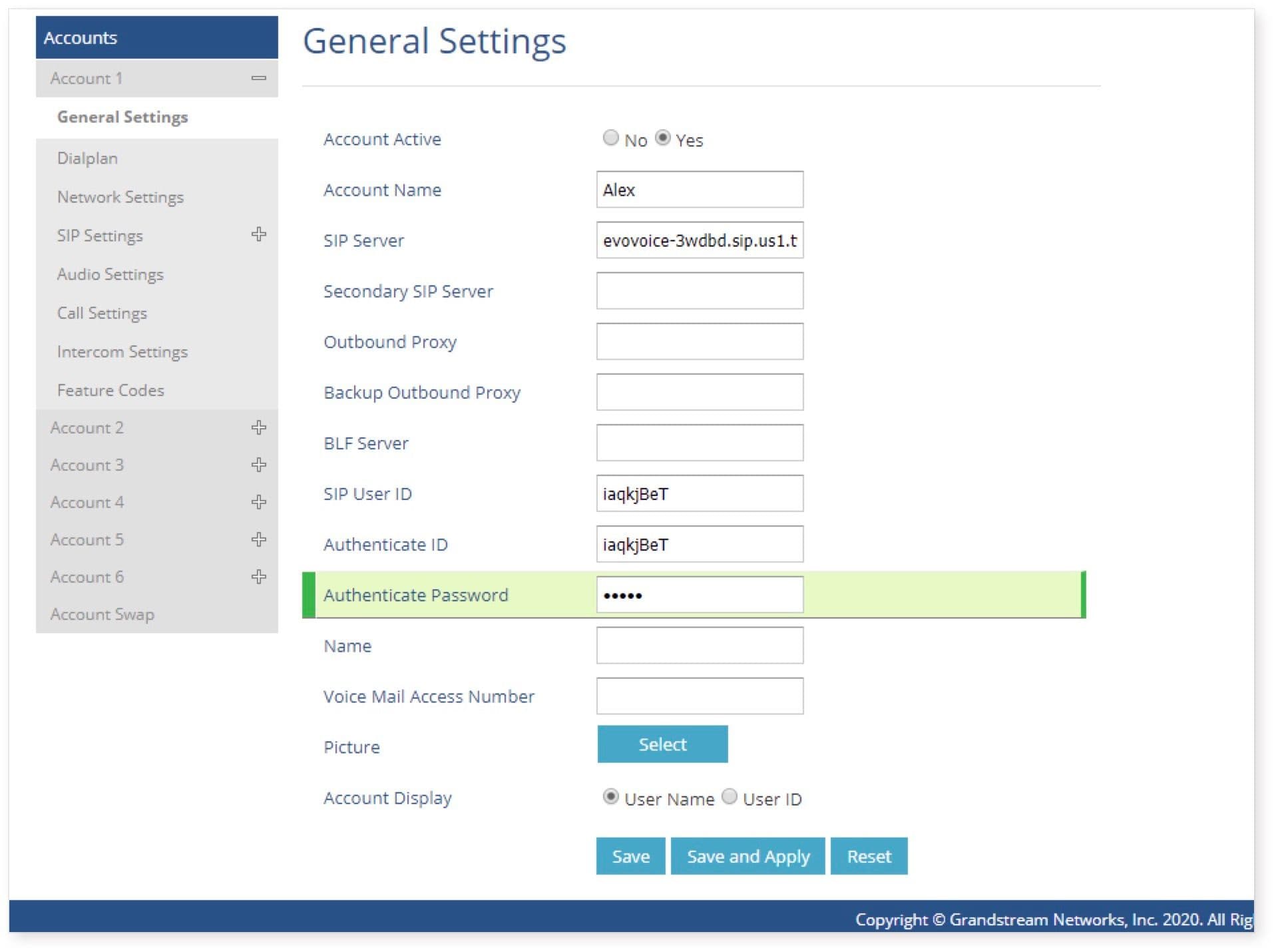
2. Navigate to Accounts > Account 1 and complete the following fields:
- Account Name: Enter a display name (e.g., "Alex").
- SIP Server: Enter your SIP domain (e.g., evovoice-3wdbd.sip.us1.twilio.com).
- SIP User ID: Enter your SIP username (e.g., iaqkjBeT).
- Authenticate ID: Enter your SIP username (e.g., iaqkjBeT).
- Authenticate Password: Enter your SIP password (e.g., 12345).
Example configuration:
3. Click Save and Apply to save the settings.
---
2. Network Settings
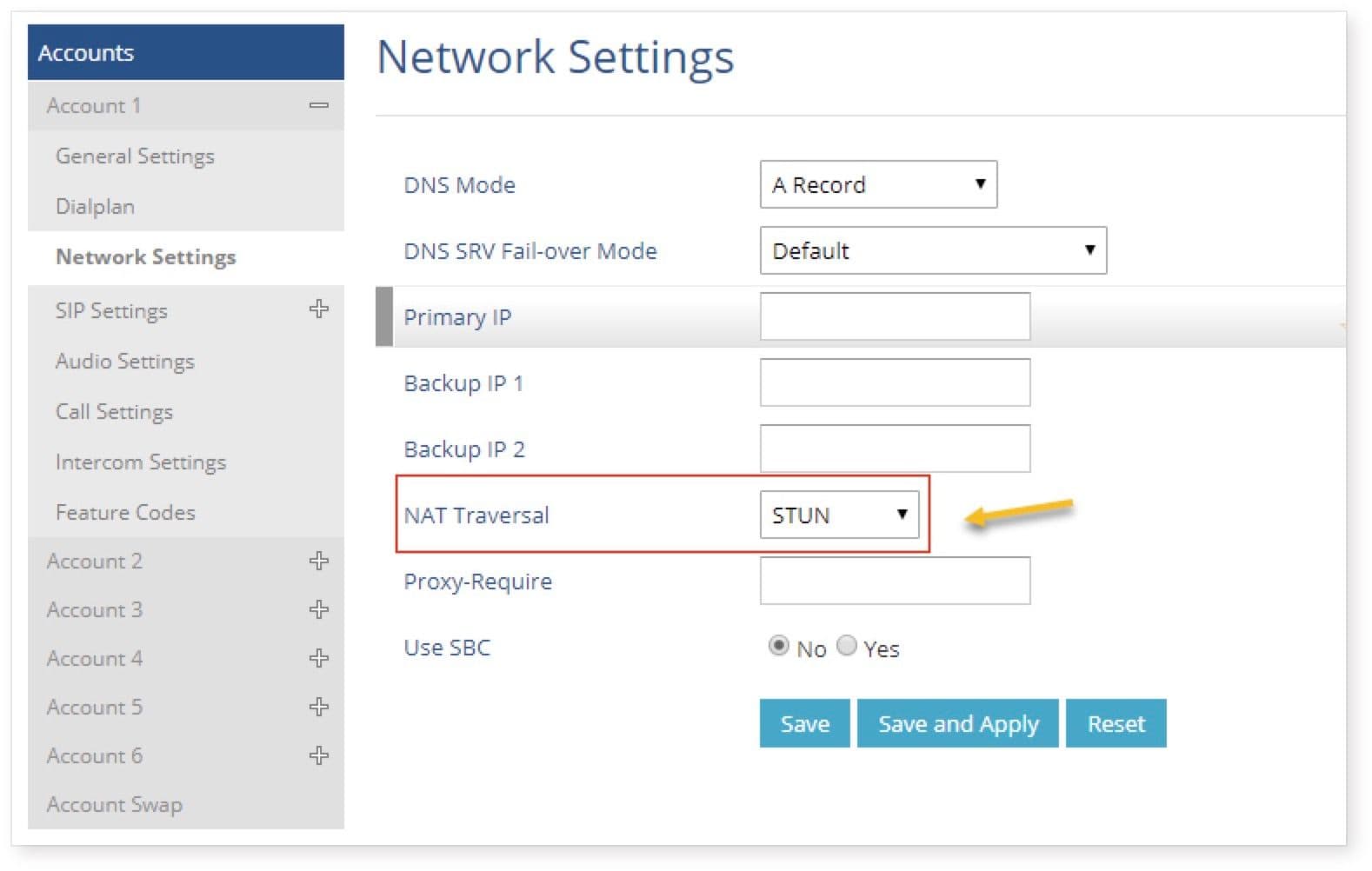
1. Navigate to Network Settings on the left-hand menu.
2. Set NAT Traversal to STUN.
Example configuration:
3. Click Save and Apply to save the settings.
---
3. SIP Settings
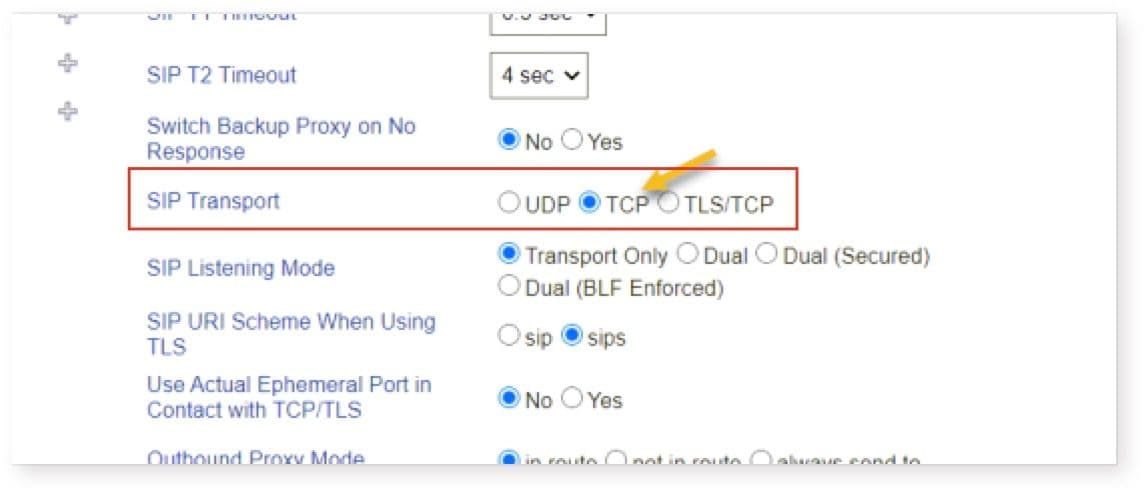
1. Navigate to Basic SIP Settings under the Account section.
2. Set Transport Protocol to TCP.
Example configuration:
3. Click Save and Apply to save the settings.
---
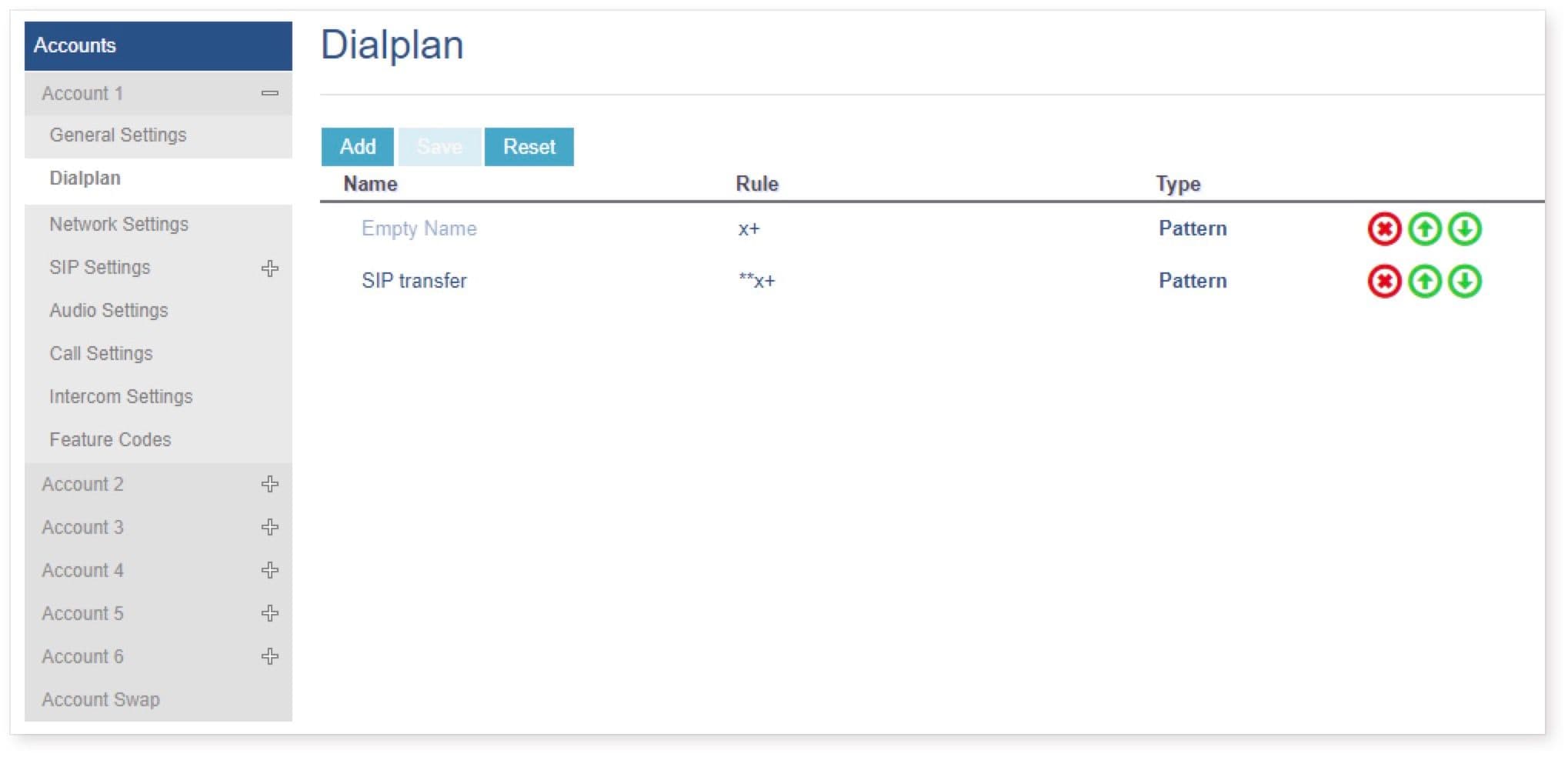
4. Dial Plan Settings (Optional: SIP Transfer Workaround)
1. Navigate to Dial Plan under the Account section.
2. Add two new rules to the Dial Plan:
- Rule 1:
 **- **Name:** SIP Transfer**

 **- **Rule:** `X+`**
- Rule 2:
 **- **Name:** Additional Rule**

 **- **Rule:** `**`**
3. The configuration should look like the following example:
 4. Save the changes.
---
Final Steps
Once the configurations are complete:
- The Grandstream phone should now be registered and ready for use.
- Test the phone to ensure it can make and receive calls.
Cisco 504 Series Configuration Guide
Follow these steps to configure the Cisco 504 Series phone for Evo Voice.
Preparation
-
Factory Reset:
It’s recommended to perform a factory reset on the phone before configuration to clear previous settings.
-
Required Information:
-
SIP Domain (Proxy)
-
SIP User ID (Username)
-
Authentication Password
You can retrieve these details from the SIP tab on the Endpoint details screen in Evo Voice. Ensure you click the Eye icon to reveal the password before copying.
-
Configuration Steps
-
Access Admin Interface:
-
Log in to the Cisco web interface.
-
Navigate to the Admin Interface using the link at the top-right corner.
-
-
Navigate to Ext 1 Settings:
- Click on the Voice tab, then click on Ext 1.
-
General Section:
- Line Enable: Set to Yes.
-
NAT Settings:
- NAT Keep Alive: Set to Yes.
-
Proxy and Registration Section:
- Proxy: Enter your SIP domain (e.g.,
evovoice-3wdbd.sip.us1.twilio.com).
- Proxy: Enter your SIP domain (e.g.,
-
Subscriber Information Section:
-
Display Name: Enter the name you want displayed (e.g., "Alex").
-
Password: Enter your SIP password (e.g.,
12345). -
Auth ID: Enter your SIP username (e.g.,
iaqkjBeT). -
User ID: Enter your SIP username (e.g.,
iaqkjBeT).
-
-
Save Changes:
- Save the configuration changes.
Troubleshooting Tips
1. Phone Does Not Register
-
Verify the SIP domain, username, and password entered.
-
Ensure the password was correctly copied from the Evo Voice page (click the Eye icon first).
2. Outbound Calls Work, But No Incoming Calls
- Ensure NAT settings are configured correctly. For example, on some phones like Grandstream, STUN must be selected under Network Settings.
3. Phone Will Not Stop Ringing
- This issue may occur if TCP is not selected for SIP traffic. For example, on Grandstream phones, you can adjust this under SIP Settings > General.
4. Phone Registers, But Cannot Make or Receive Calls
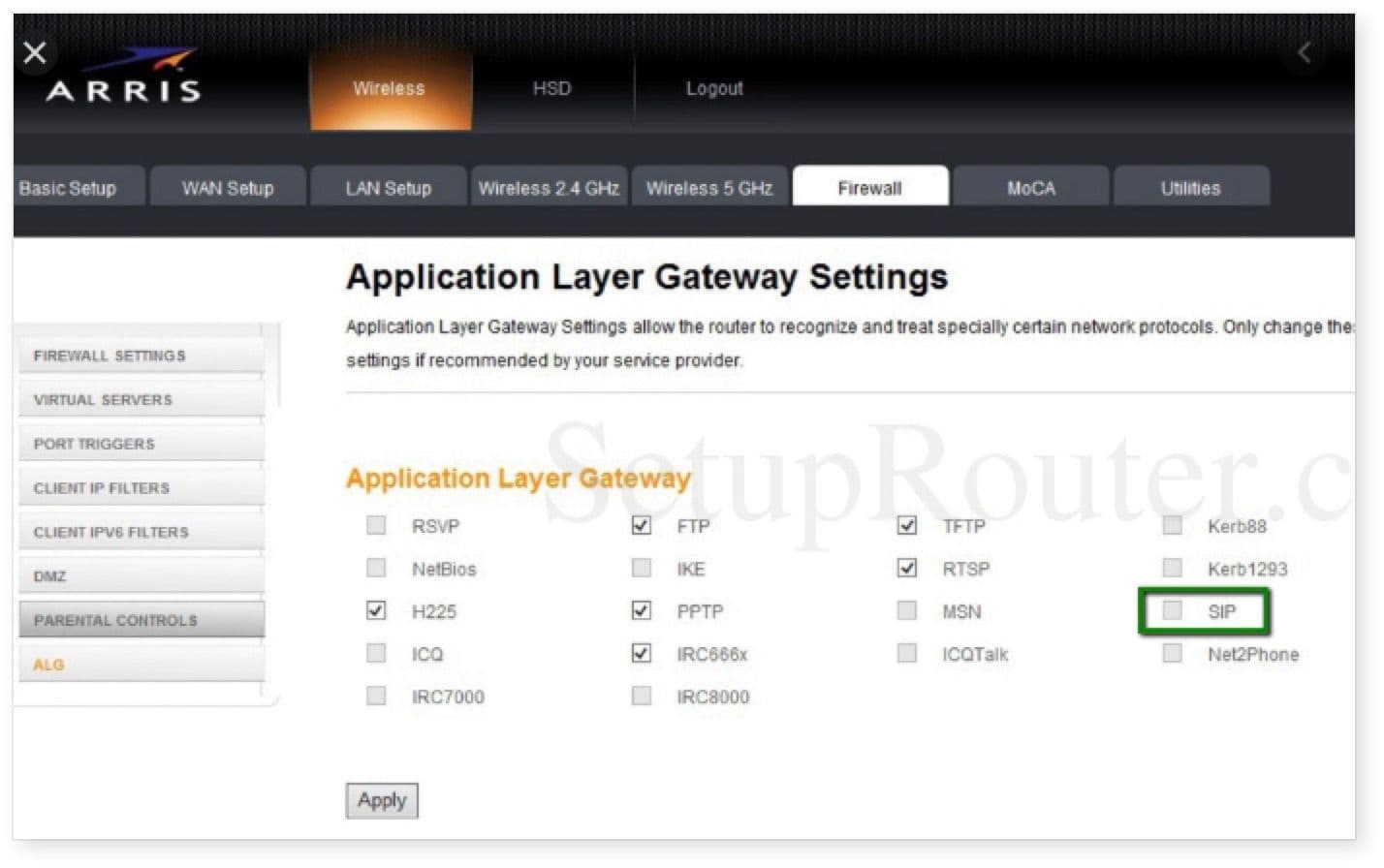
-
This is often caused by SIP ALG being enabled on the router.
-
Disable SIP ALG in your router settings.
-
For guidance, search for your router model with “SIP ALG” (e.g., "Arris SIP ALG") for specific instructions.
Final Steps
Once configured, the Cisco 504 Series phone should be ready to make and receive calls. If issues persist, review the troubleshooting steps and confirm all settings are correct.