
The guide below introduces you to the "Hello World" of Evo Voice, covering purchasing a phone number, creating a flow, and assigning it to the number. The goal is for the system to respond with a "Hello World" voice prompt when the phone number is dialed.
1. Purchase a Phone Number
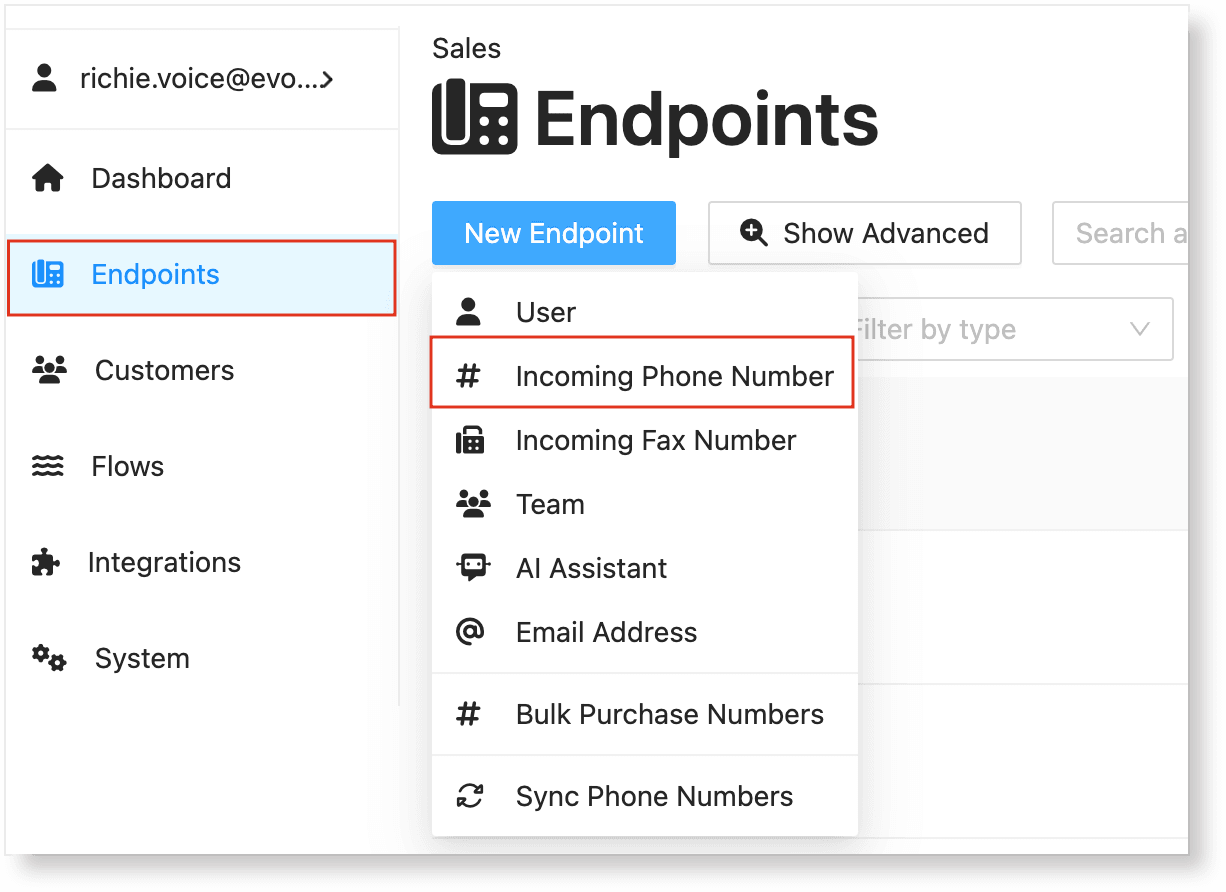
In the Endpoints menu, click New Endpoint and select Incoming Phone Number to purchase a phone number.
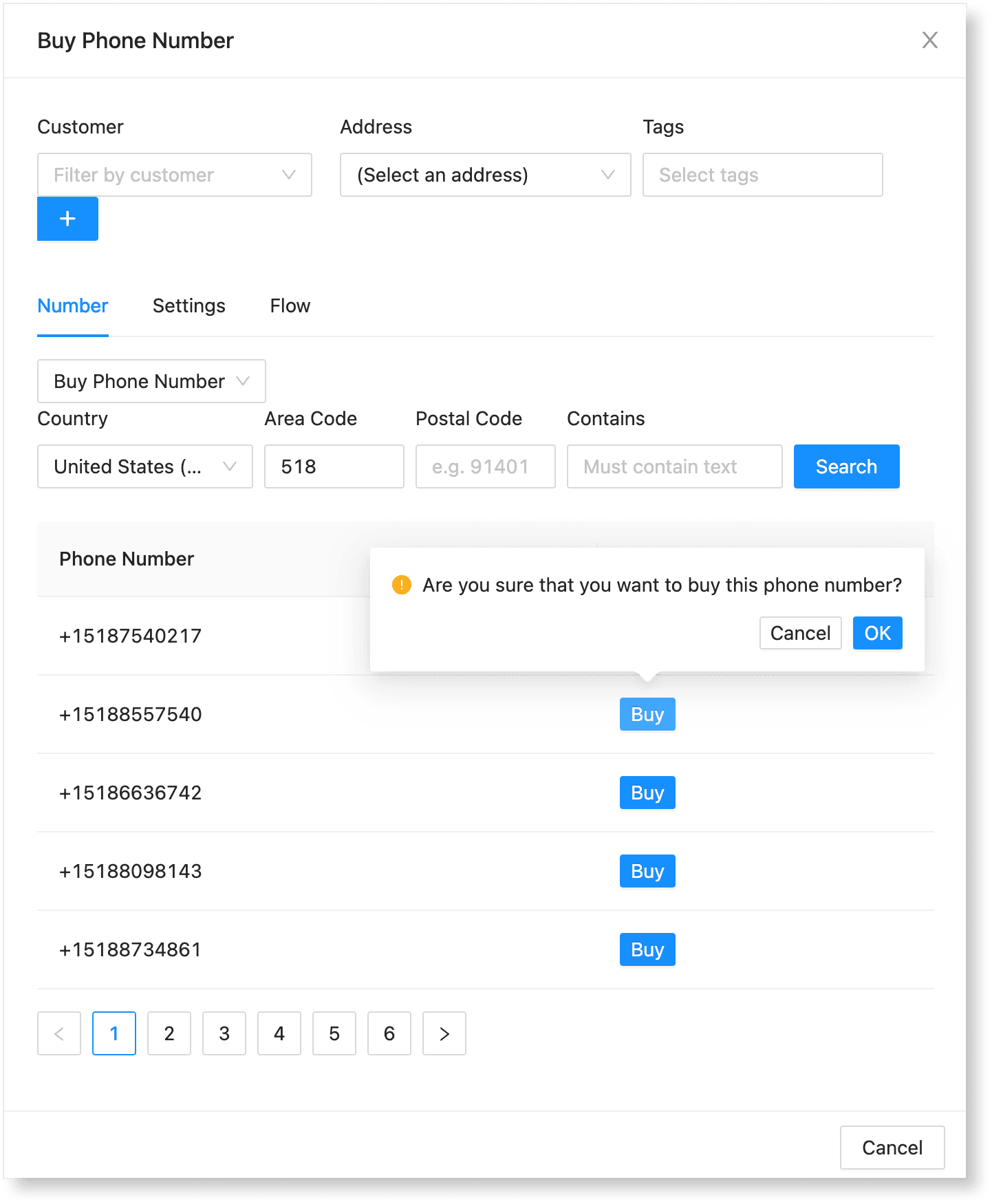
In the Buy Phone Number dialog, search for a number you want to purchase. Use the filters to customize options like area code or postal code, then click Buy to complete the purchase.
2. Create a Flow:
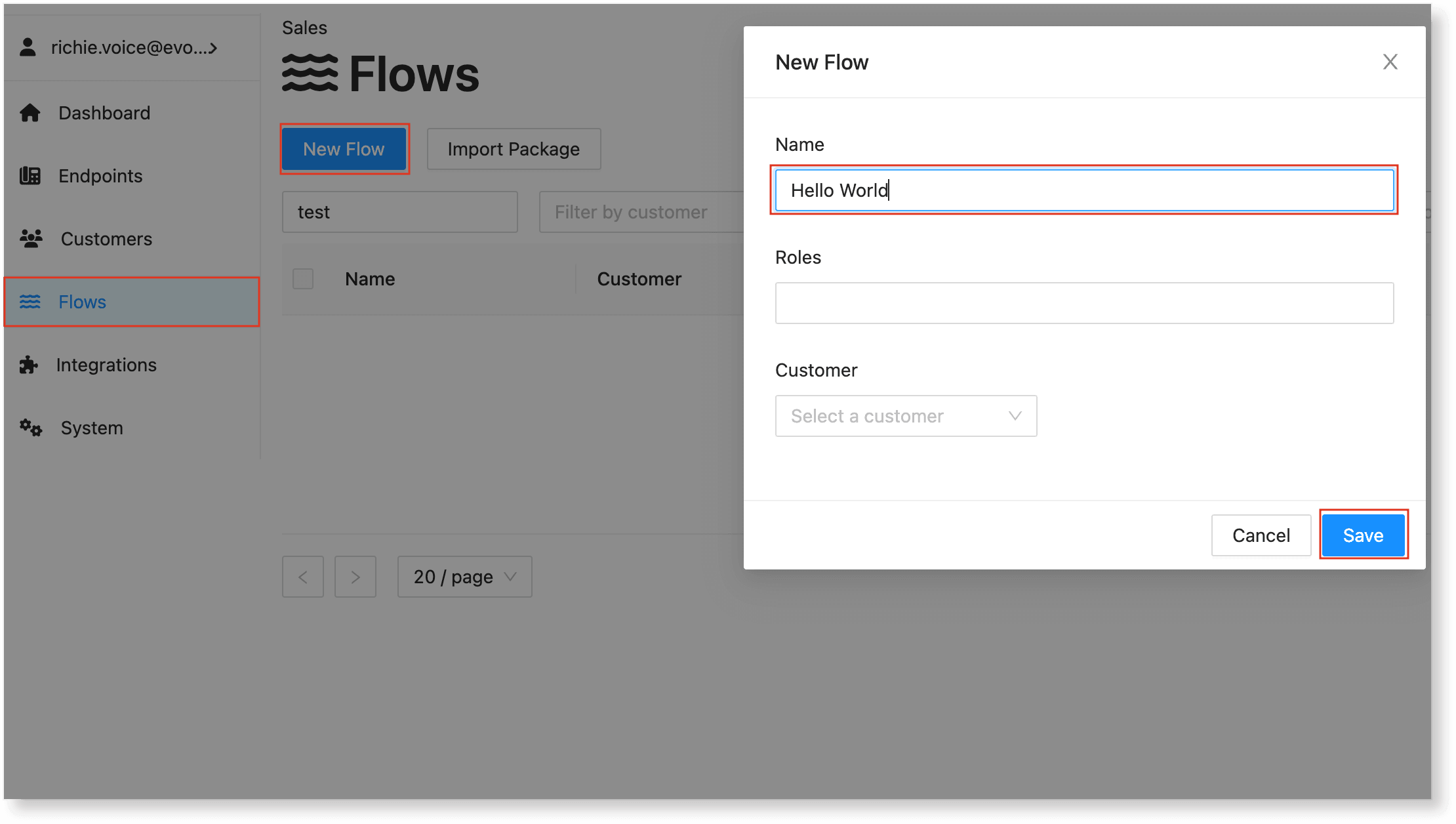
To create the flow, go to the Flows menu and click New Flow. Enter "Hello World" as the flow name, leave the Roles option blank, and click Save.
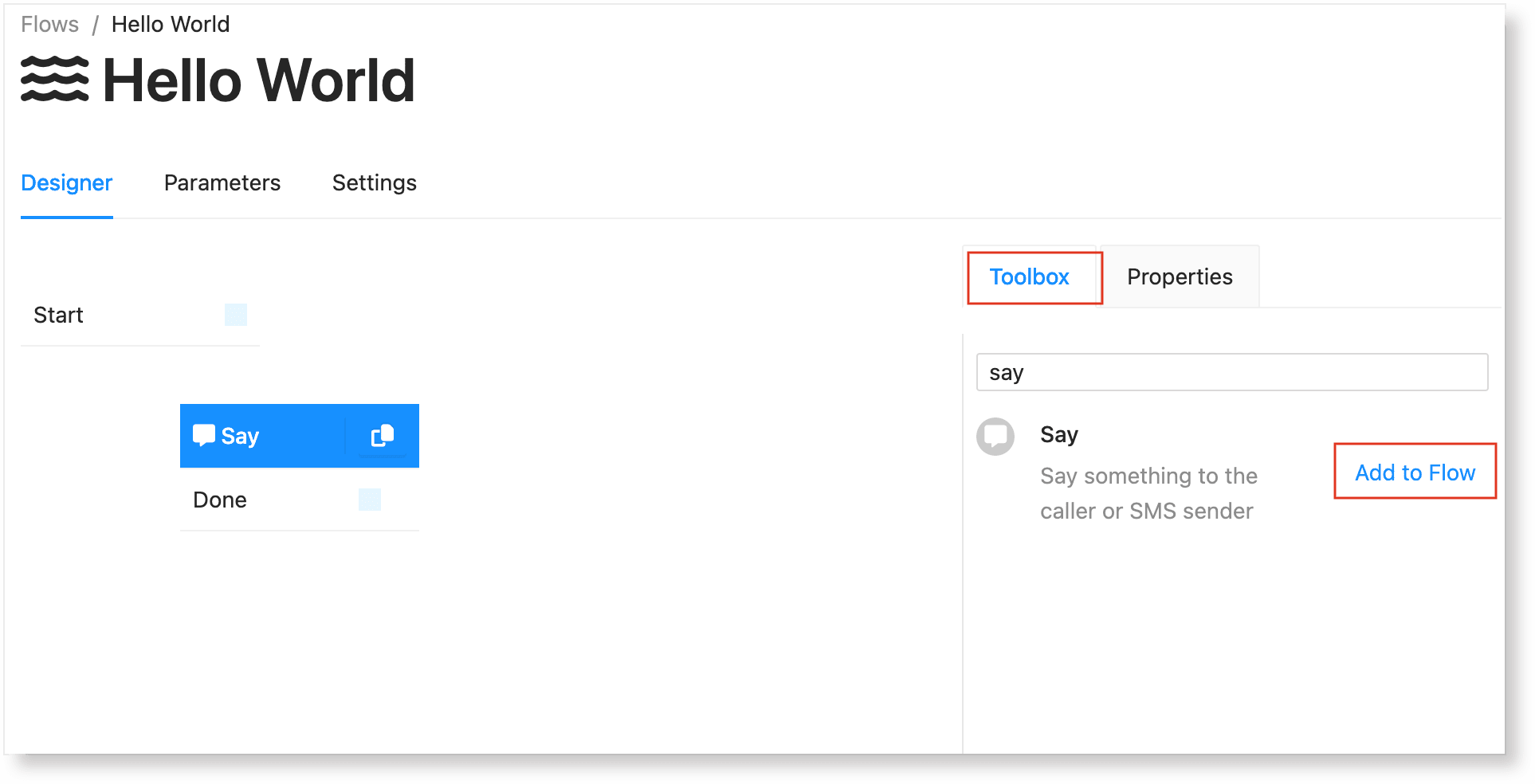
After saving the flow, the designer workspace will open automatically for customization. In the Toolbox, search for the Say node and add it to the flow.
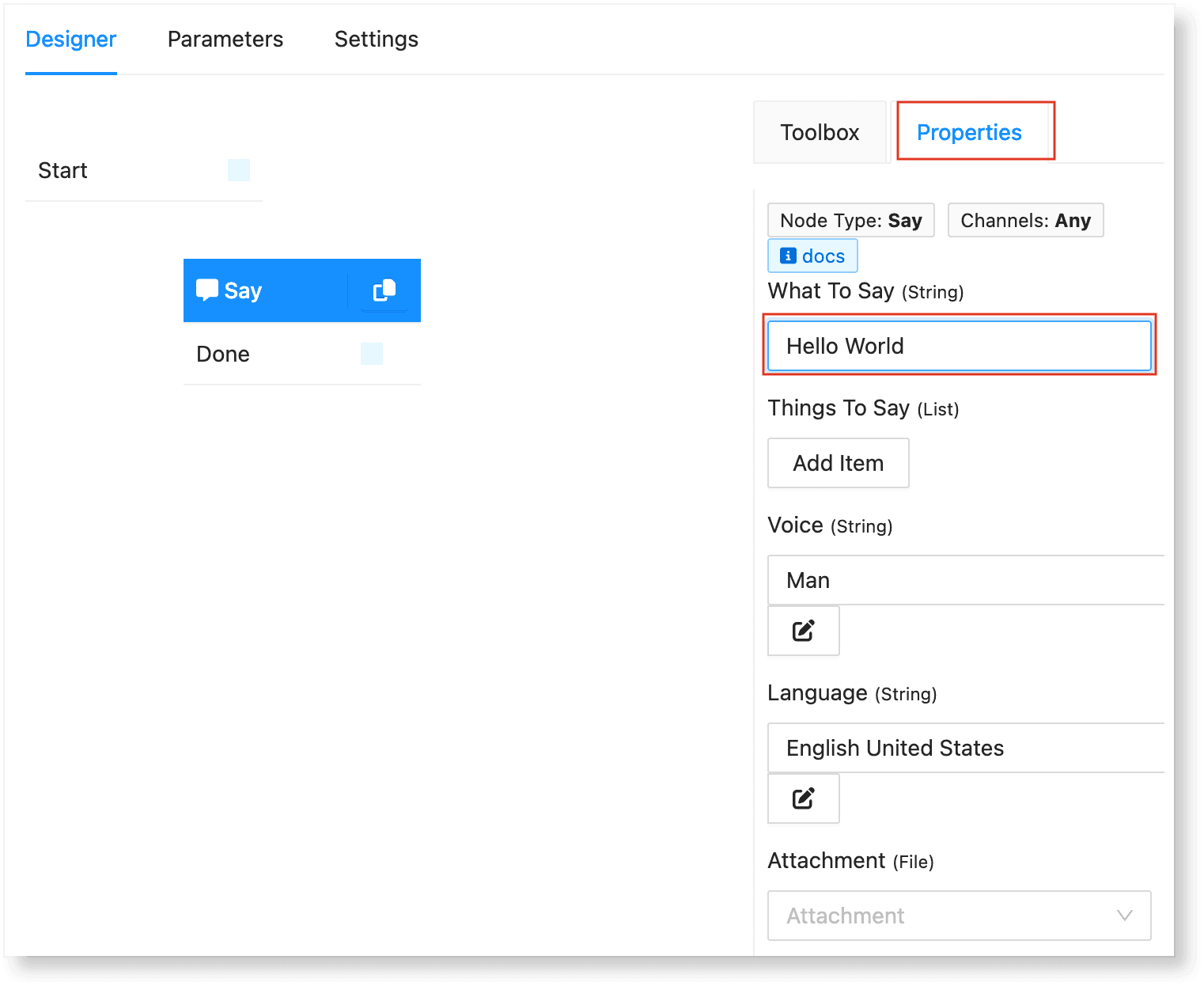
In the Properties tab, enter "Hello World" in the What To Say (String) field. This sets the voice prompt to say "Hello World" when the phone number assigned to this flow is dialed.
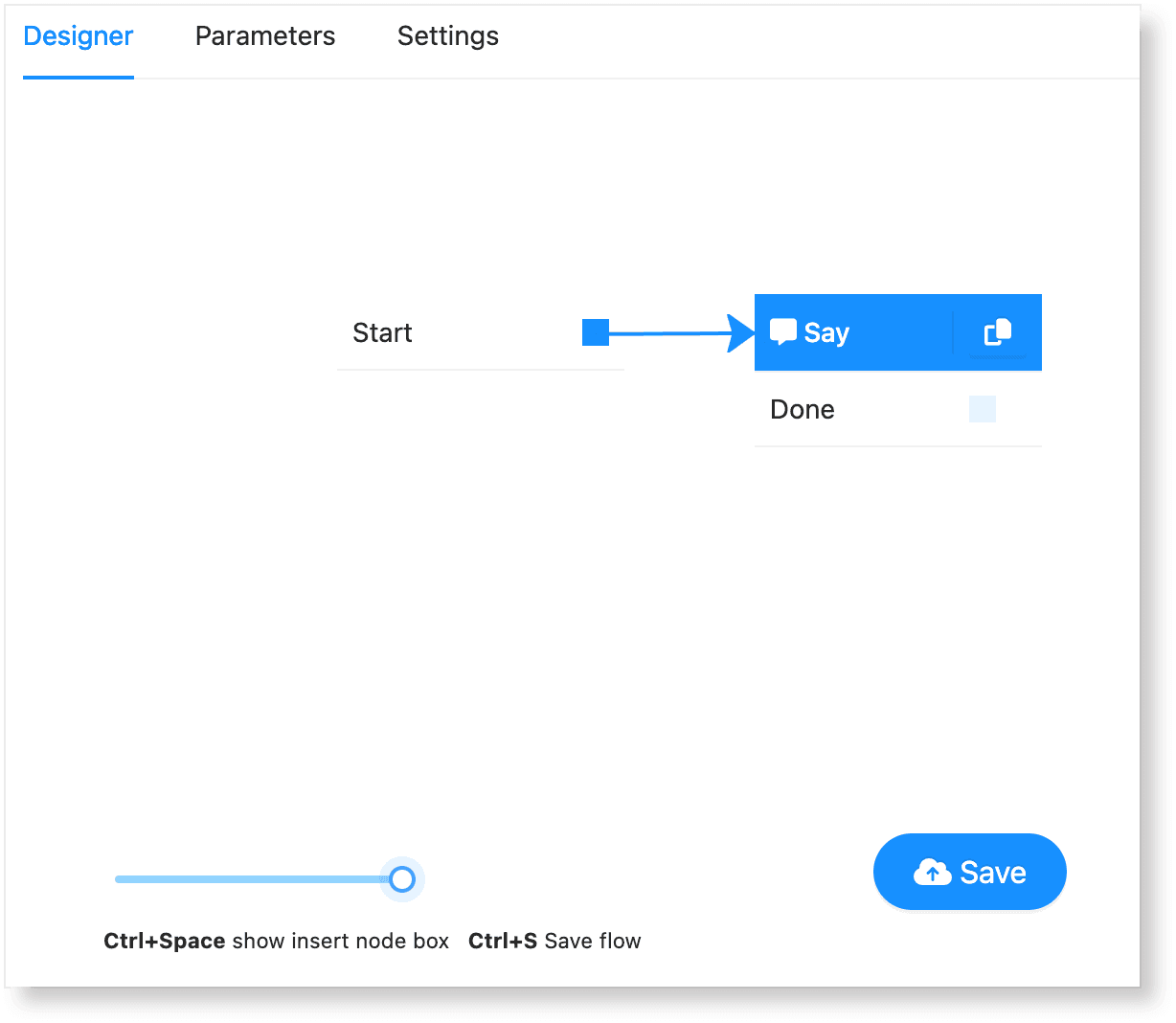
Connect the Start node to the Say node by dragging the blue box from the Start node to the Say node. An arrow will appear, indicating the connection and the flow direction. Then, click Save to save the flow.
3. Assign the Flow to the Phone number:
To assign the flow to the phone number, go back to Endpoints and click the phone number you purchased.
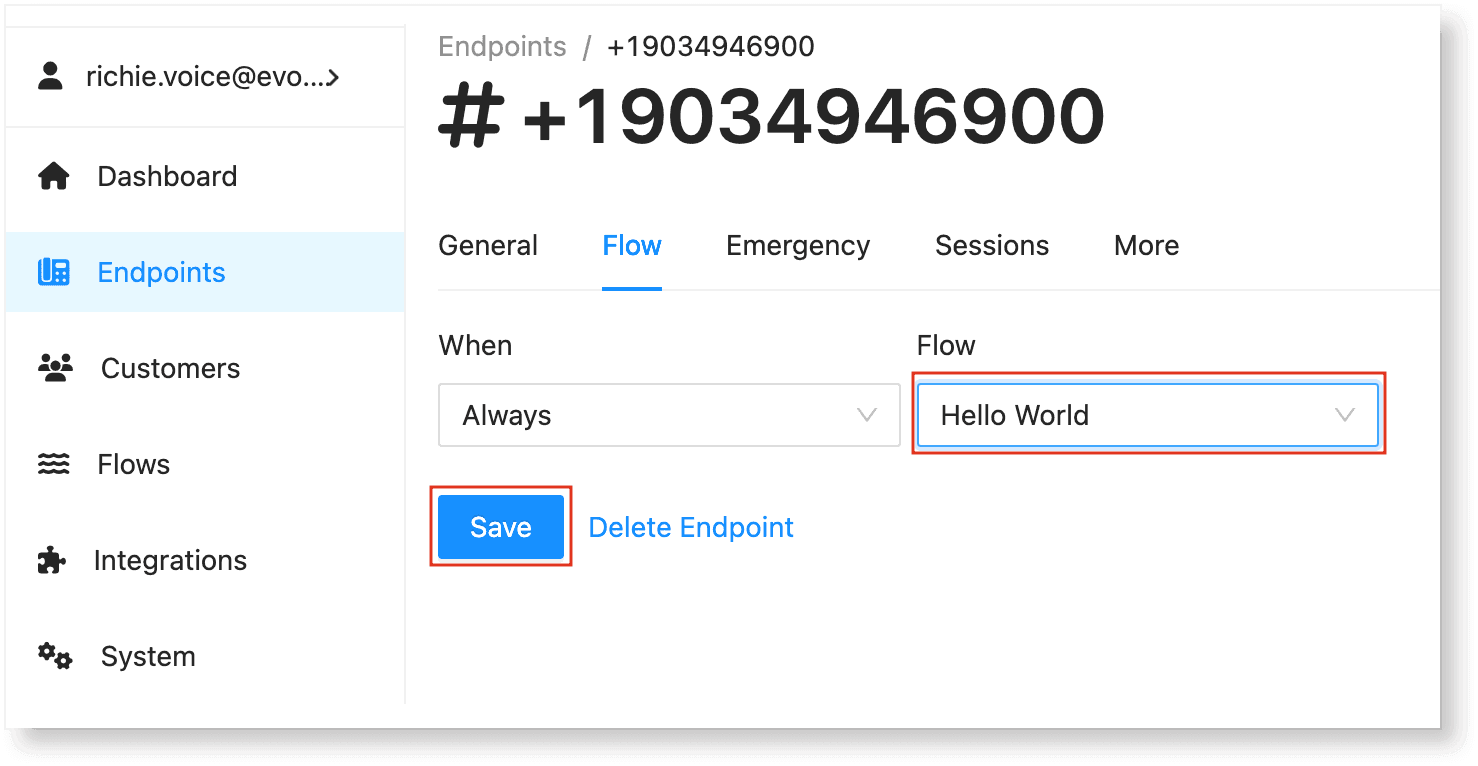
Select the Flow tab, set the When field to Always, then choose the Hello World flow from the Flow dropdown. Save the changes.
Now, when someone dials the number, a system voice prompt will say "Hello World" to the caller. This completes the basic Voice flow. Explore other examples to learn more.