
This guide provides step-by-step instructions for setting up a new phone number in Evo Voice, whether it’s a SIP phone or a softphone.
Request Overview
Clients may request assistance in setting up a new phone number in their system. As an agent, your role is to configure the phone in Evo Voice to match the client’s setup requirements.
Example: A Vitalcare customer requests to add a new SIP phone for extension 4002.
Setting Up a New SIP Phone
Accessing the Customer’s Account
-
Log into the customer’s account in Evo Voice.
-
Use the Search Toolbar to find the customer’s name.
-
Verify if there are any existing users, phone numbers, or extensions based on the request.
Creating a New Endpoint
-
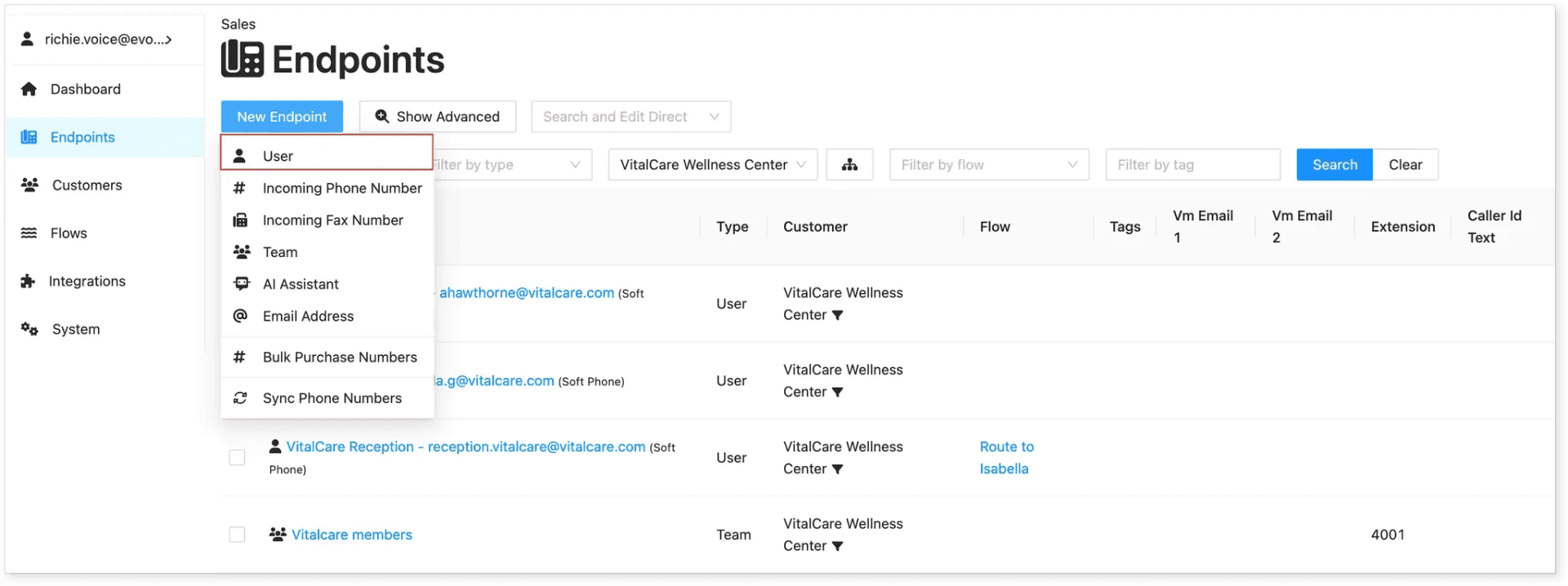
Click New Endpoint and select User.
-
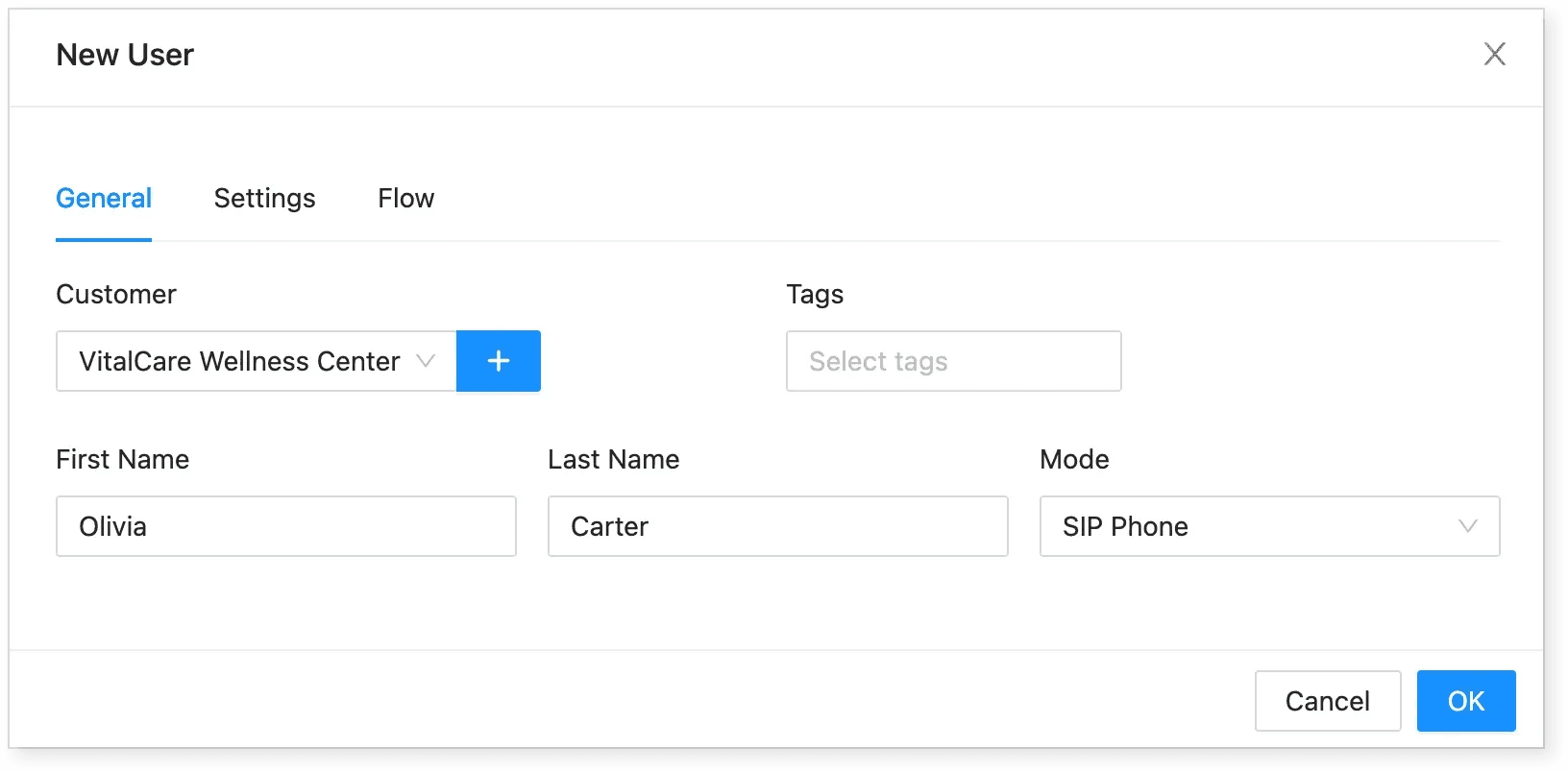
Enter the contact information details.
-
Set SIP Phone as the Mode.
Configuring User Settings
-
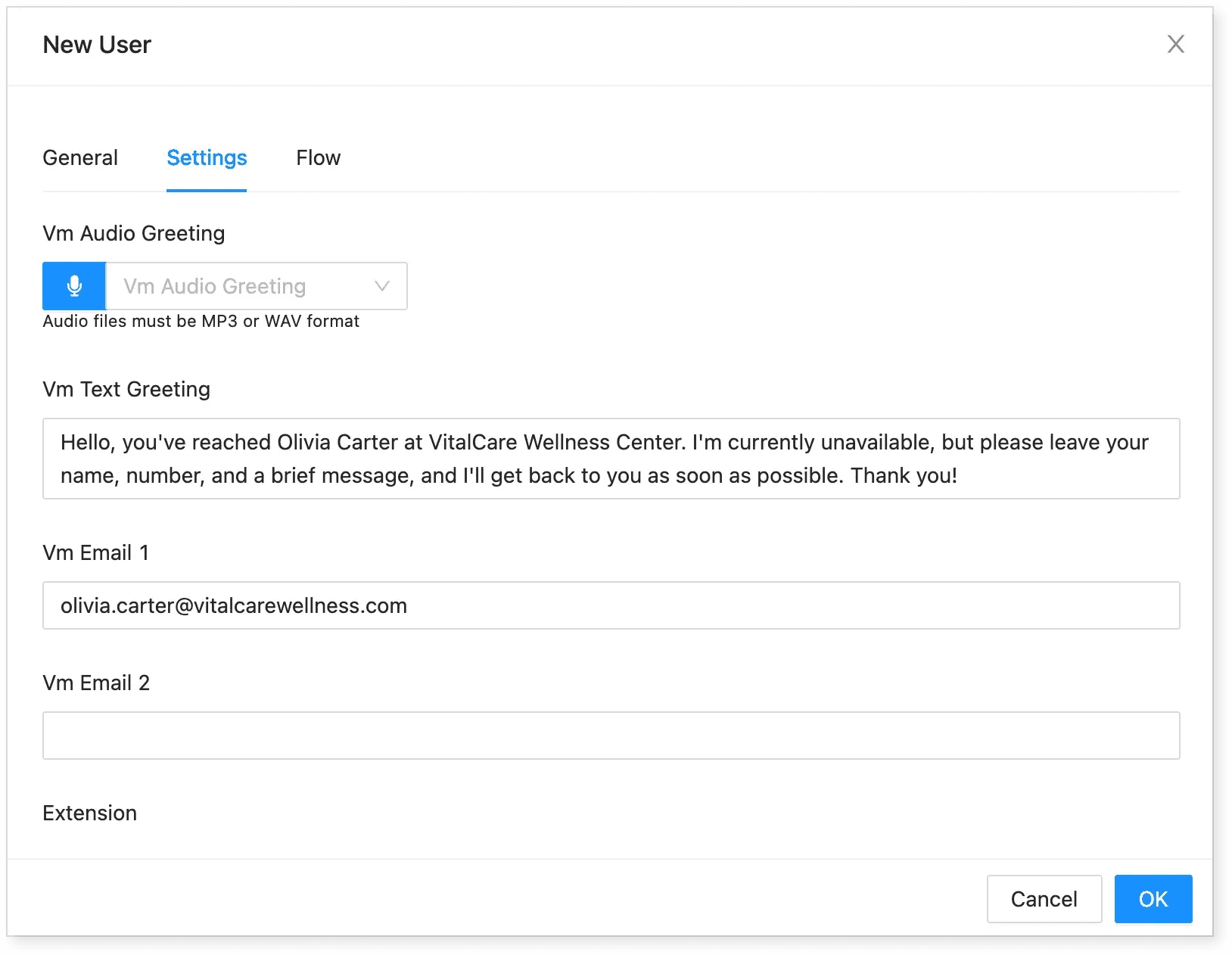
Navigate to the Settings tab.
-
Fill in important details, including:
-
Voicemail Audio Greeting (if available).
-
Voicemail Text Greeting.
-
Voicemail Email Address.
-
Extension Number (e.g., 4002).
-
Caller ID and Caller ID Text.
-
Setting the Call Flow
-
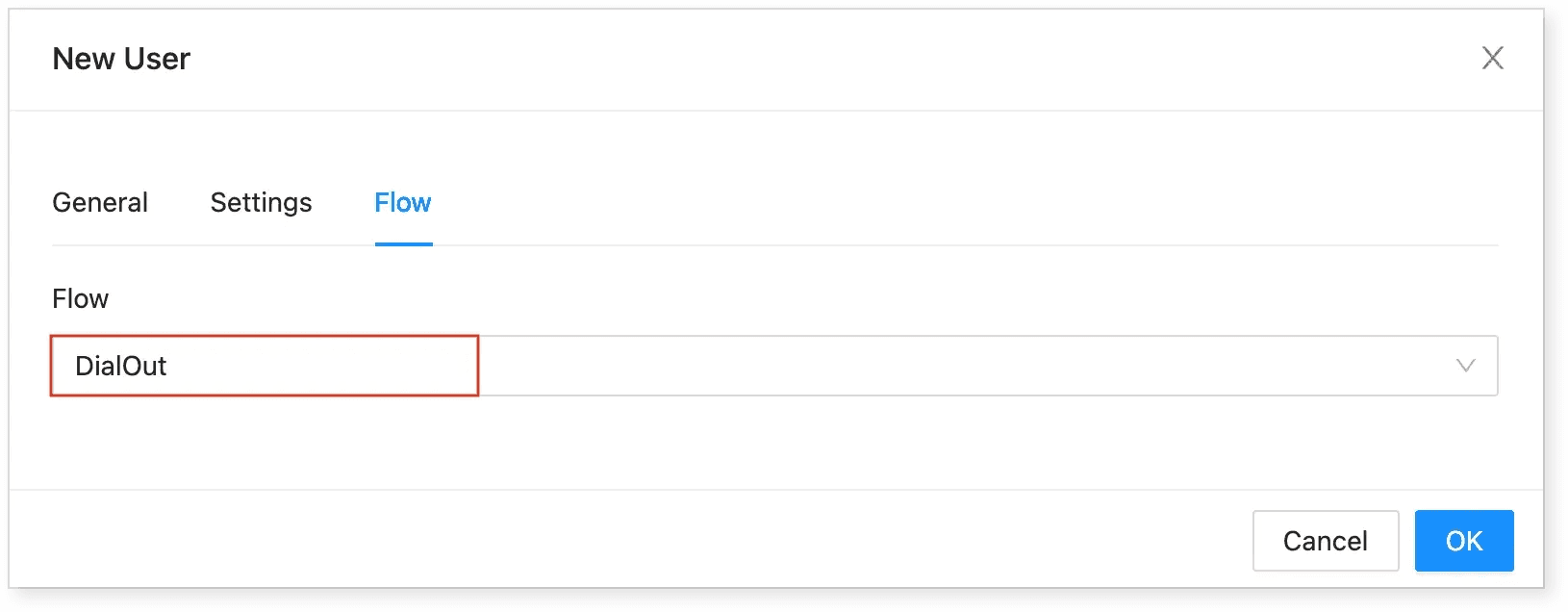
Open the Flow Tab.
-
Set the Flow to DialOut (since this phone can dial out).
-
Click OK to create the user account.
Once completed, a SIP account will be created in the customer’s Voice account, allowing you to configure the SIP phone.
Retrieving SIP Phone Credentials
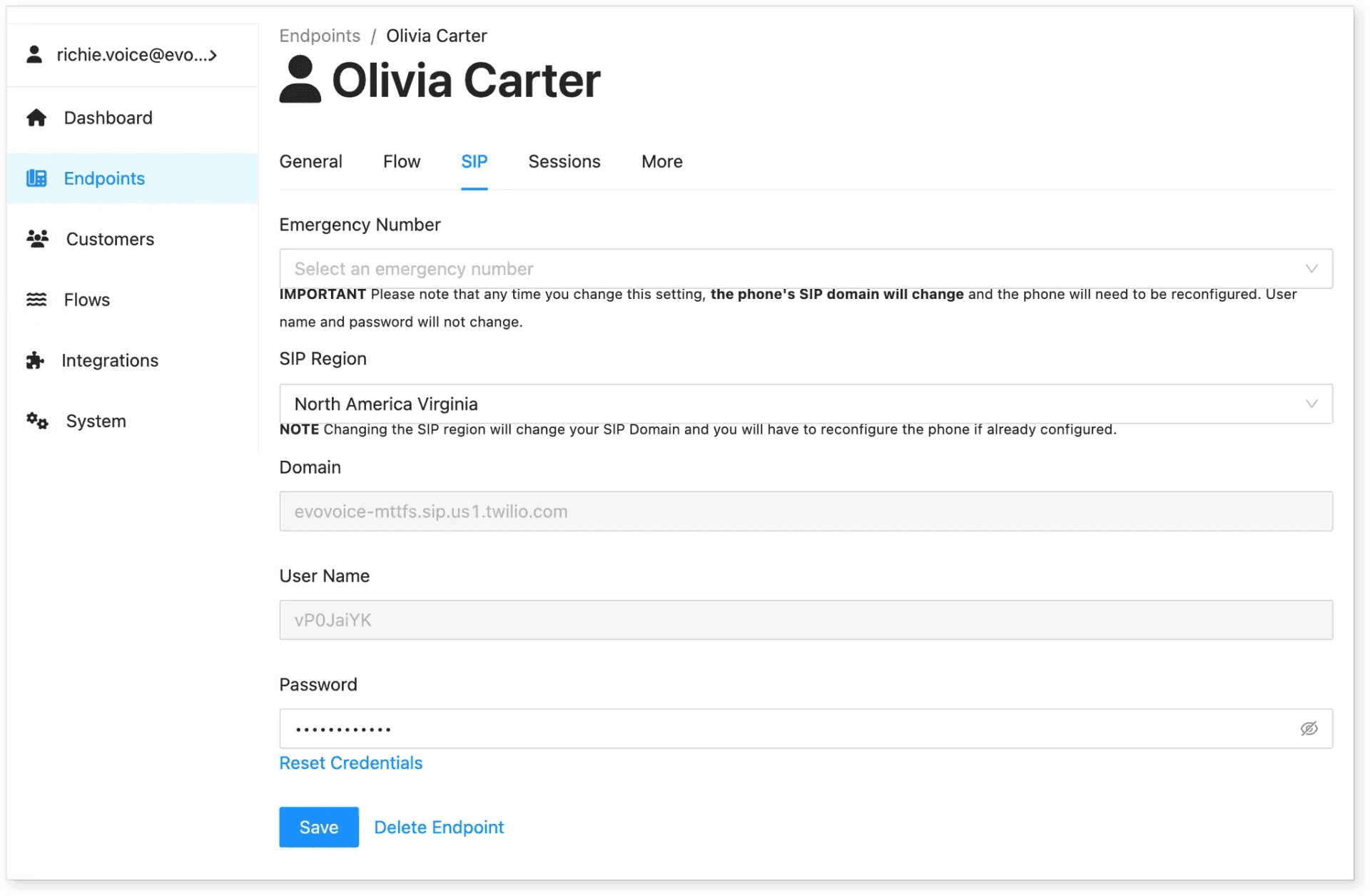
When setting up the SIP phone hardware, you’ll need the user’s SIP credentials:
-
Open the User or Endpoint.
-
Click the SIP tab to reveal details such as:
-
Domain.
-
Username.
-
Password (Click the eye icon to reveal it).
-
Use these details to configure the SIP phone hardware. Depending on the manufacturer, setup instructions may vary. Refer to this guide [LINK] for configuration steps for different devices.
Setting Up a New Softphone
Setting up a softphone follows a similar process as a SIP phone setup.
Creating a New Softphone Endpoint
-
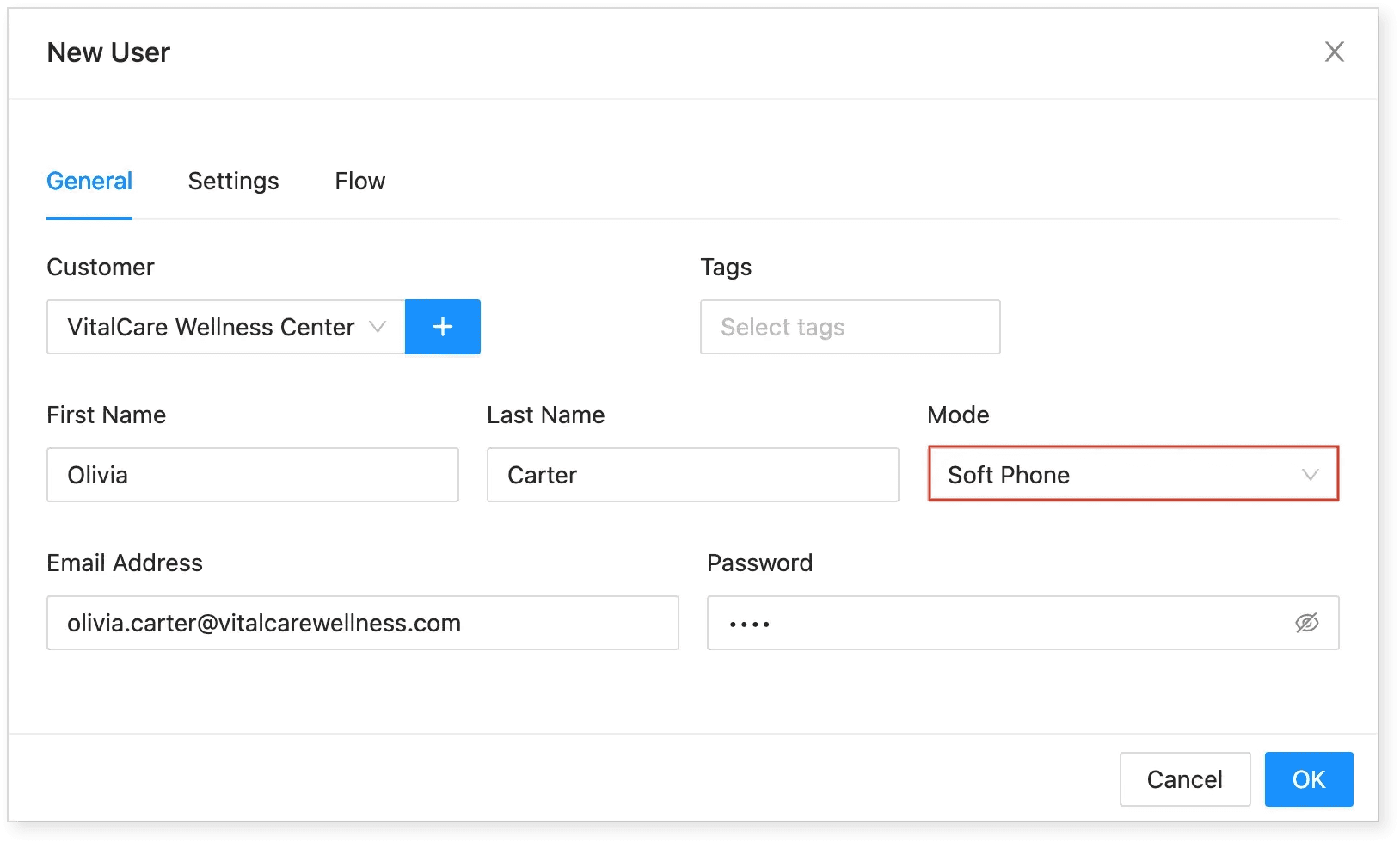
Navigate to Endpoints and click New Endpoint, then select User.
-
Enter the first and last name, email address, and password.
- Note: The email address and password will be used for logging into the app, so ensure the customer saves them.
-
Set the Mode to Softphone.
Configuring Softphone User Settings
-
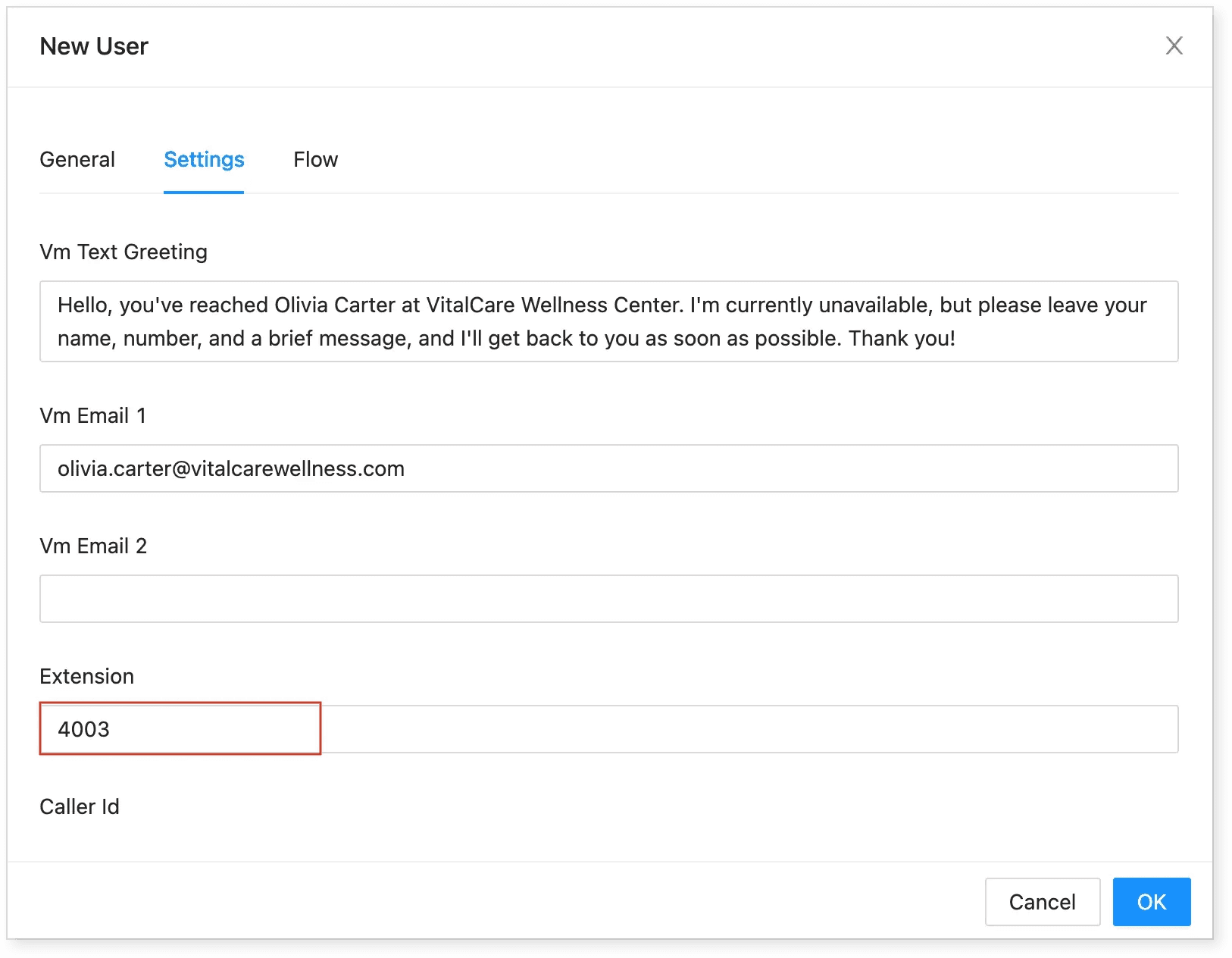
Open the Settings Tab.
-
Enter the following details:
-
Voicemail Text Greeting.
-
Voicemail Email Address.
-
Extension Number (e.g., 4003 - must be unique).
-
Note: When adding a new user, you cannot use the same extension number as an existing user.
Setting the Call Flow for a Softphone
-
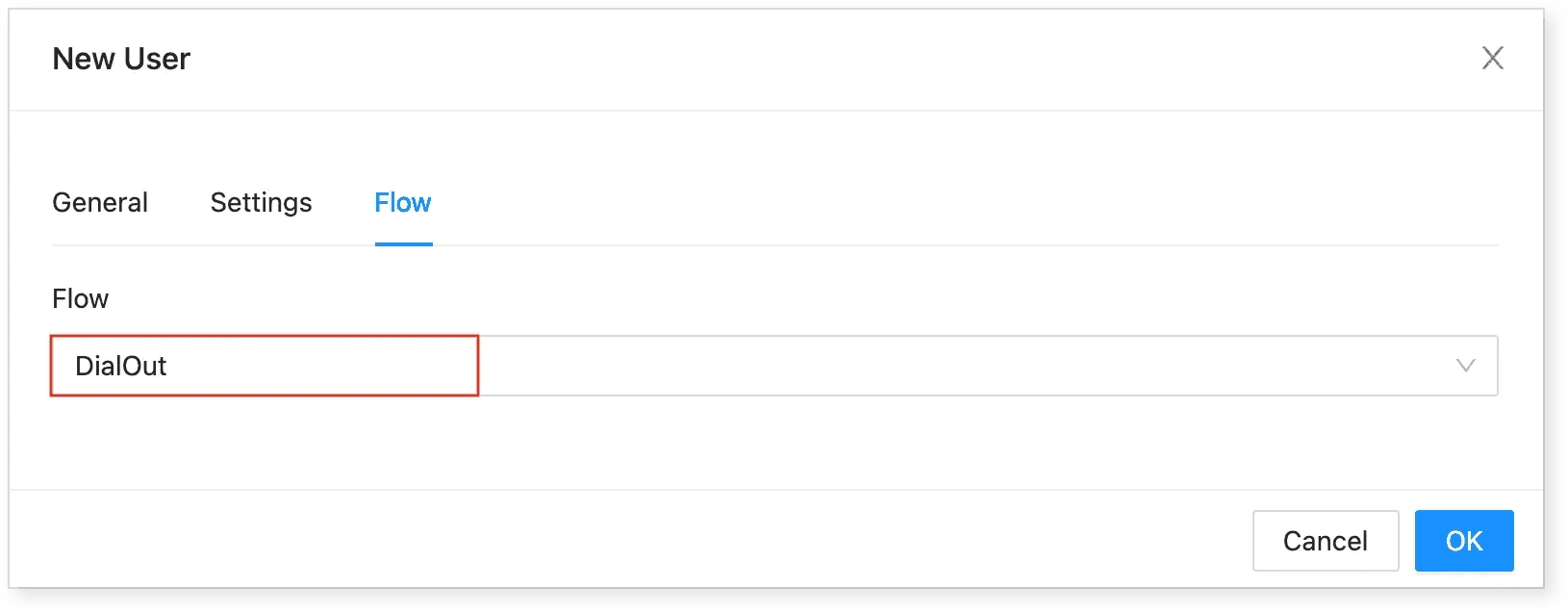
Open the Flow Tab.
-
Set the Flow to DialOut (enables both inbound and outbound calls).
-
Click OK to create the user.
-
Click Save to complete the setup.
Once completed, the new user will appear in the account’s endpoint list.
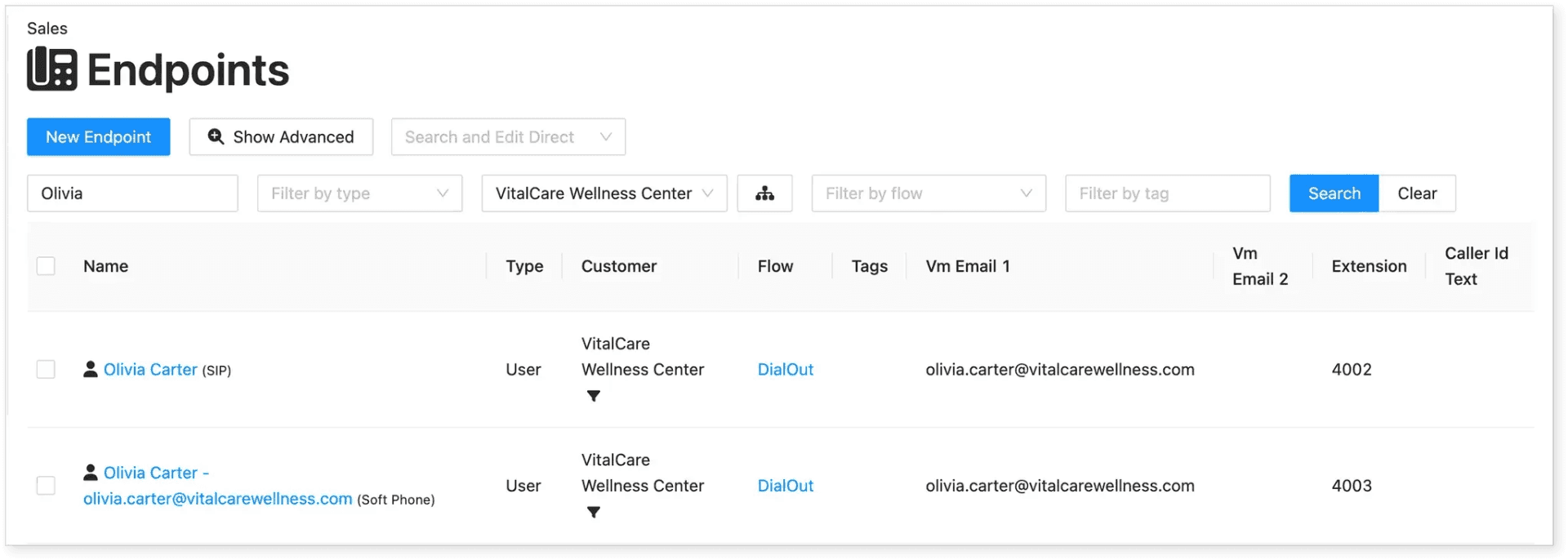
To configure the softphone through an app, users must log in to the Android or iOS app using the email address and password set up during the softphone configuration:
By following these steps, you can successfully set up a new SIP phone or softphone in Evo Voice, ensuring seamless integration with the client’s syst