
Call routing requests can vary depending on different scenarios. To troubleshoot or update a client’s request, the first step is to check the phone number's current configuration in Evo Voice.
Below, we’ve outlined some of the most common routing issues and how to resolve them.
1. Calls Are Routed to Voicemail Instead of the Main Line
Scenario:
The client reports that calls are going directly to voicemail instead of the main line or front desk.
Solution:
-
Open Evo Voice and locate the affected phone number.
-
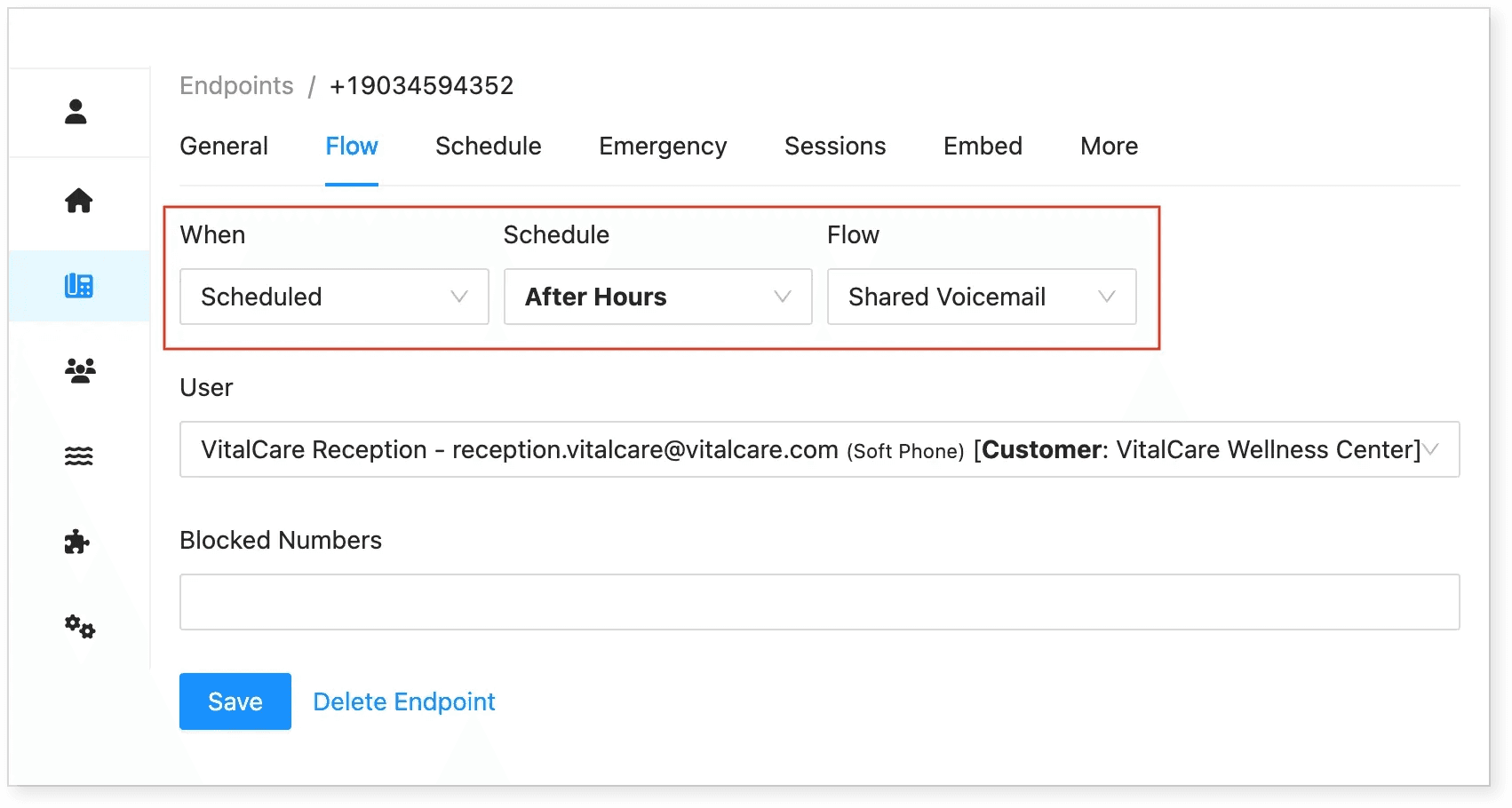
Navigate to the Flow tab to check its current configuration.
-
Look for scheduled routing settings that may be causing the issue.
📌 Example: If a call is scheduled to be redirected to voicemail after hours, it will follow this rule.
To further verify, go to the Customer section to review the business hours settings.
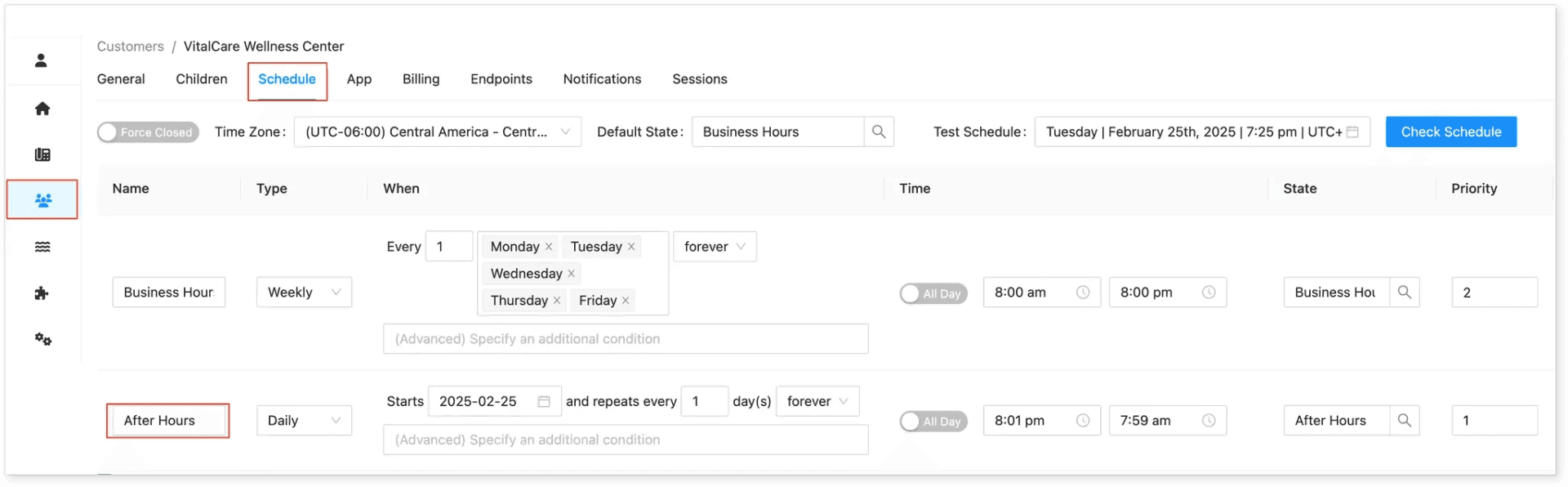
Common Cause:
-
The call routing was intentionally set up for a holiday or after-hours.
-
The settings were not reverted after the special event.
Fix:
-
Update the Flow configuration to ensure calls route to the mainline or front desk during business hours.
-
Example of an updated Flow:
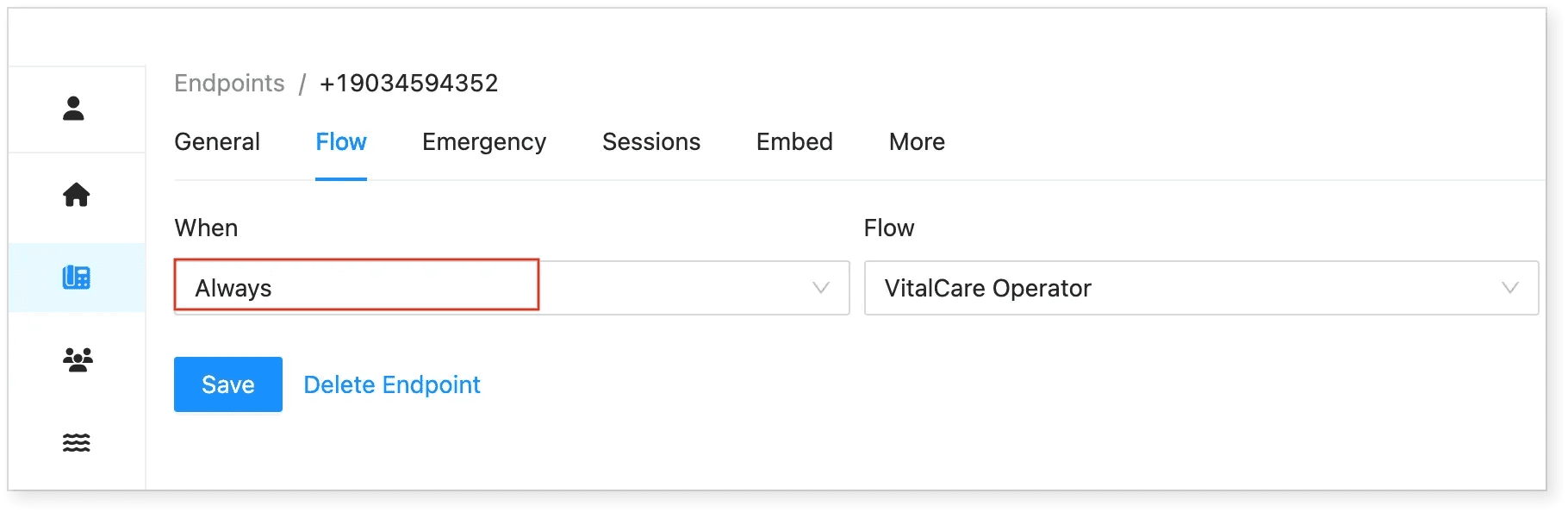
✔ Calls now route directly to the VitalCare Operator (mainline).
2. Forwarding Calls to a Different Number
Scenario:
The client requests to forward calls to a different phone number, often due to:
-
A number change
-
A staff member being unavailable
-
A temporary reroute for holidays or special events
Solution:
-
Open Evo Voice and locate the affected phone number.
-
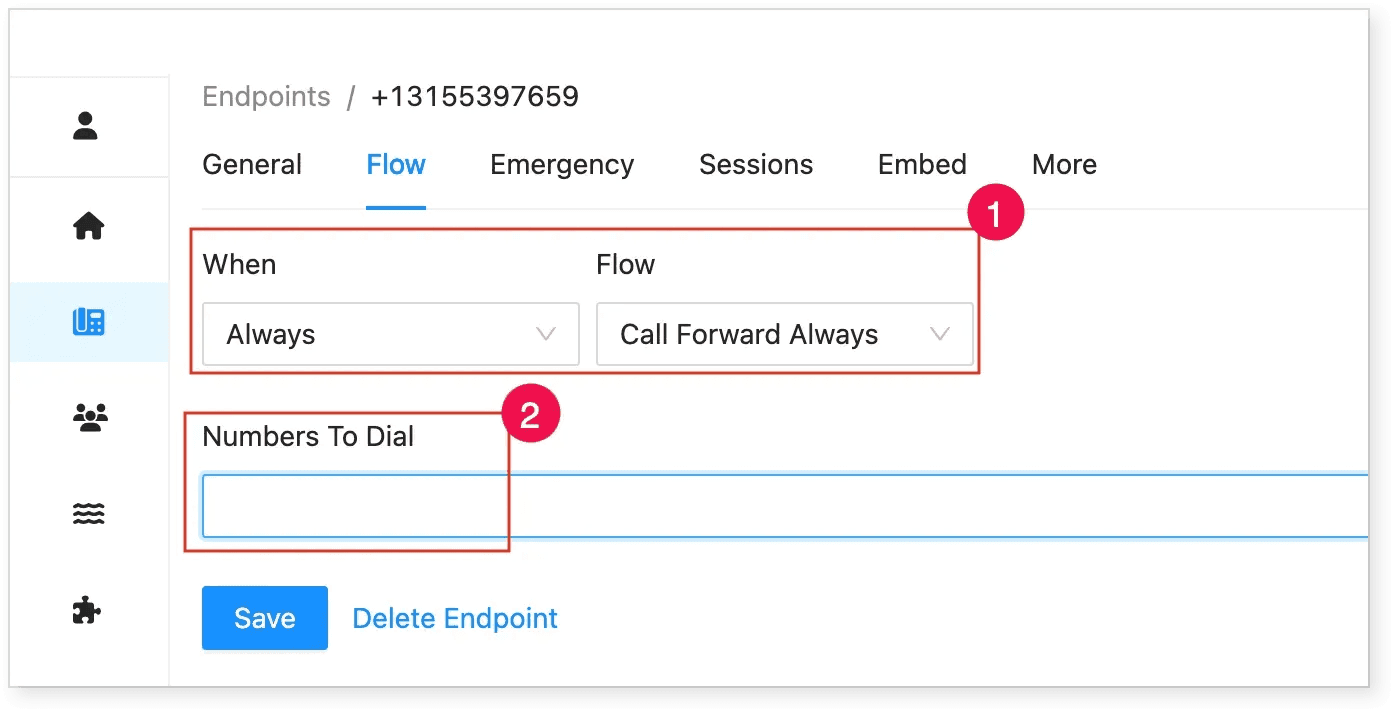
Go to the Flow section.
-
Update the settings:
-
When: Always
-
Flow: Call Forward Always (or equivalent)
-
Numbers to Dial: Enter the new forwarding number
-
-
Save the changes.
3. Routing Calls to Multiple Numbers in Sequence
Scenario:
The client wants calls to be routed to multiple phone numbers sequentially. If one number is busy, the call should be forwarded to the next available number.
Solution:
-
Open Evo Voice and go to the Flow section.
-
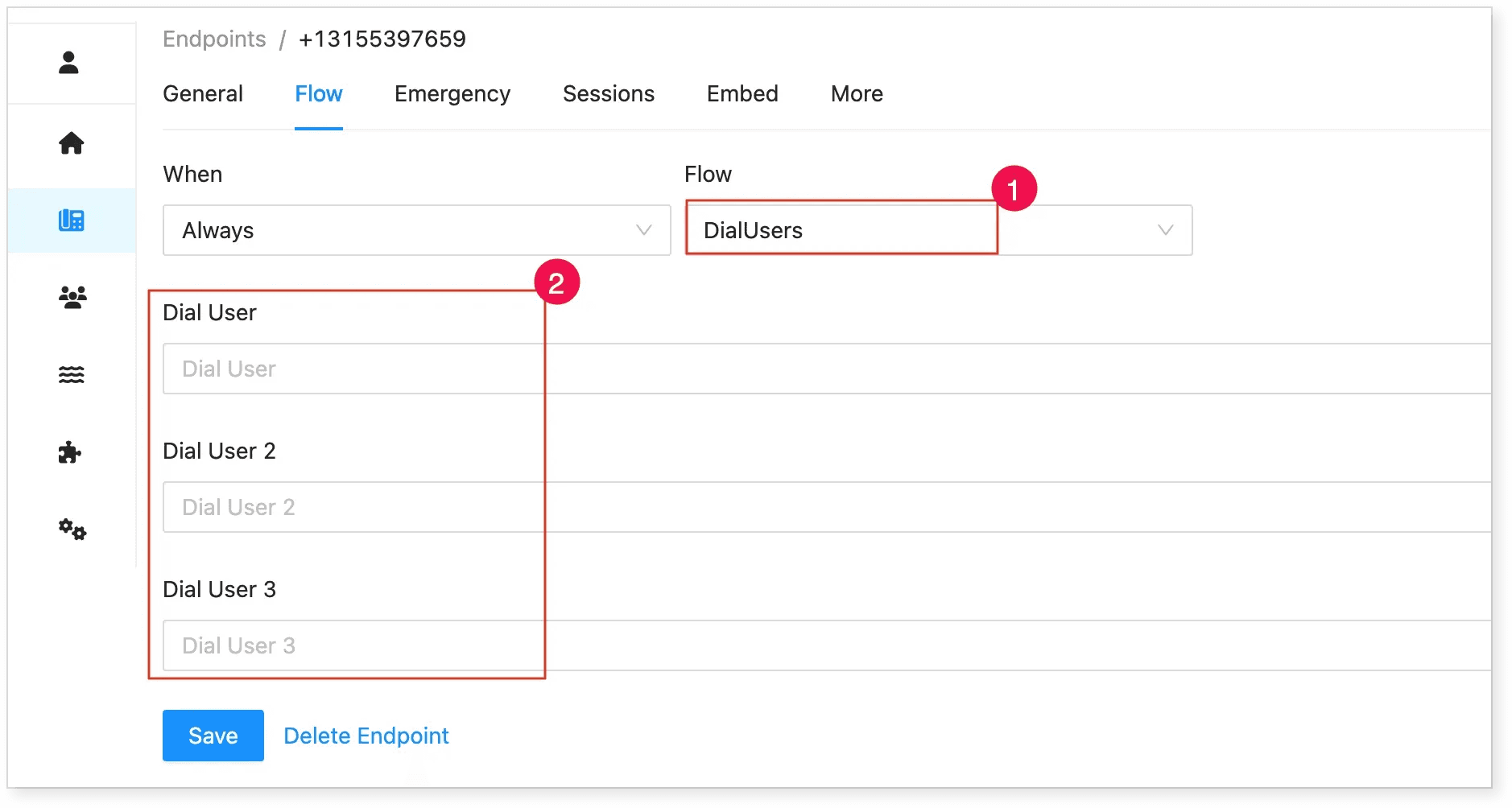
Set up a DialUsers flow, which allows calls to be redirected to multiple users.
-
Update the Flow settings:
-
When: Always
-
Flow: DialUsers
-
-
Adjust the number of users based on the client’s request.
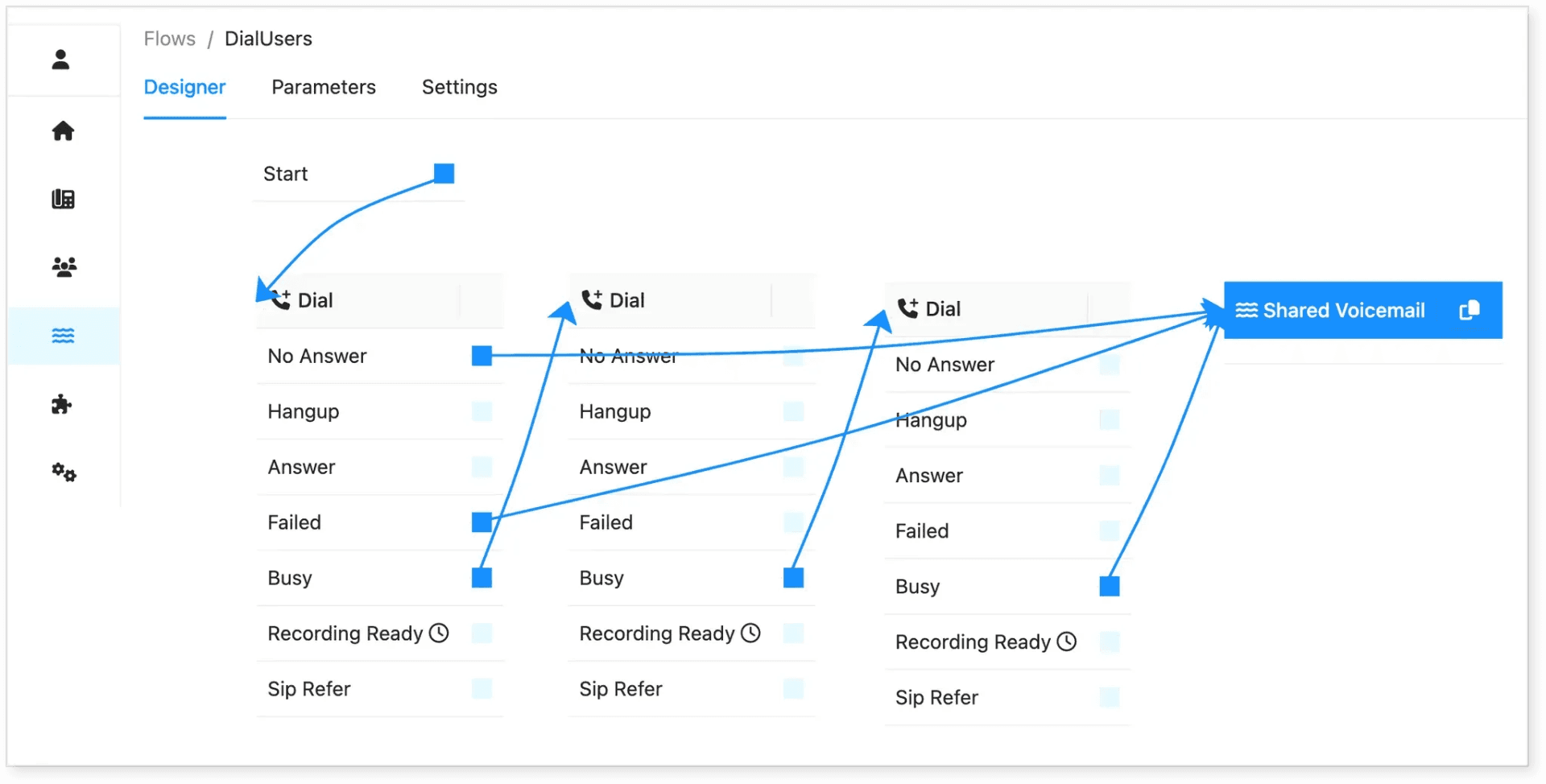
📌 Example: Calls will attempt each number in sequence until one answers. Here’s a sample flow:
4. Routing Calls to Voicemail During Business Hours
Scenario:
The office is closed during business hours (e.g., holidays or staff unavailability), and calls should go directly to voicemail.
Solution:
-
Open Evo Voice and locate the affected phone number in the Endpoint tab.
-
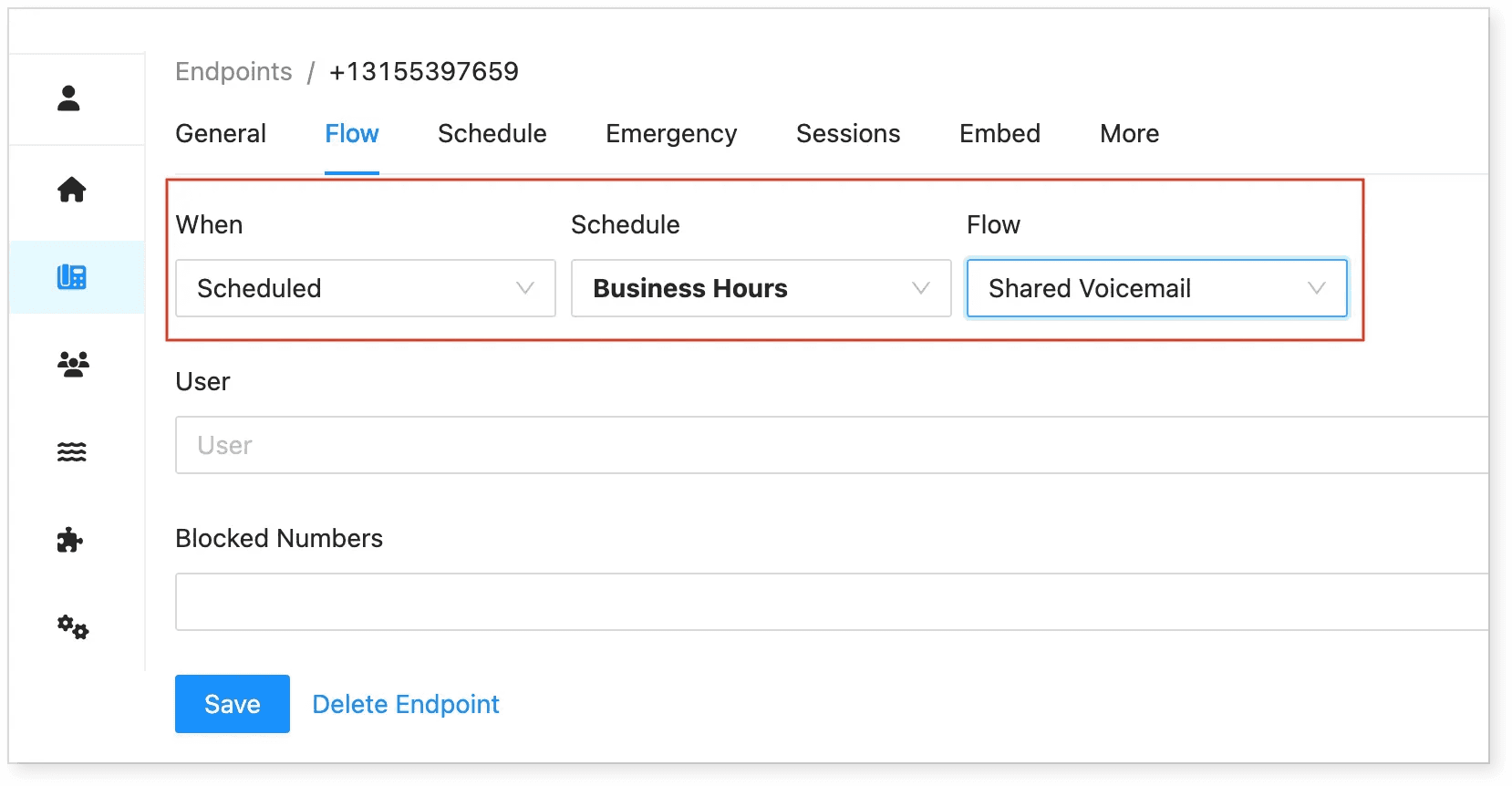
Click on the Flow tab and update the settings:
-
When: Scheduled
-
Schedule: Business Hours (or a custom schedule)
-
Flow: Shared Voicemail
-
-
Save the changes.
5. Handling Cancelled Phone Numbers
Scenario:
A client reports that a specific phone number is canceled and no longer active.
Solution:
-
Open Evo Voice and locate the affected phone number.
-
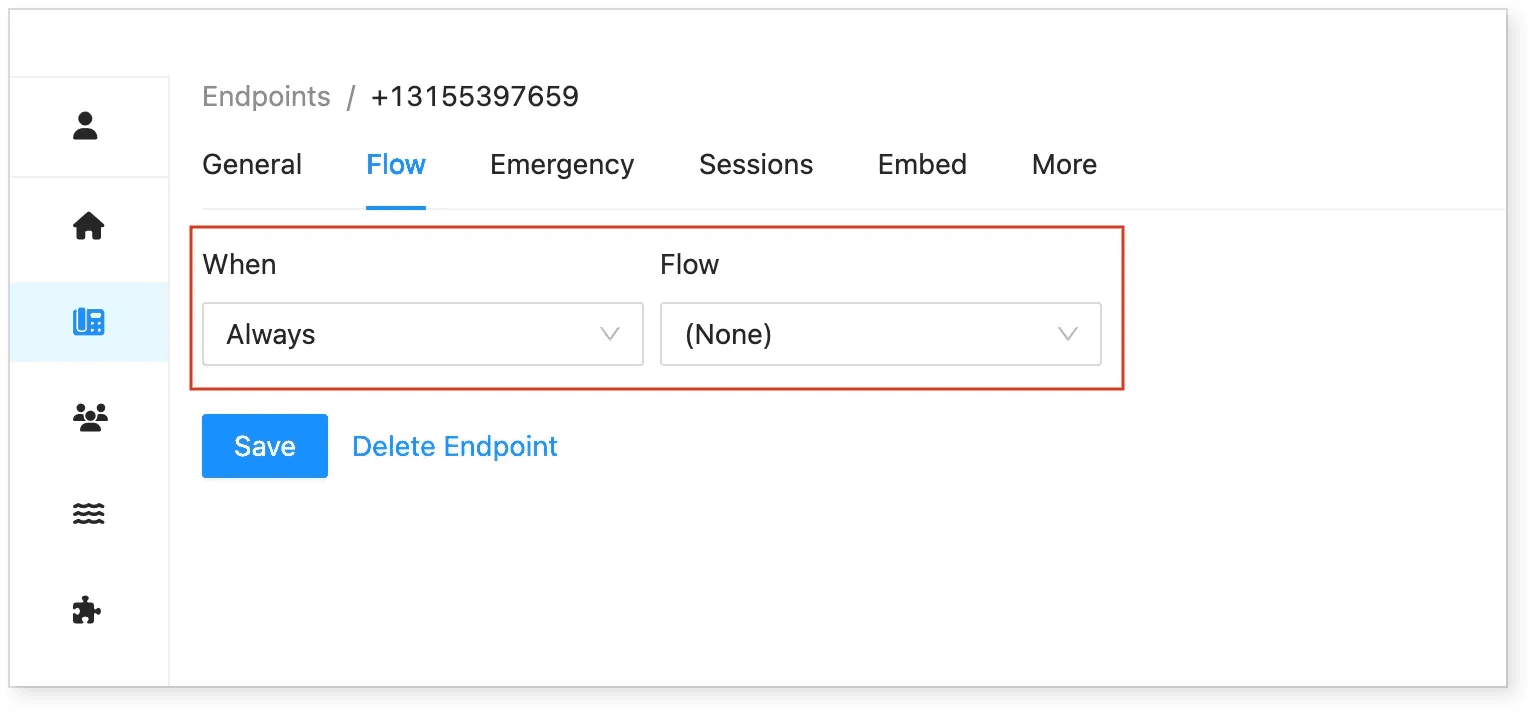
Set the Flow configuration to None.
-
Once updated, calls to this number will no longer be processed by Evo Voice.
✅ Summary:
-
Check the Flow configuration to identify the issue.
-
Verify schedules to see if a holiday or custom rule is in place.
-
Update the Flow settings to ensure calls are routed correctly.
-
Set forwarding rules based on client requests.
-
Disable routing for canceled numbers to prevent unwanted calls.