
Setting up Conference Bridge
This guide introduces setting up a conference bridge, allowing multiple people to call the same number and connect via a conference call. A common use case is a team meeting where multiple staff members need to join a voice call. For added security, a PIN will be required for access to the conference call.
1. Create a flow
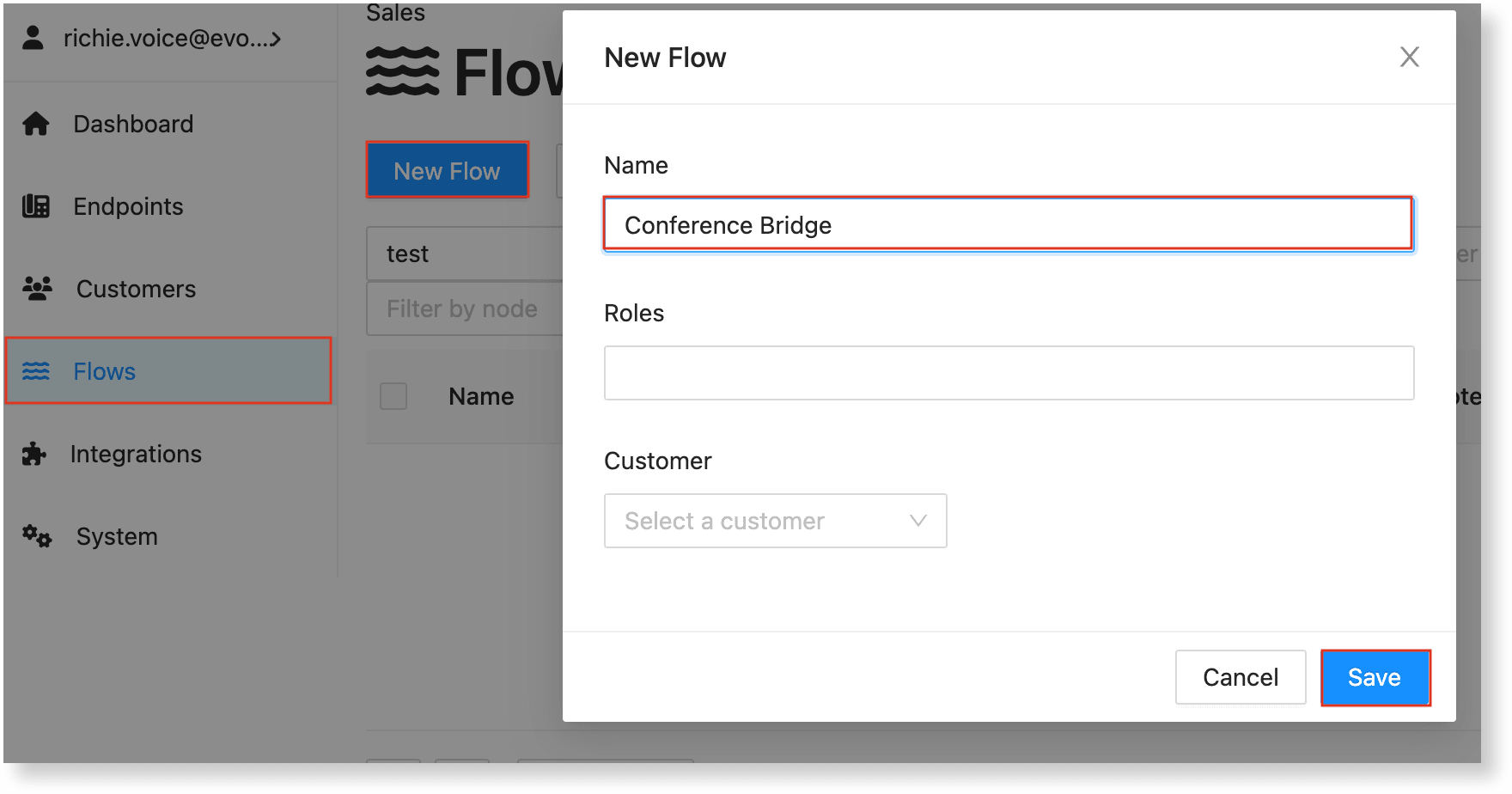
Start by creating a new flow and naming it "Conference Bridge," then click Save.
Add Parameters to the Flow
-
To customize the conference call experience, we'll define key aspects of how the conference is handled by adding three parameters: Greeting, PIN, and Conference Name.
-
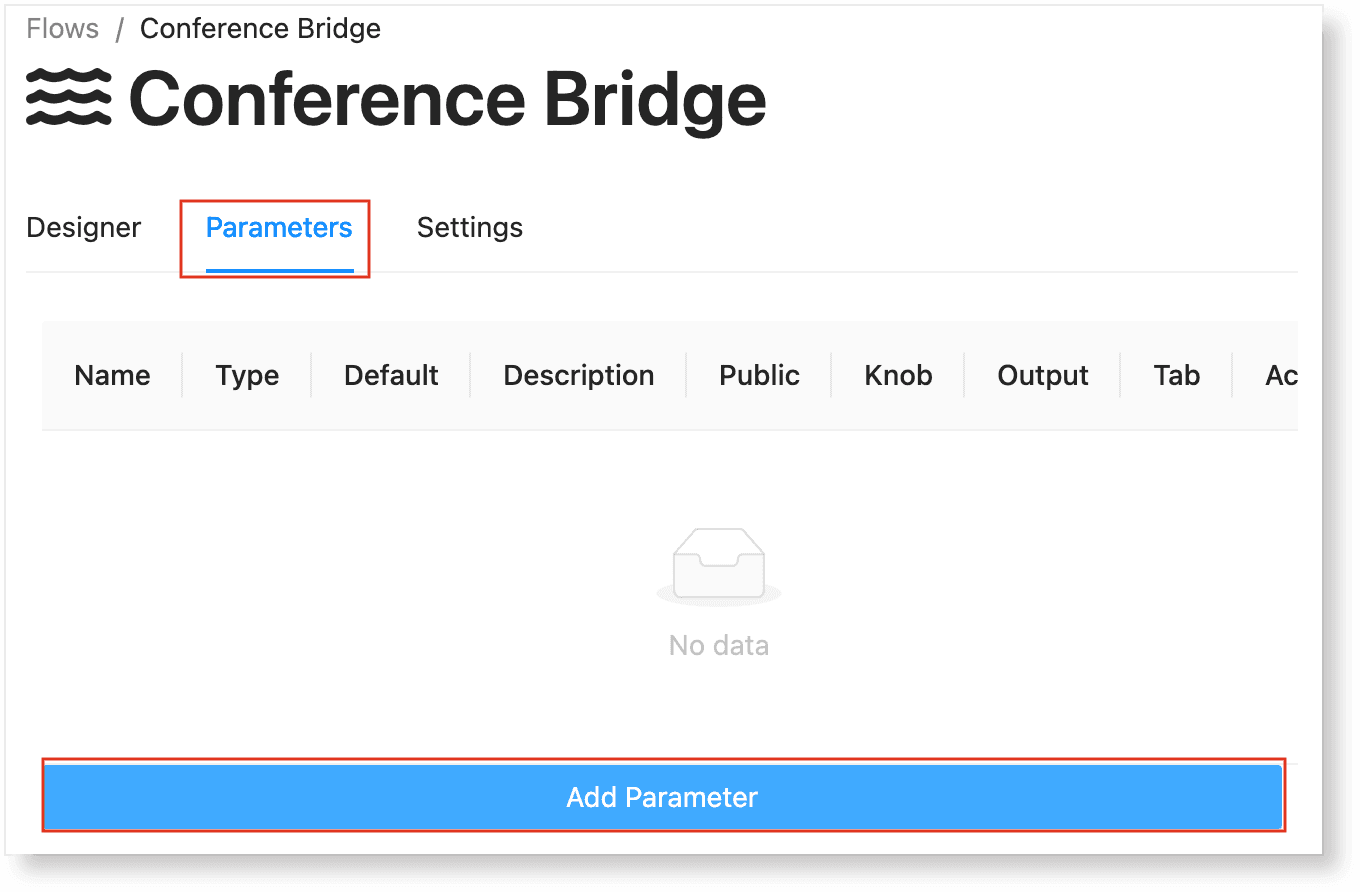
While in the designer view of the flow, click the Parameters tab and then click Add Parameter.
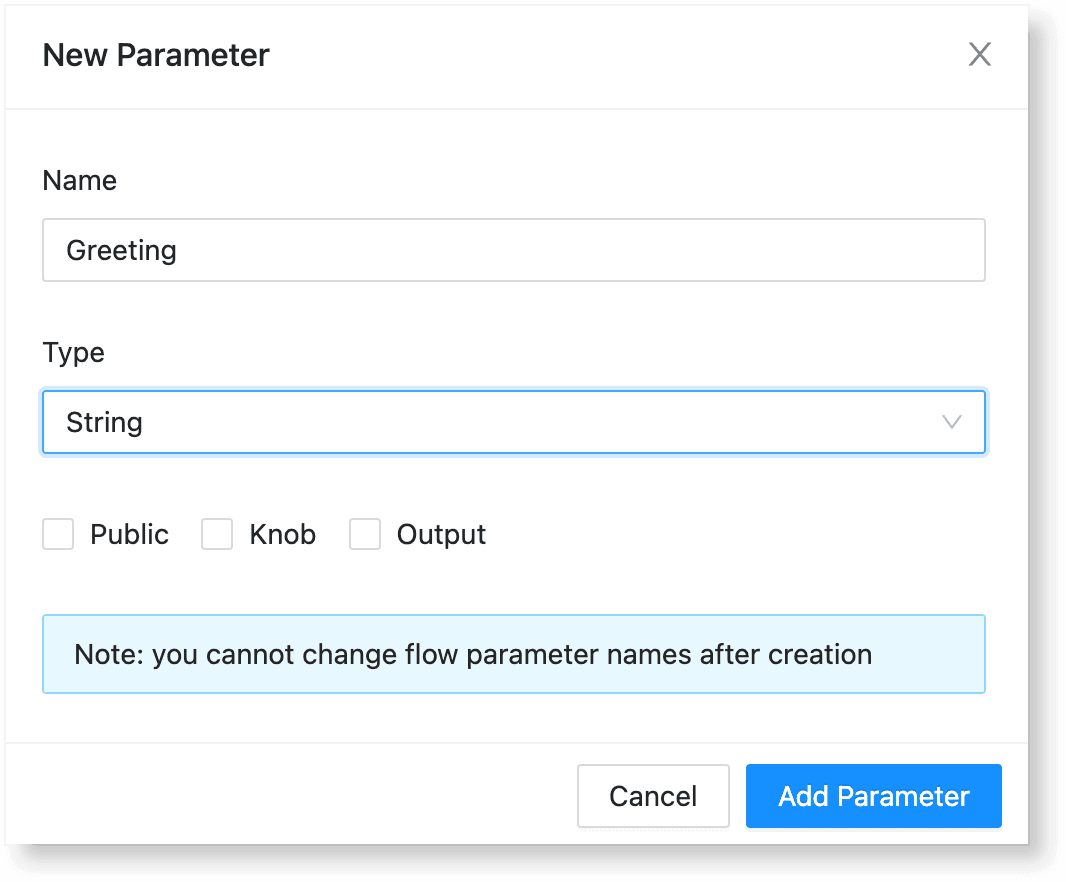
- Enter the name of each parameter and select String as the type. Apply the same settings to all three parameters: Greeting, PIN, and Conference Name.
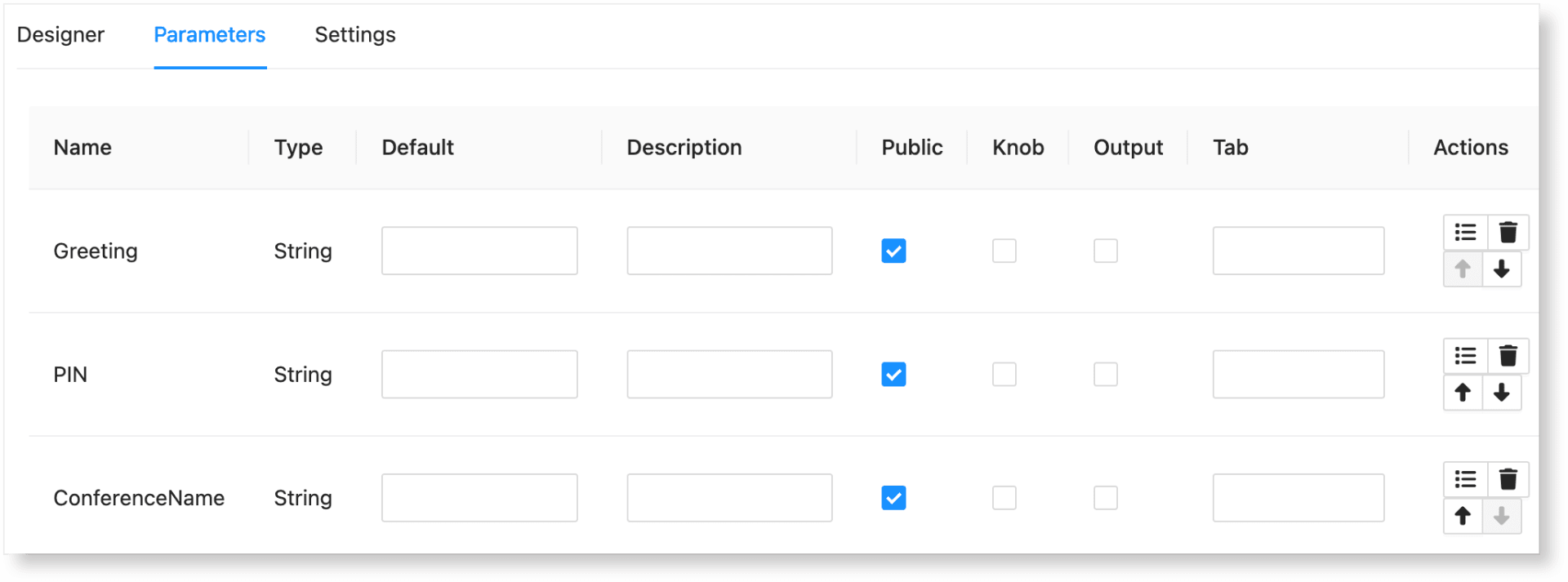
- After adding all three parameters, you should see something similar to the image below:
2. Add Nodes
Next, we will customize the flow by adding a Prompt node. This will play a voice prompt when a call is initiated, asking the caller to enter the correct PIN.
Add the Prompt node to the flow.
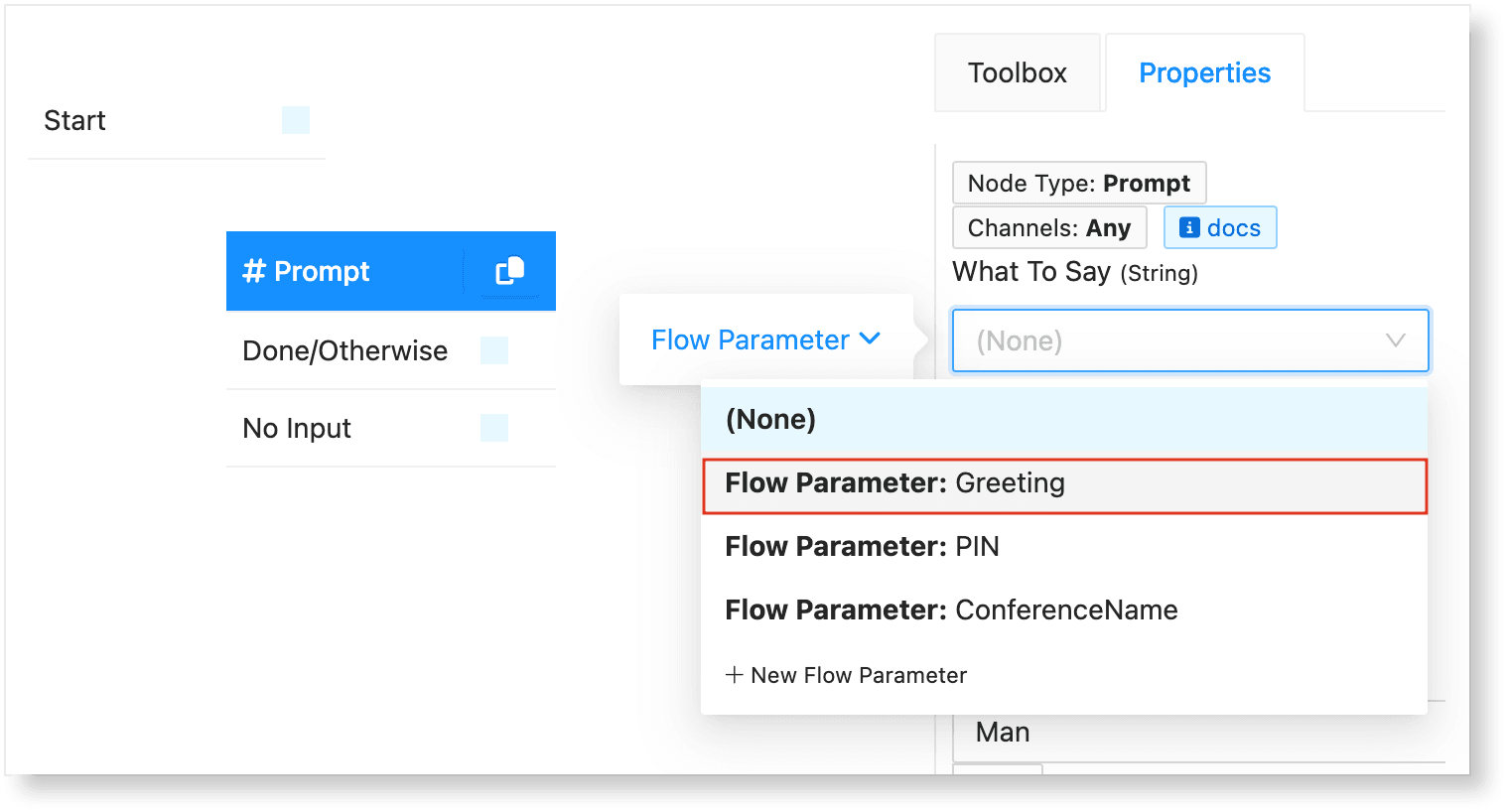
- To setup the greeting, click the Properties of the node, and in the What to Say (String) field, set it to Flow Parameter: Greeting.
-
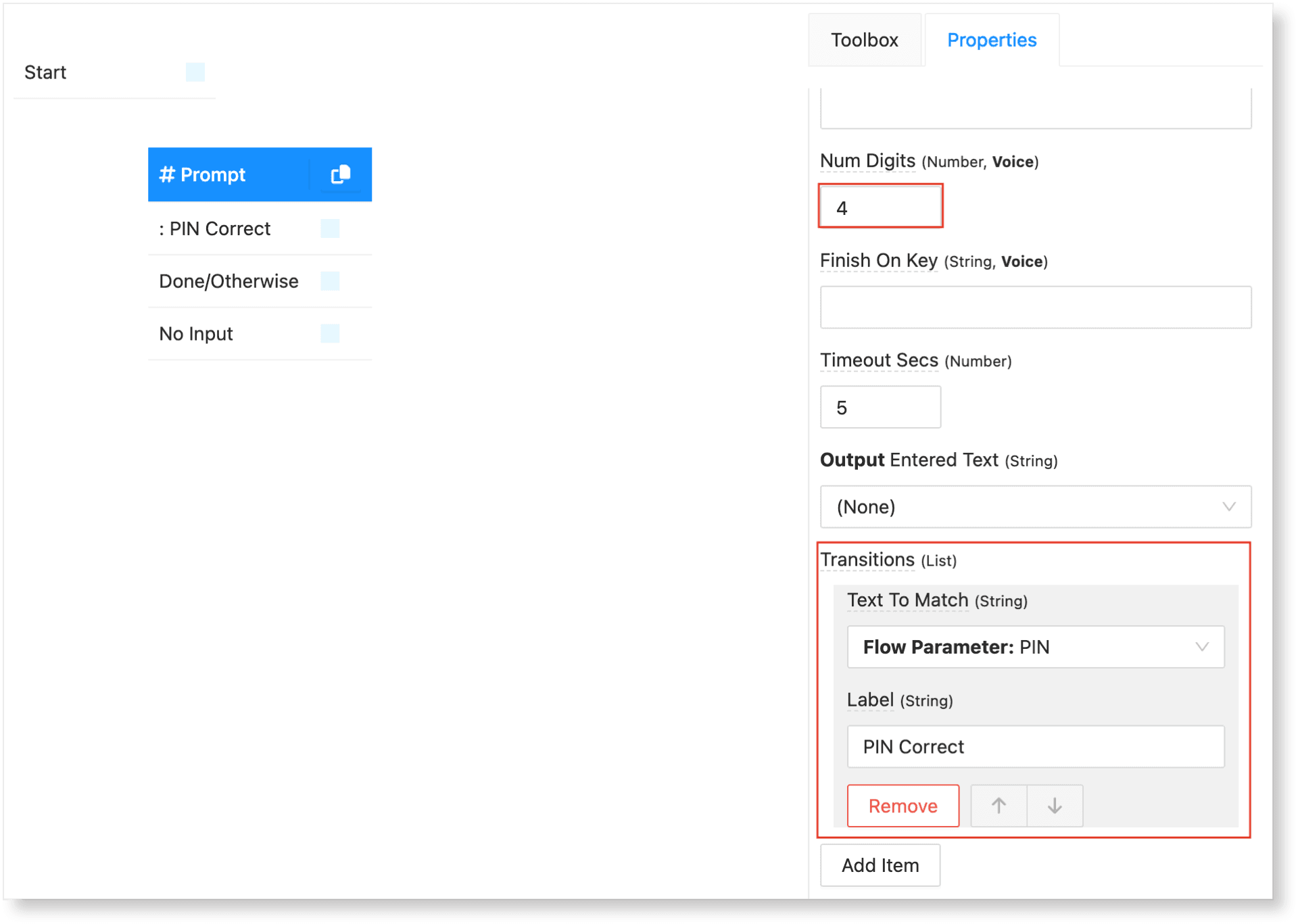
o set up the PIN, set the Max Number of Digits to 4 in the Num Digits field, assuming you'll use 4-digit PINs (e.g., 1234).
-
In the Transitions section, set Text to Match to Flow Parameter: PIN and set the Label to PIN Correct.
-
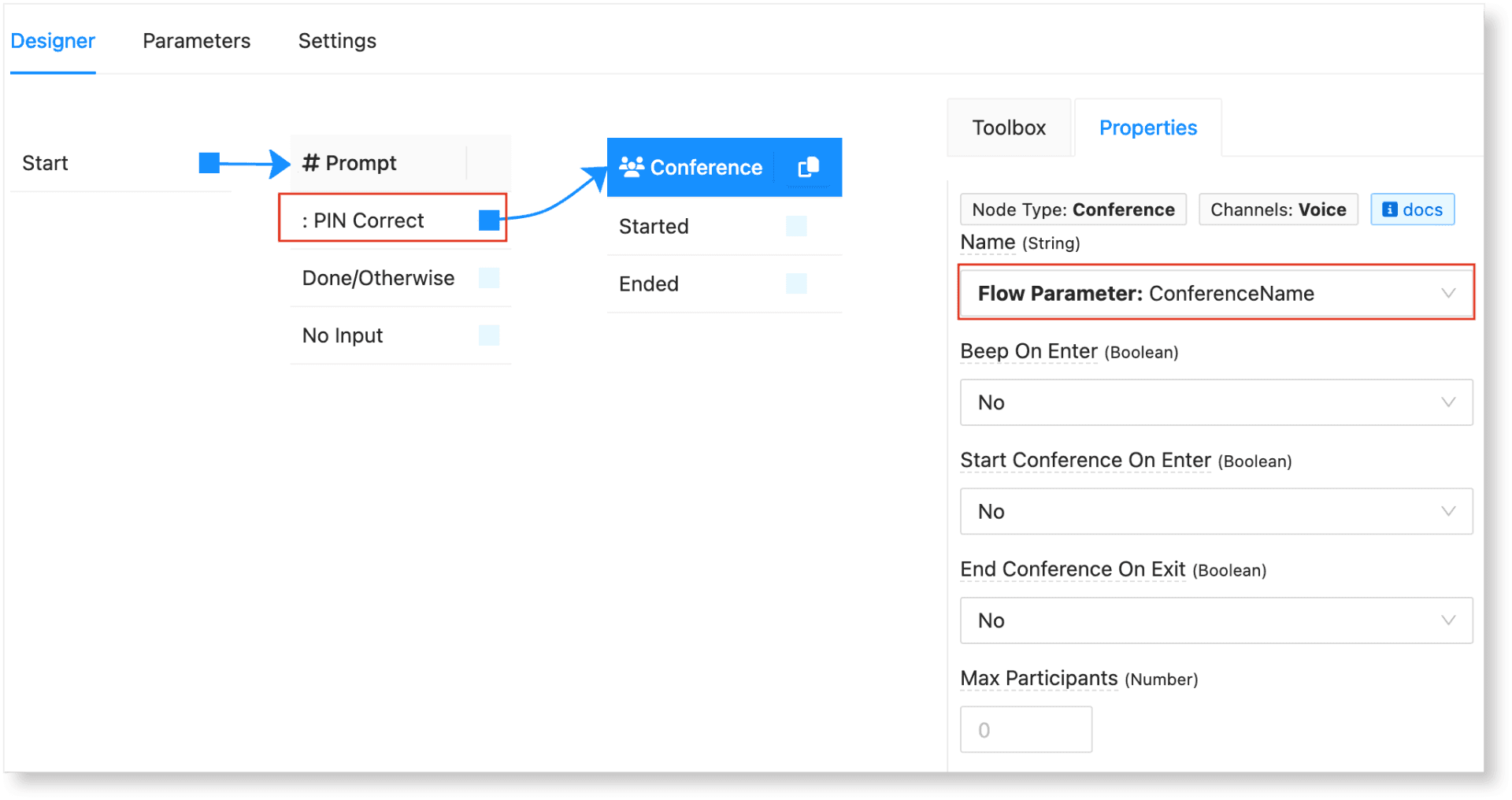
Add the Conference node to the flow. In the Name property, set it to Flow Parameter: ConferenceName. The Name property determines the "room" the caller will join. Since it's a flow parameter, it will be set per phone number.
-
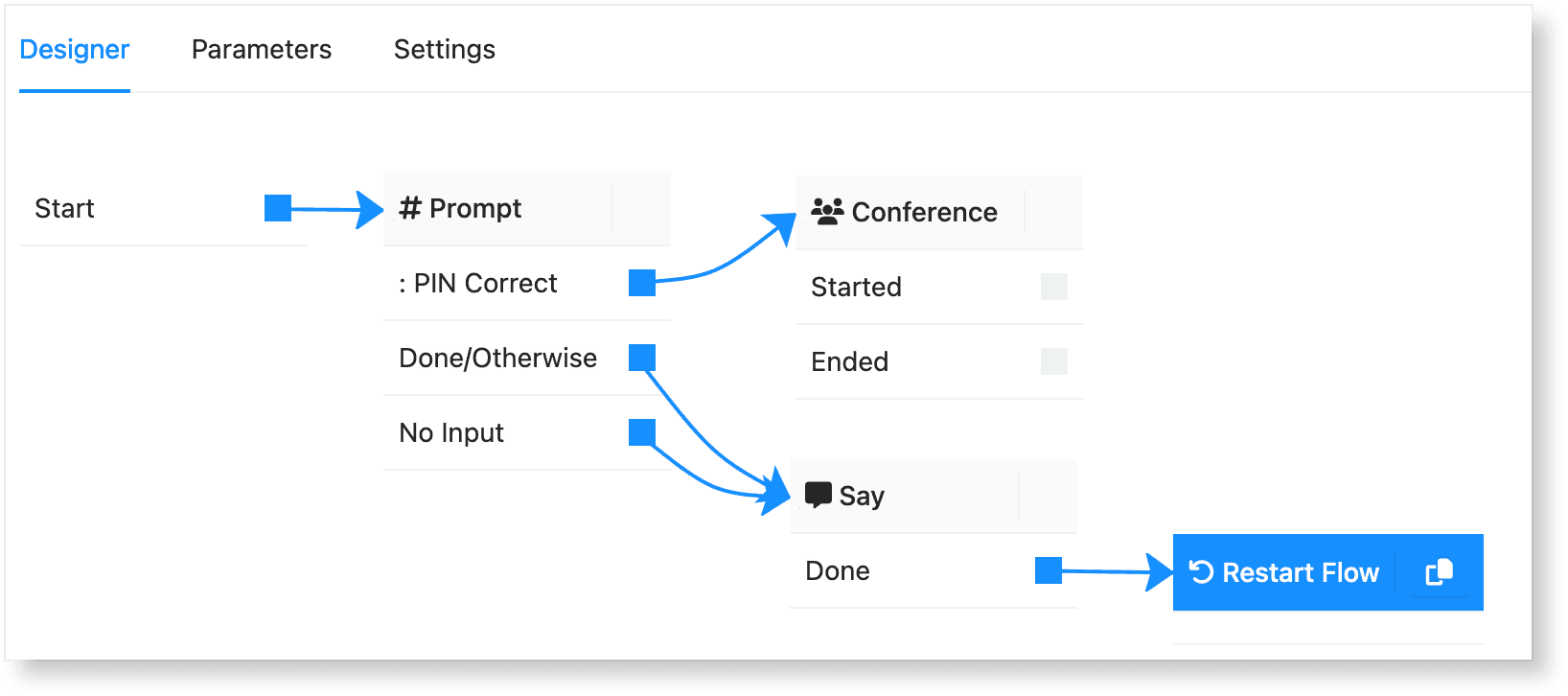
Then, connect the PIN Correct transition to the Conference node.
3. Handle Invalid Input
We need to define actions for when a caller enters invalid input (such as an incorrect PIN or no input at all).
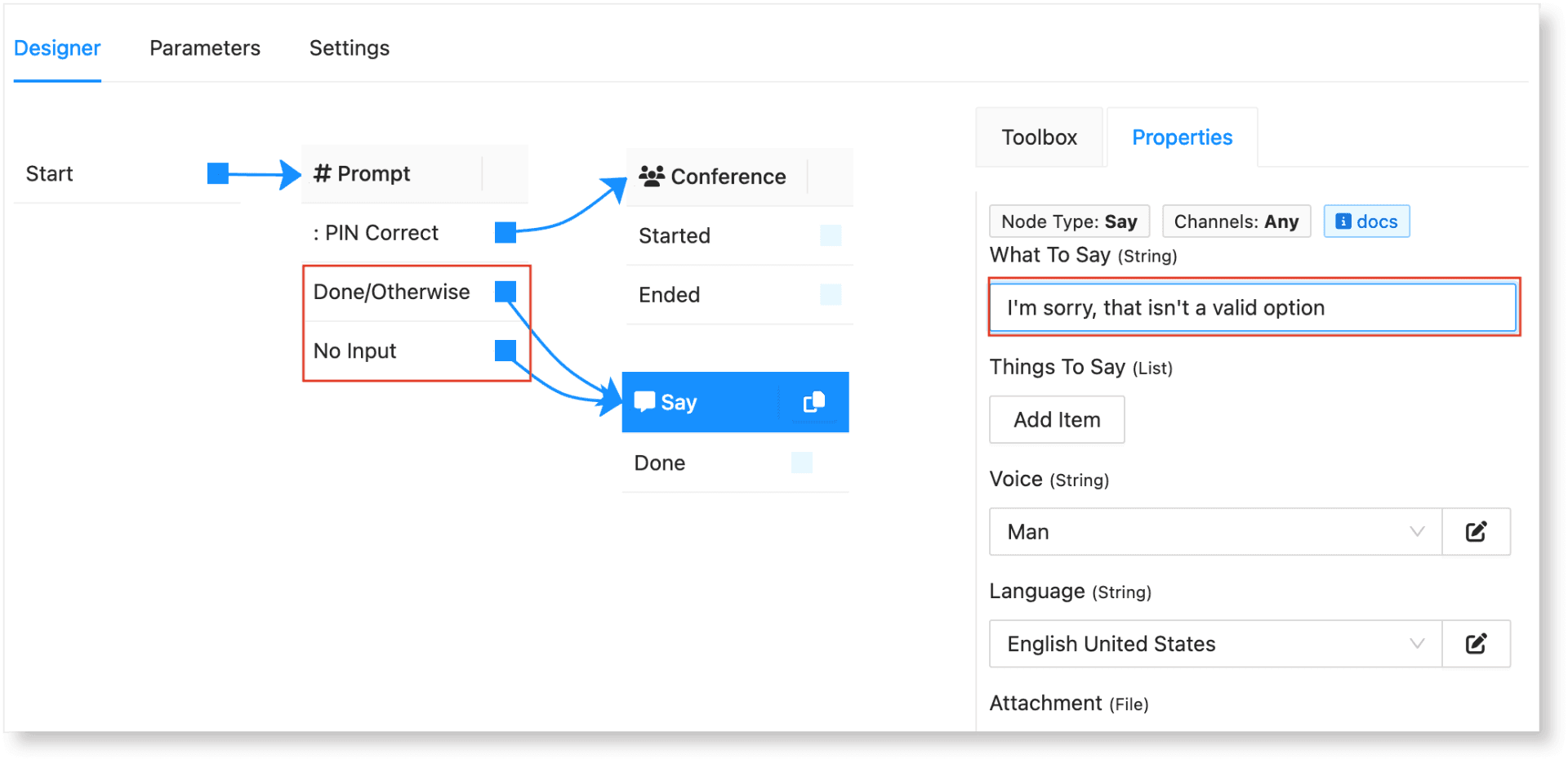
- Add a Say node and set the What to Say property to "I'm sorry, that isn't a valid option." Link the Done/Otherwise and No Input transitions to the Say node.
- To restart the flow after a caller receives an invalid response, add a Restart Flow node. Then, connect the Done transition from the Say node to the Restart Flow node.
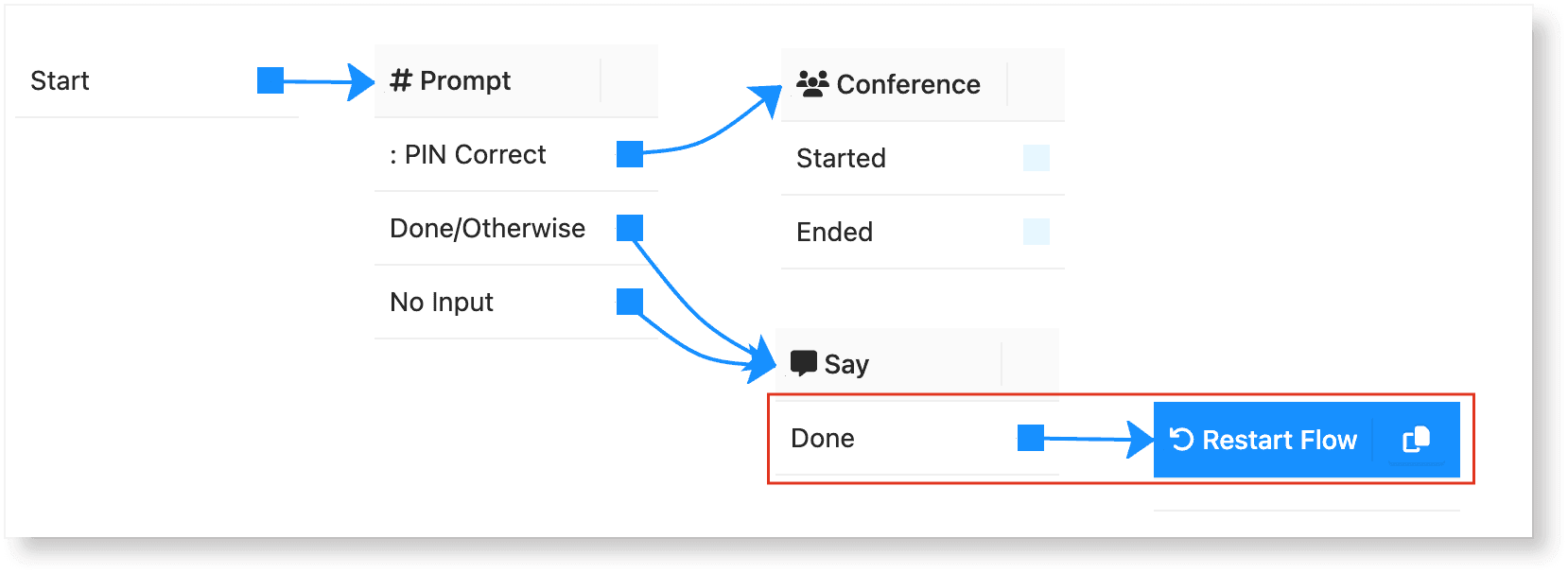
- Save your changes. The final flow will look something like the image below:
4. Set up Main Conference Number
Now that the flow is ready, you can add or select an existing phone number to serve as your main line for the conference bridge.
Set the details of your conference bridge. See the example image below:
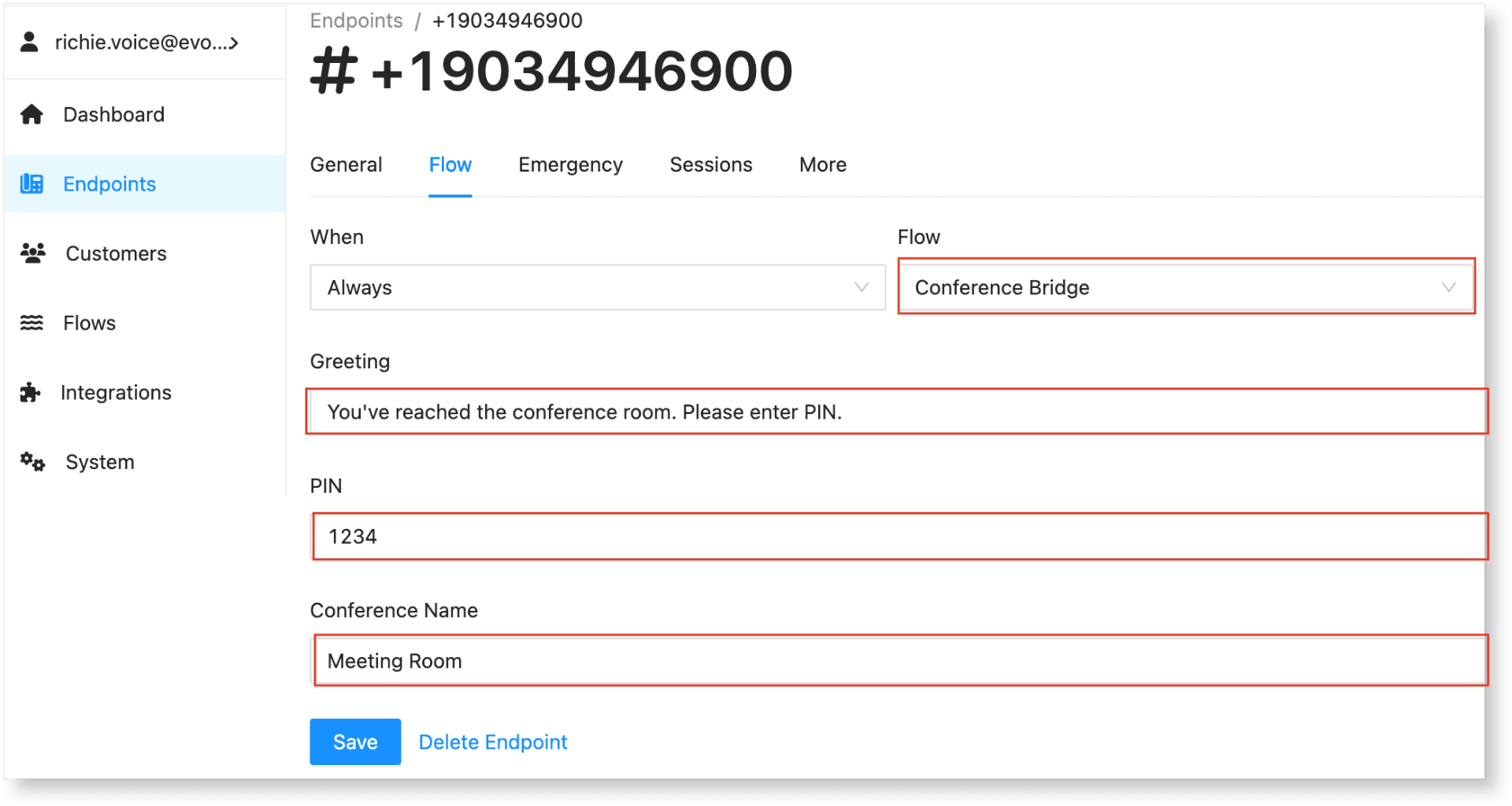
Note that it is important for the Conference Name to be unique, as it becomes the official ID of the Conference Bridge. Using the same Conference Name across multiple phone numbers will direct all calls to the same bridge.
Save your endpoint and dial in! :)