
Setting Business Hours for Your Center
You can efficiently manage the operating hours of your center by following these steps. This includes setting regular business hours, weekends, and holidays.
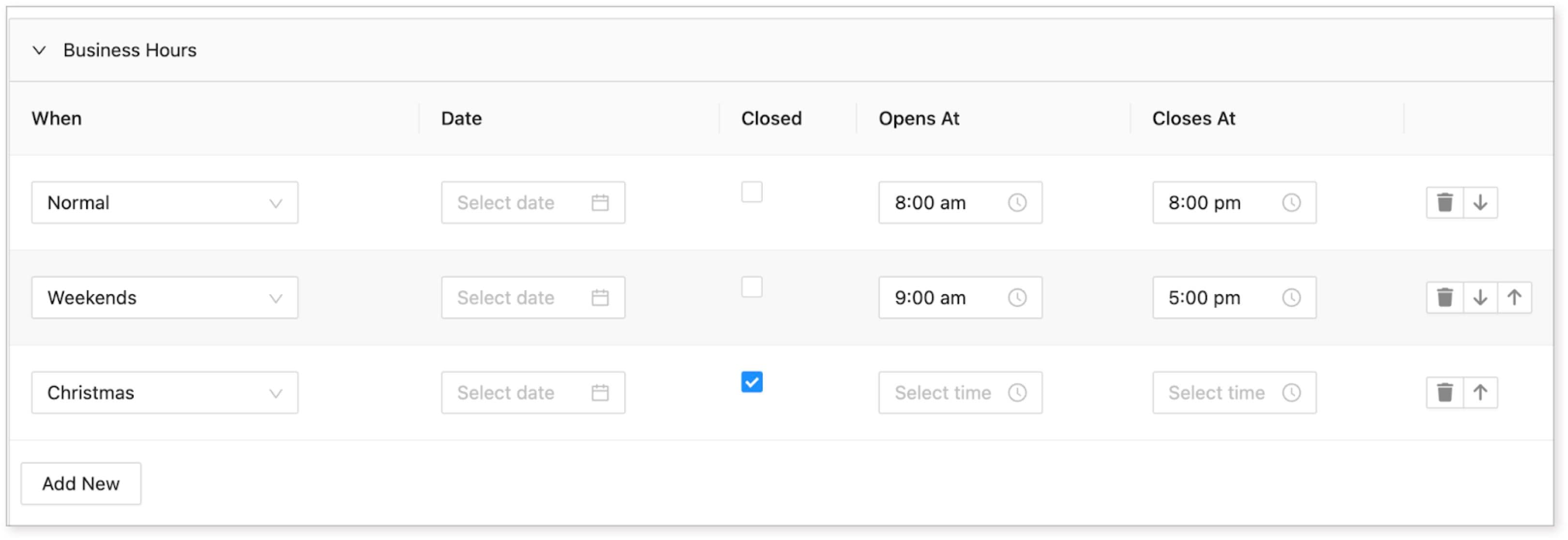
Details:
-
When: Specify the type of date this business hours rule applies to:
-
Normal: Applies to all days regardless of holidays or weekends.
-
Weekends: Applies to Saturday and Sunday.
-
Holidays: Applies to specific holidays such as Christmas.
-
Specific Date: Set for special holidays or specific days not mentioned in the options.
-
-
Date: If selecting "Day of Year" or "Specific Date" for "When," specify the day of the year. Otherwise, leave this field blank.
-
Closed: Check this box if the center is closed on the specified day(s) when this business hours rule applies.
-
Opens At: Specify the time the center opens on the specified day(s).
-
Closes At: Specify the time the center closes on the specified day(s).
Steps:
-
Click on Organization and select Centers.
-
Choose the center you want to modify, opening its detailed page.
-
In the General tab, click on Business Hours.
-
Click the Add New button.
-
Enter the time and date details:
-
Select When to specify the type of days to which the schedule applies.
-
Set a date if specific; otherwise, leave it blank to apply to all selected days.
-
Check Closed if the center is closed during the specified dates.
-
Set the opening and closing hours.
-
-
Click Save to apply the changes.
Priority:
Order your business hours from general to specific, with normal hours at the top and more specific dates at the bottom. The bottom dates override any conflicting times. Adjust the order using the arrows in the last column.