
Adding client information to your HostedSuite account is comparable to having a caller ID feature, providing essential details during calls. The console offers a quick overview of the caller when their phone number is stored in your HostedSuite database.
Clients
Refers to the names of companies that you have added to your HostedSuite account.
Contacts: Refers to the individual details (such as names, phone numbers, or email addresses) that you have added within a specific client's information in HostedSuite.
Benefits
-
Caller Identification: Easily identify callers with stored contact information.
-
Efficient Call Handling: Access necessary details for call transfers or provide information promptly.
Steps
To maximize the benefits, we recommend entering clients' data and contact information into your HostedSuite account. Here's a step-by-step guide on how to add a client:
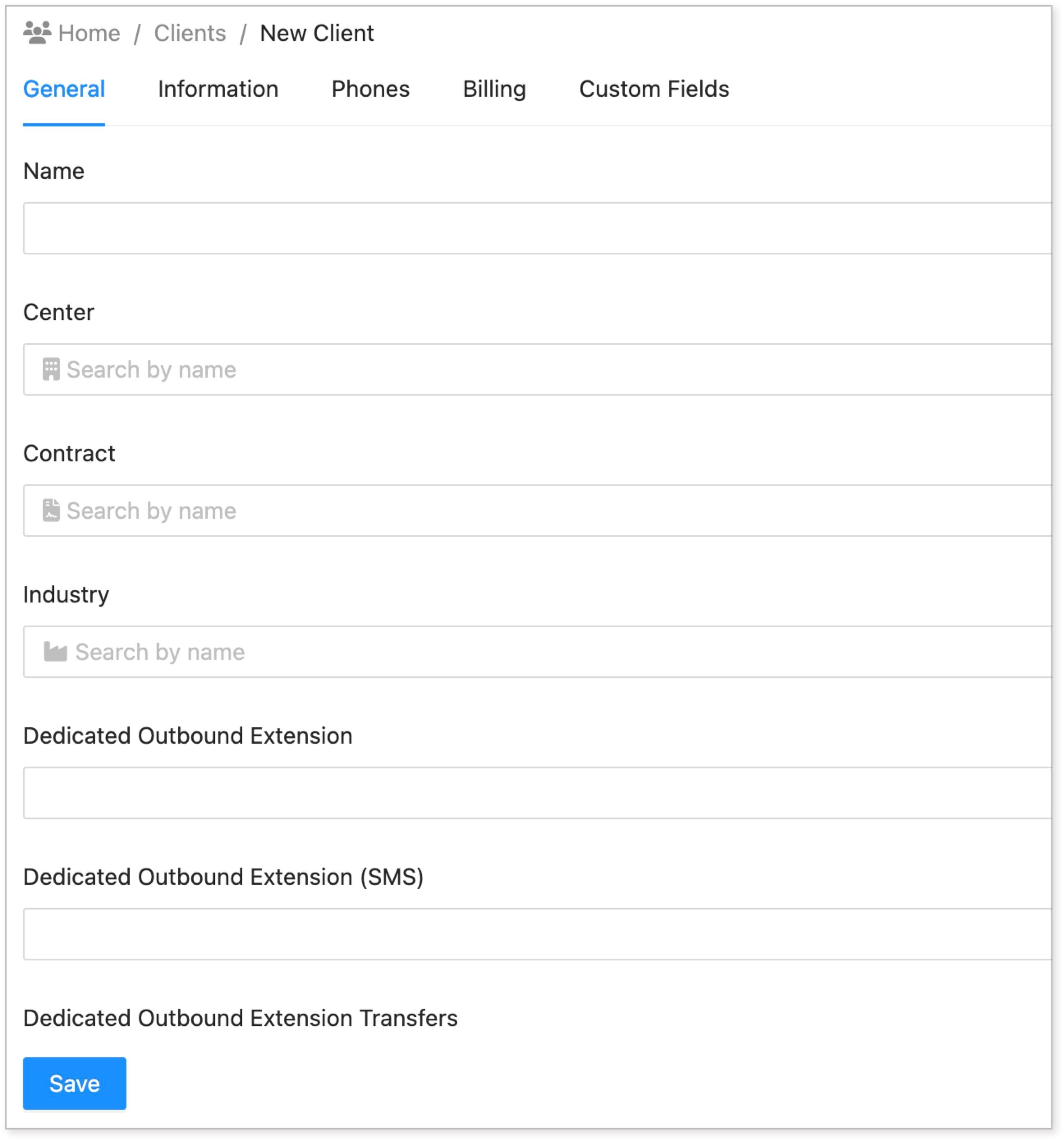
New Client - General
-
Click on the Organization tab and select Clients.
-
Click on the New Client button.
-
Add client details like the client’s name, industry, logo, etc. For complete client details, please check this guide [link: Managing Client Settings]
-
After adding the details, click Save. The client’s name you’ve added will appear in the dashboard.
-
Go to the Phones tab and add an extension number by clicking Add New. The added number will be displayed on the Console. We usually use the last four digits of the phone number (for example, 4500). You can also add text, for example, “VitalCare”.
Summary
Adding clients to HostedSuite enhances caller identification and facilitates efficient call handling. Follow the step-by-step guide to input client details, ensuring a seamless communication experience.