
This section covers all the necessary information you need to manage client details and information within your organization.
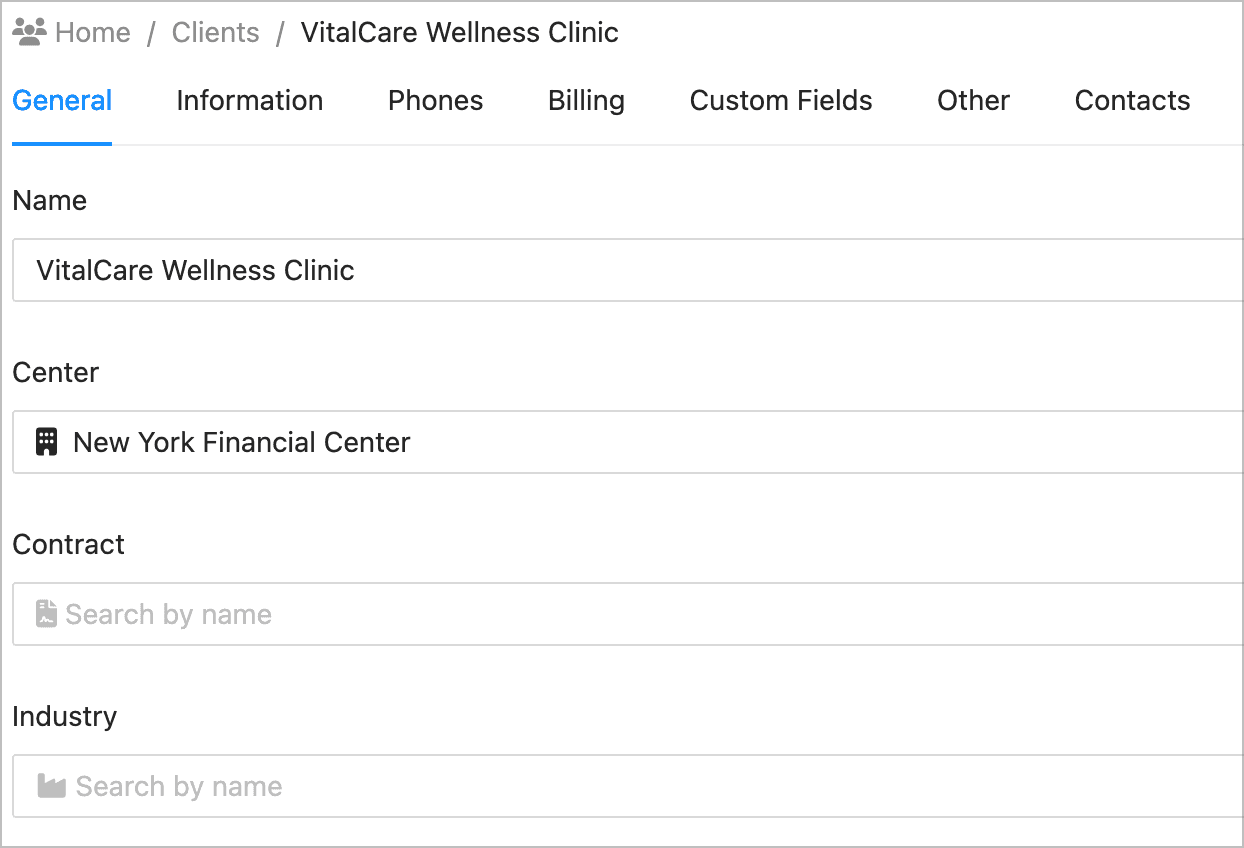
General:
This section provides fields to manage general information and settings for the client.
| Field | Description |
|---|---|
| Name | Add the client’s name for easy identification. |
| Center | Choose which center a client belongs to. |
| Contract | Select the default contract the client uses. |
| Industry | Select an industry the client belongs to. |
| Dedicated Outbound Extension | Specify a specific telephone line or communication channel for outgoing calls. |
| Dedicated Outbound Extension (SMS) | Dedicated phone line or extension for sending SMS. |
| Dedicated Outbound Extension Transfers | Specify an extension number when transferring a call. |
| Use Original Caller ID on Transfer | Enable this option when available for your phone system. |
| Disable "Send to all contacts" option in forms | Enable to disable the “send to all contacts” option. |
| Fax Greeting | The text that will be added as your welcome message in receiving fax. |
| Location | Client’s country. You can add the exact address location in the Address tab. |
| Logo | Upload a logo of the client. |
| Category | Select a category if you’ve added a category for your center. |
These fields allow you to manage essential details and settings for the client, facilitating organized and efficient client management within your organization.
Information:
This section provides fields to manage additional details and instructions related to the client.
| Field | Description |
|---|---|
| Links | Add the client's website URL or other related links. |
| Information | Include additional notes or unique content about the client, such as services offered. |
| Popup Information | Display special announcements or updates about the client. |
| Call Instructions | Provide any specific instructions from the client regarding call activities. |
These fields allow you to document important information and instructions provided by the client, ensuring efficient communication and service delivery.
Phones:
In this section, you can configure various settings related to phone usage and call management.
| Field | Description |
|---|---|
| Wrap Time | Set a metric for call handling efficiency and customer satisfaction. |
| Screen Pops | Typically specified as the last 4 digits of the client's main number, but this varies based on the type of phone system being used. |
| Call Allowance | This allowance can then be used at the end of the month to calculate overage/underage. |
| Call Allowance Type | Specifies the type of allowance, can be one of the following values: <br>- Not Billable: This client will not be included in Call Allowance calculations.<br>- Number of Minutes: Allowance is specified in minutes, and calculations are made accordingly.<br>- Number of Calls: Allowance is specified in the number of calls. |
| Amount | The number of minutes/calls allowed for this client. |
| Phone Numbers | Specify any extensions, cell phone numbers, etc., that you will be able to transfer calls to in the console. |
This table provides a clear overview of the settings available for managing phone-related configurations, facilitating efficient call handling and management within your organization.
Setting up Phone Numbers
In this section, you can specify various phone numbers, including extensions, cell phone numbers, etc., that you will be able to transfer calls to in the console.
| Field | Description |
|---|---|
| Name | The name of this phone number, e.g., Ext, Cell, Home, VM. |
| Number | The digits to be dialed for this phone number. Parentheses are OK, e.g., (555) 111-2222. |
| Dialing Rule | The dialing rule to be applied to this phone number. Typically used for voicemail numbers. |
| Call Control | Check this box if you want to be able to monitor the status of the client's phone in the console. Supported on certain phone systems. Ask Evo Technologies support before setting this. |
| Blind Transfer | Enable or disable blind transfer to the specified number. |
| Hide Blind | Enable or disable blind transfer option. |
| Transfer Types | Specify the transfer type: Both - Allow both incoming and outgoing transfer; Blind - Allow blind transfer only; Supervised - Allow supervised transfer only; (Leave blank for default). |
| Mobile | Enable this option if the phone number is a mobile phone. |
| Notify | Enable to receive notification for call activities. |
This table provides a clear overview of the settings available for setting up phone numbers, making it easier to manage and configure phone numbers effectively.
Billing:
This section allows you to manage billing details and settings for clients.
| Field | Description |
|---|---|
| Address | Add the client’s address. |
| Billing Codes | Enter a client's printer code, fax code, long-distance code, etc. |
| Billing Email Address | Specify the email address where a client's invoice will be sent. Add multiple email addresses if needed. |
| Override Center Rates | Specify service rates specific to the client. This will override the default rates specified by the center. |
| Client Allowances | Specify service allowances for the client. You also have an option to override the existing rates set by the center. |
These settings enable you to manage billing-related information efficiently, ensuring accurate invoicing and billing processes for your clients.
Custom Fields:
In this section, you can define additional information about the company that isn't covered by the standard fields. These custom fields are for informational purposes only and won’t be published anywhere in HostedSuite.
Other:
| Field | Description |
|---|---|
| Evo Voice Customer ID | Add your Evo Voice customer ID number if applicable. |
Contact:
This section allows you to add employee and staff details of a client.
By utilizing these settings comprehensively, businesses can efficiently manage client profiles, enhance communication processes, and streamline billing and administrative tasks within their organization.