
Forms allow you to collect structured information associated with specific clients. This guide explains how to create, complete, and view forms in HostedSuite.
What is a Form?
A Form is a customizable set of fields used to collect data, tailored per client. Forms can be accessed and completed from different parts of HostedSuite and are useful for capturing details such as call summaries, contact info, and service requests. This customization ensures that data is collected in ways that suit each client's needs.
How to Create a New Form
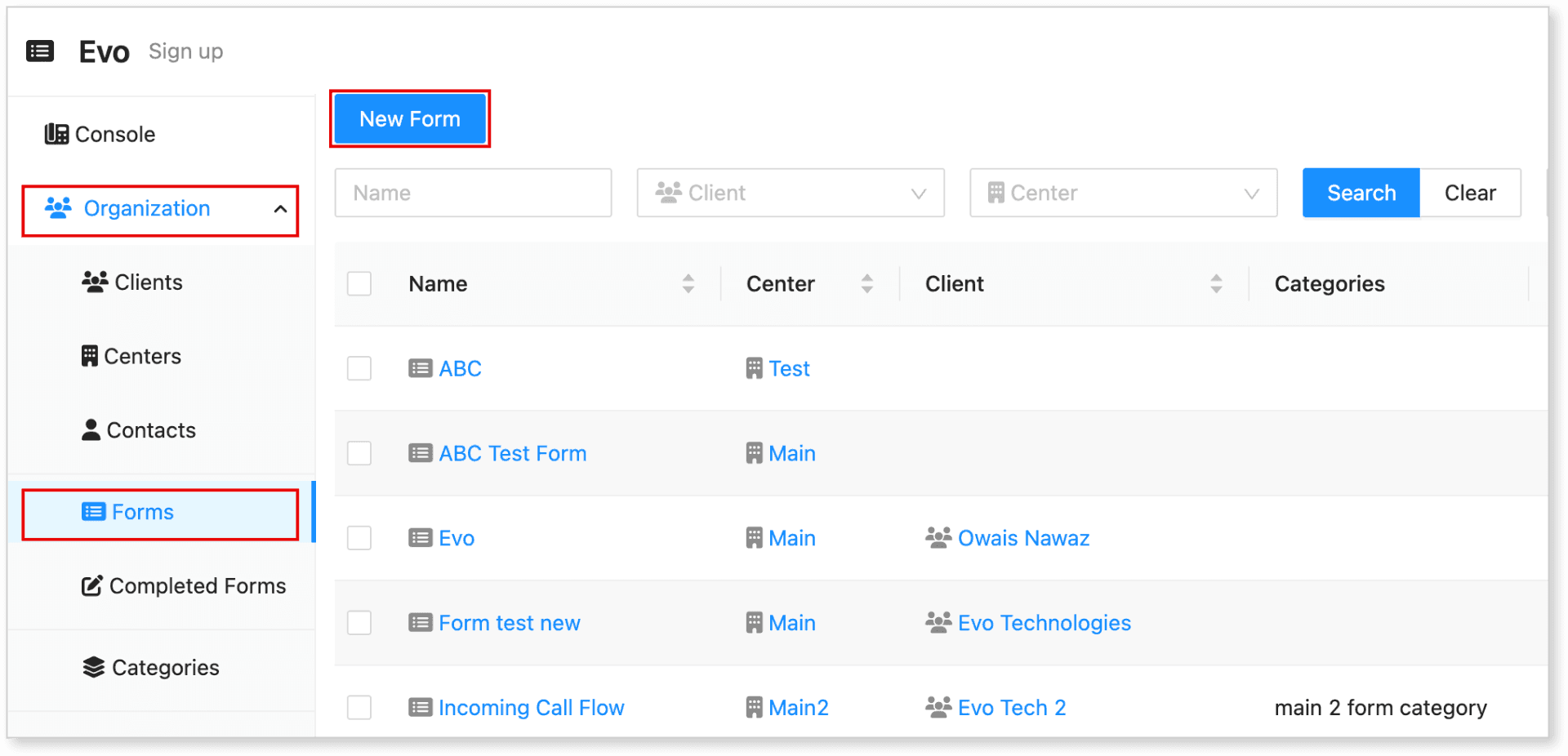
1. Access the Forms Section
-
Go to Organizations > Forms.
-
Click the New Form button.
2. Fill Out the Form Details
Complete the general setup fields in the form editor:
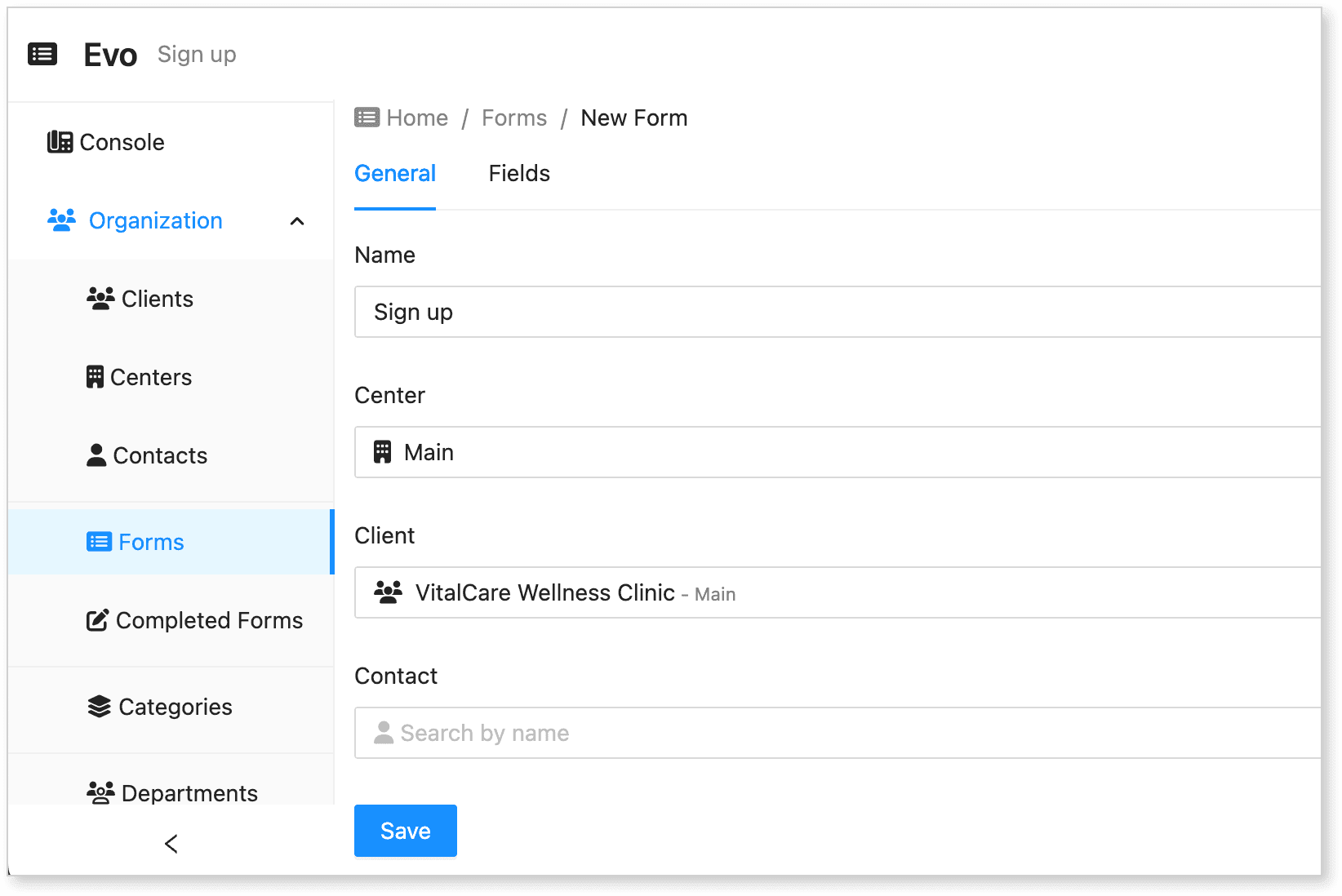
Form Setup Field Descriptions
| Field | Description |
|---|---|
| Name | A unique name to identify your form. |
| Center | Select the center this form applies to. |
| Client | Choose the client the form is for. |
| Contact | (Optional) Select a specific contact for this form. |
| Bill As Service | (Optional) Associate the form with a service. |
| AI Role | Choose one:<br> - None: Not used by AI<br> - Take a Message: Used for AI message collection<br> - Custom: Set specific AI instructions |
| Do Not Include Caller Number | Check this to exclude the caller's number from being sent. |
| Enable Go High Level | Enable to use the form data with Go High Level integration. |
| Show Form for Clients in Categories | Display the form when filtering by category. |
| Email Subject | Set the subject line for outgoing emails. You can use tokens for dynamic data. |
| Instructions | Provide pre-form guidance or instructions for users. |
Additional Form Options (Checkboxes)
| Option | Description |
|---|---|
| Show form for all Clients in console | Display the form for all clients within the selected center. |
| Do Not Include Caller Number | Hide the caller number in the email/form submission. |
| Enable Go High Level | Allow form data to be used for Go High Level CRM workflows and integration. |
Click Save to complete the initial setup.
3. Add Custom Fields
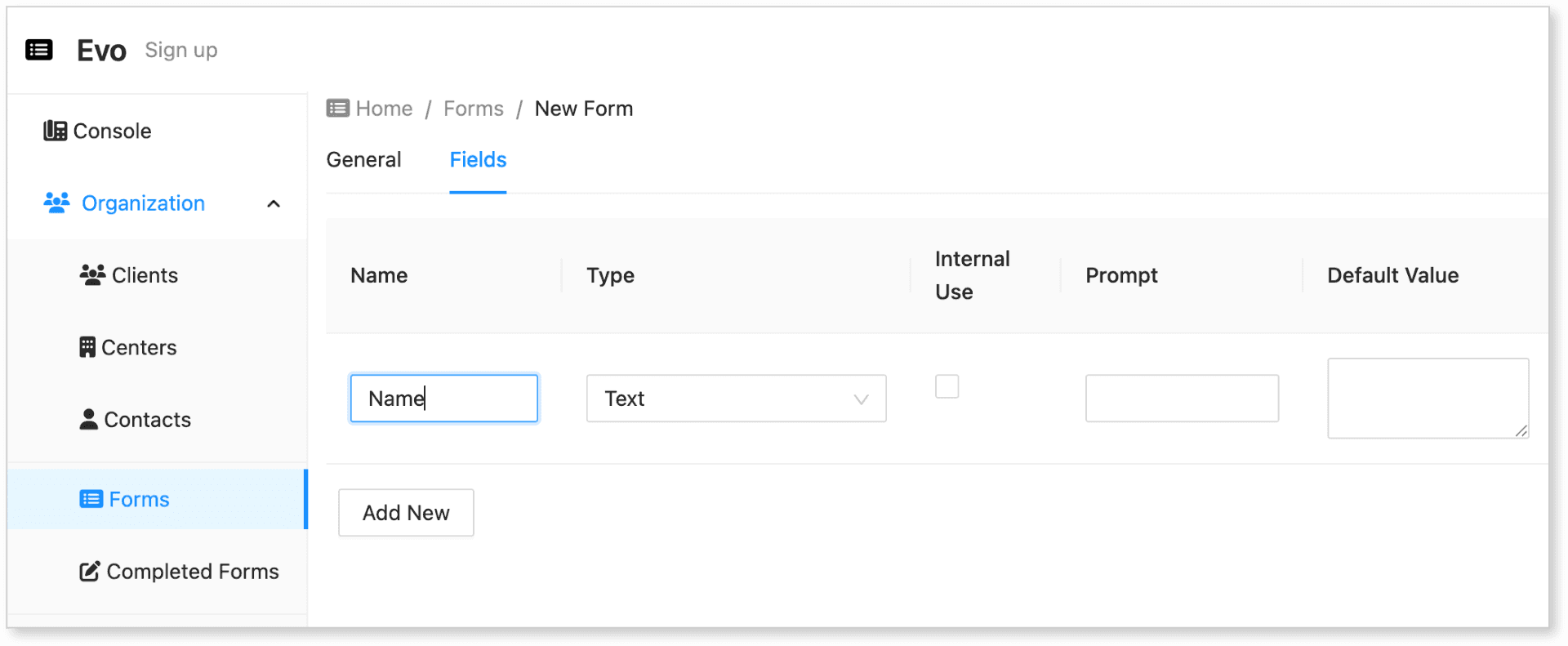
After saving the initial setup, navigate to the Fields tab to define your form’s inputs:
-
Click Add New to insert a field.
-
Fill in the field details using the table below.
-
Add multiple fields as needed.
Field Configuration Options
| Option | Description |
|---|---|
| Name | The label shown on the form (e.g. “Phone Number”). |
| Type | Select the input type: - Text - Multi Line Text - Number - Drop Down - Email Address - Password |
| Prompt | Instruction displayed above the field. |
| Default Value | A pre-filled value shown in the field. |
| Choices | For Drop Down only. Enter comma-separated values (e.g. Low,Medium,High). |
| Options | Additional settings: - Caller Name - Caller Number - Required (makes the field mandatory) |
Click Save after adding your fields.
How to Fill Out Forms
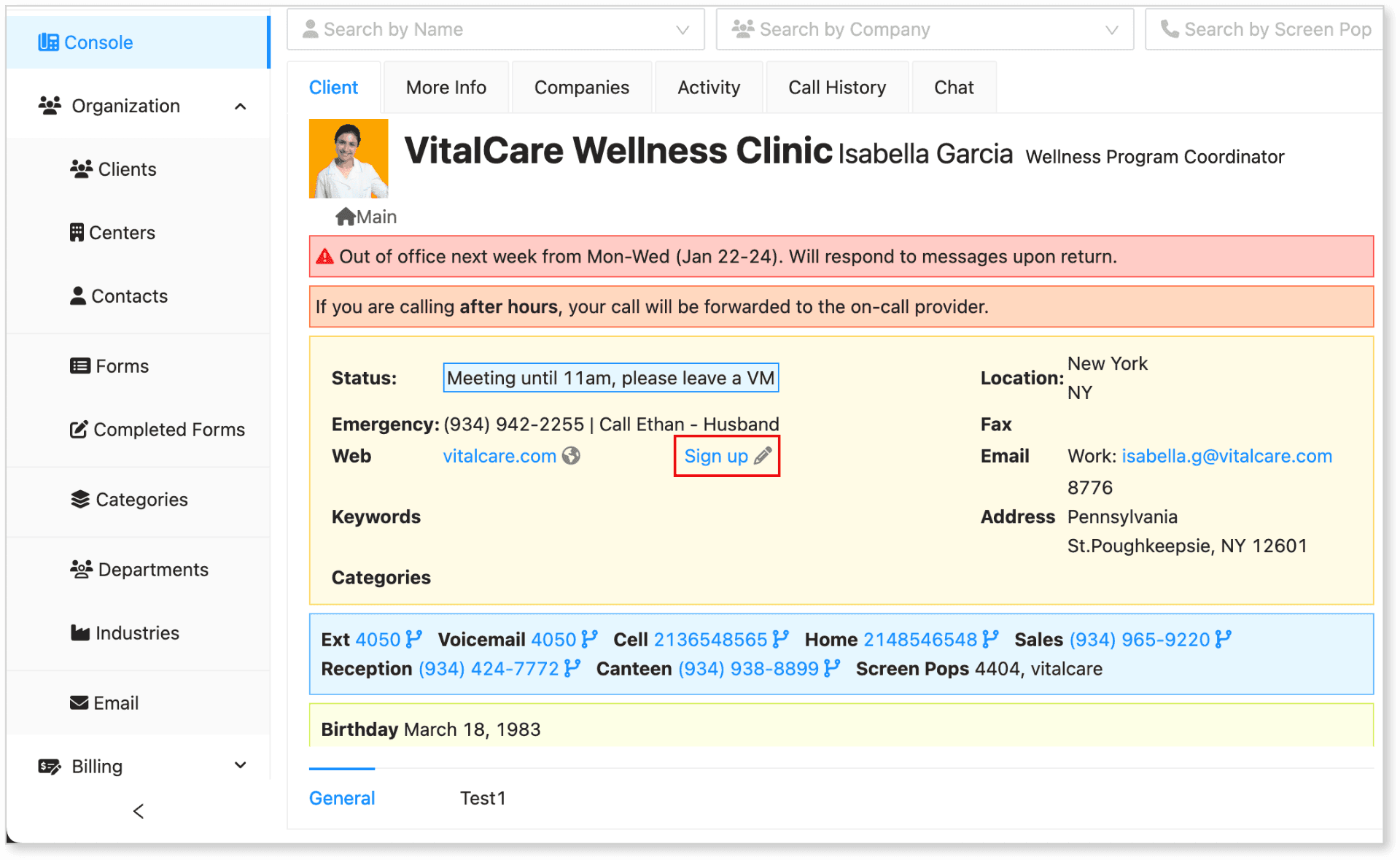
Once a form is created and assigned to a client or contact:
-
Go to the Console.
-
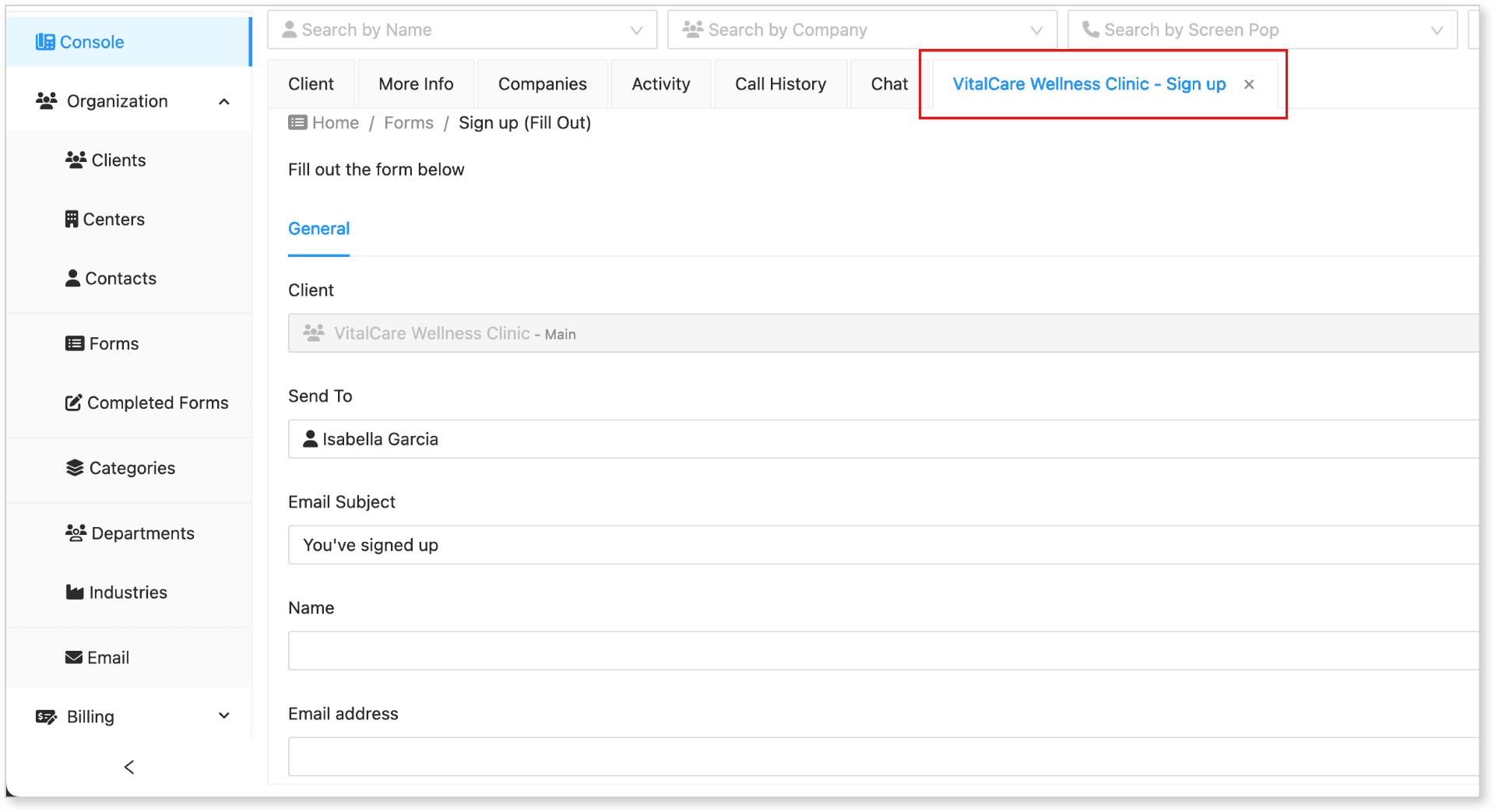
Locate the form link next to Web in the client’s panel.
-
Click the form link to open it in a new tab.
Fill out the fields in the form and click Save.
After submitting:
-
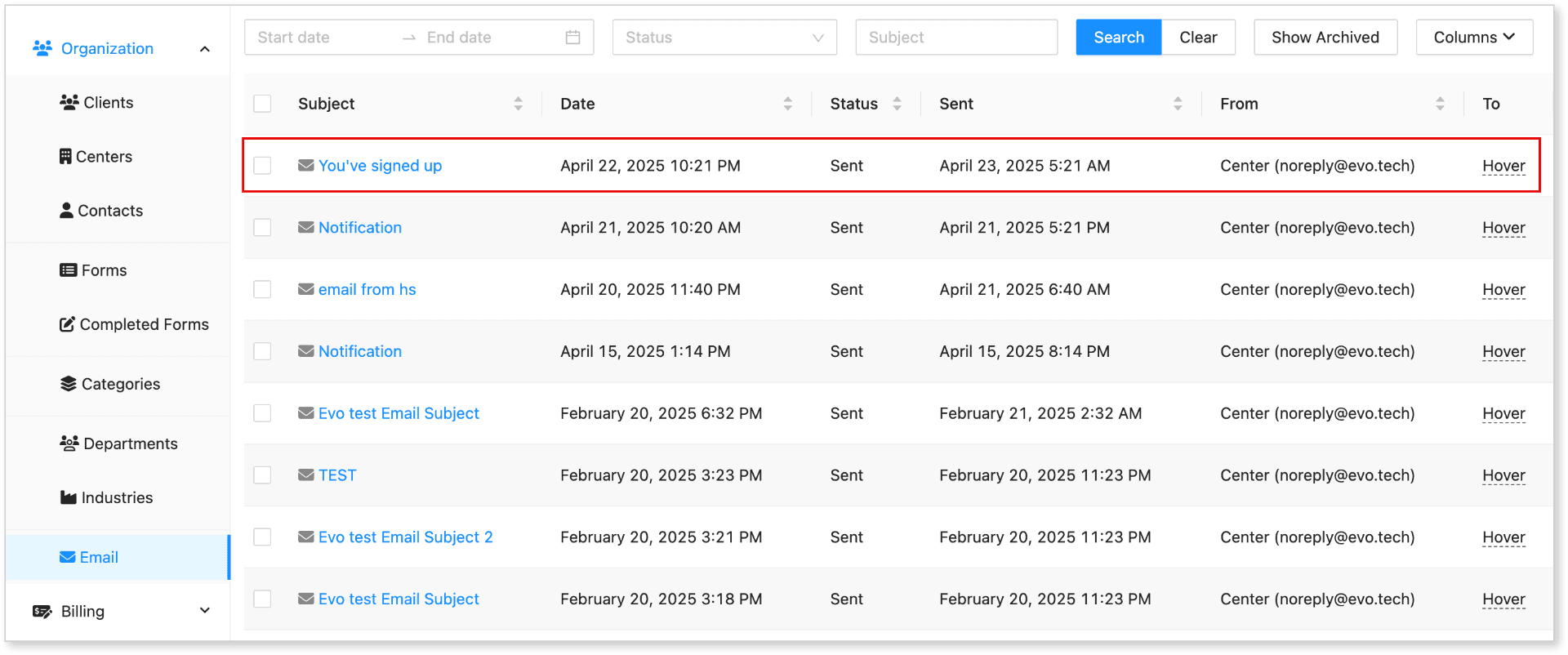
An email will automatically be generated and sent to the recipient.
-
To verify the email was sent, navigate to Organizations > Emails.
-
If you see the email listed there, it confirms the notification was successfully delivered.
How to View Completed Forms
Once a form has been filled out, the submitted data can be reviewed at any time.
View Completed Entries (Admin Access)
-
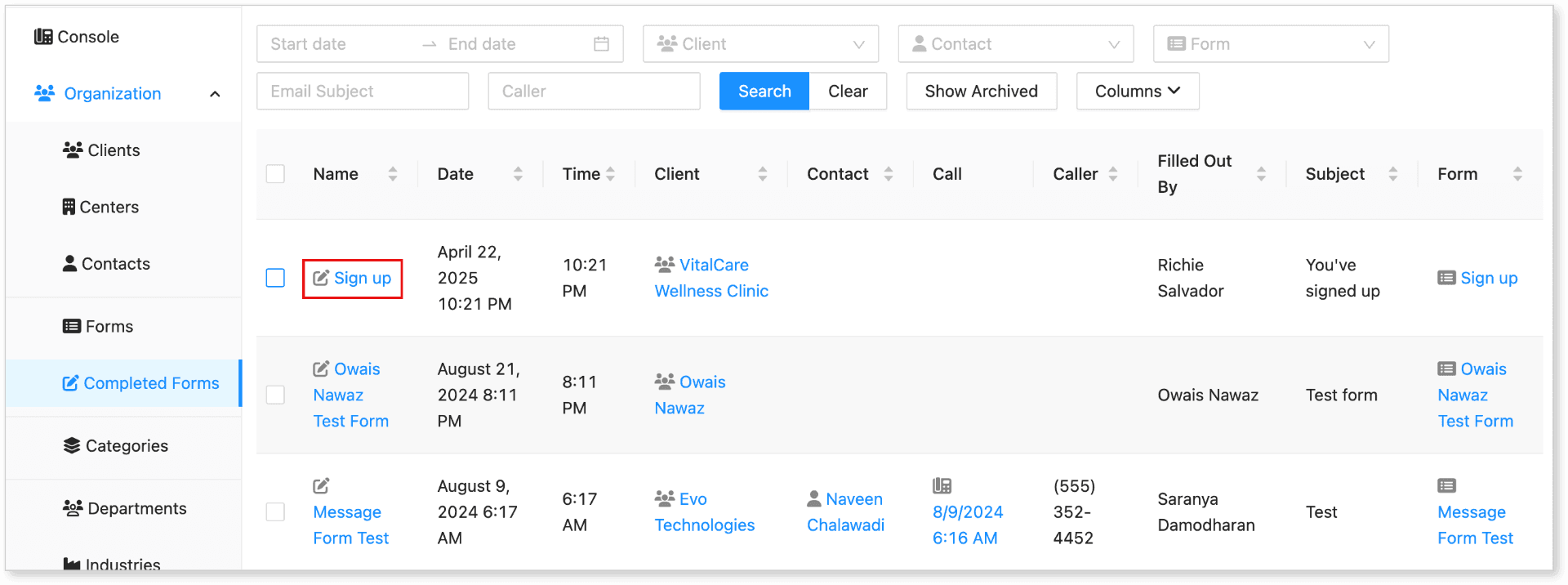
Navigate to Organizations > Completed Forms.
-
This will display a list of all submitted form entries.
-
Click the Name of any entry to open and view its contents.
You’ll be able to see all the information submitted in the form, including the values entered into each field.
Client Access to Forms
If clients have the appropriate permissions:
-
They will be able to view completed forms from their own client portal.
-
They will also receive notifications when a form is submitted on their behalf.
Example Use Cases
Forms can be used in various ways across HostedSuite. Here are some common examples:
-
Collecting details from callers during inbound support calls.
-
Capturing customer satisfaction feedback.
-
Accepting callback requests from voicemail messages.
-
Logging internal service notes linked to clients or contacts.
If you need help setting up advanced form workflows, integrations, or automation, please contact support