
HostedSuite provides both automatic and manual options for sending email notifications. This guide will walk you through how to manually send emails, set up default email settings, configure custom email servers, and manage the email dashboard.
Note: This feature is intended for outgoing email notifications only. HostedSuite does not support incoming email replies directly within the platform.
Sending an Email Notification
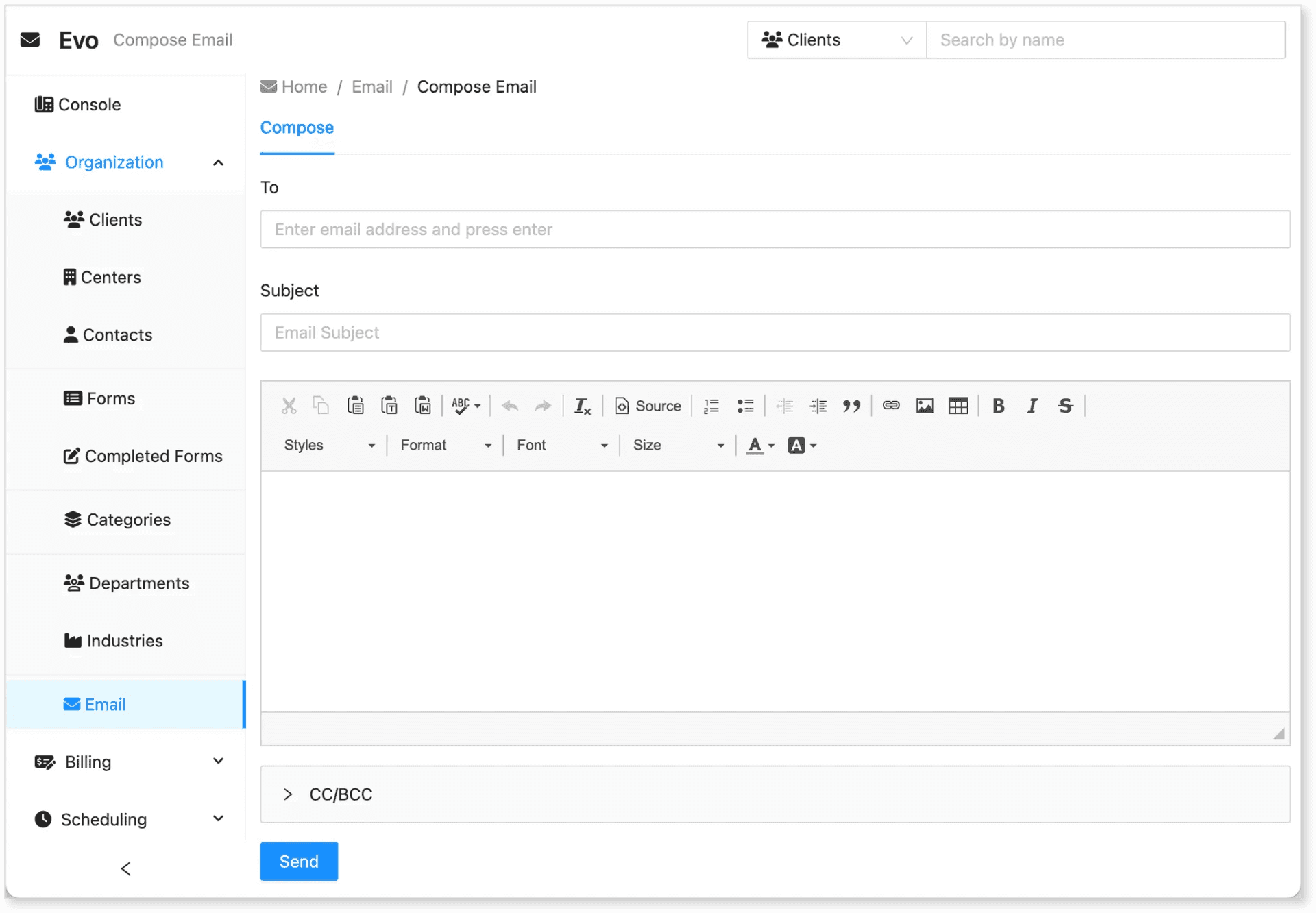
To manually send an email notification through HostedSuite:
-
Go to the Organizations menu.
-
Click Email.
-
Click Compose.
-
Set the Recipient and Subject.
-
Add your email content.
-
(Optional) Add CC/BCC addresses.
-
Click Send.
All emails sent through this method will use the default email address configured in your HostedSuite system settings.
Setting the Default Company Email for Notifications
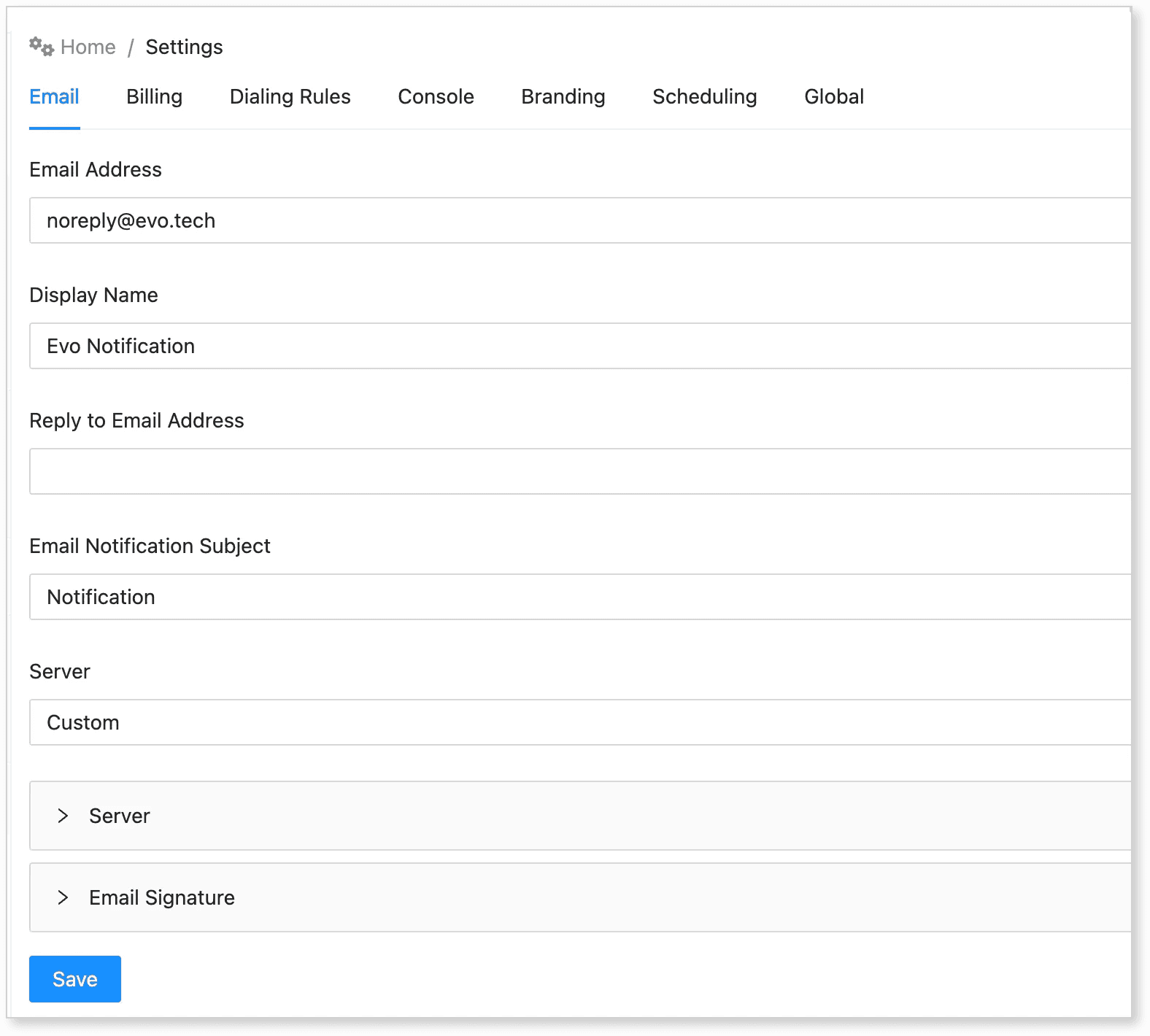
To configure the default "From" email used for notifications:
-
Go to the Settings menu.
-
Click System.
-
Under the Email section, fill out the following fields:
-
Email Address: The sender address shown to recipients.
-
Display Name: The name that appears in the email "From" field.
-
Reply To Email Address: Where replies to the notification email will be sent.
-
-
Select a Server:
-
Use HostedSuite for the default server.
-
Select Custom if you want to use your own SMTP server.
-
-
Click Save.
Using a Custom Email Server (SMTP)
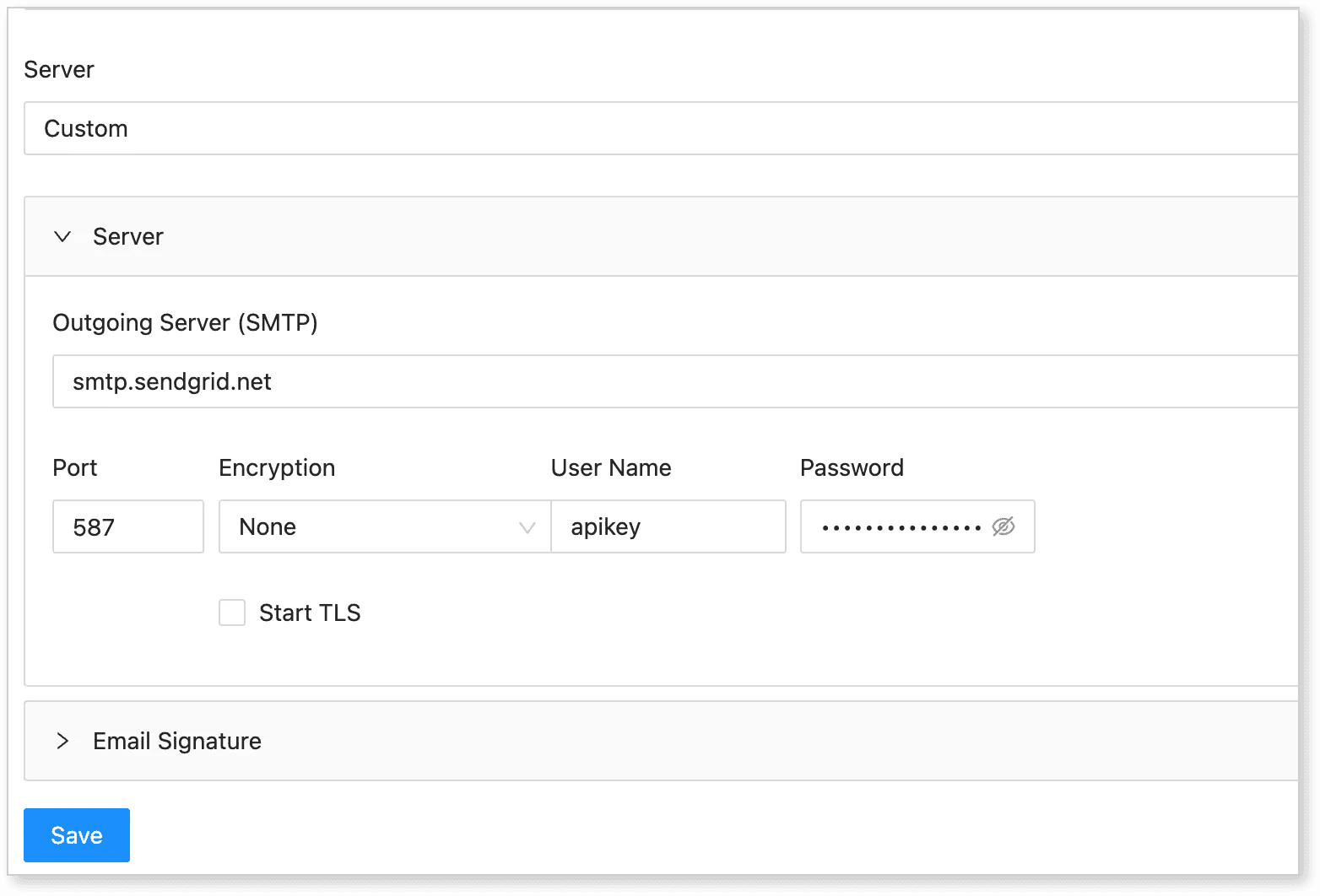
To use your own outgoing mail server:
-
In the Server dropdown, select Custom.
-
Fill in the following fields:
-
Outgoing Server (SMTP): e.g.
smtp.sendgrid.net -
Port
-
Encryption (if applicable)
-
Username
-
Password
-
-
Click Save.
Setting Up an Email Signature
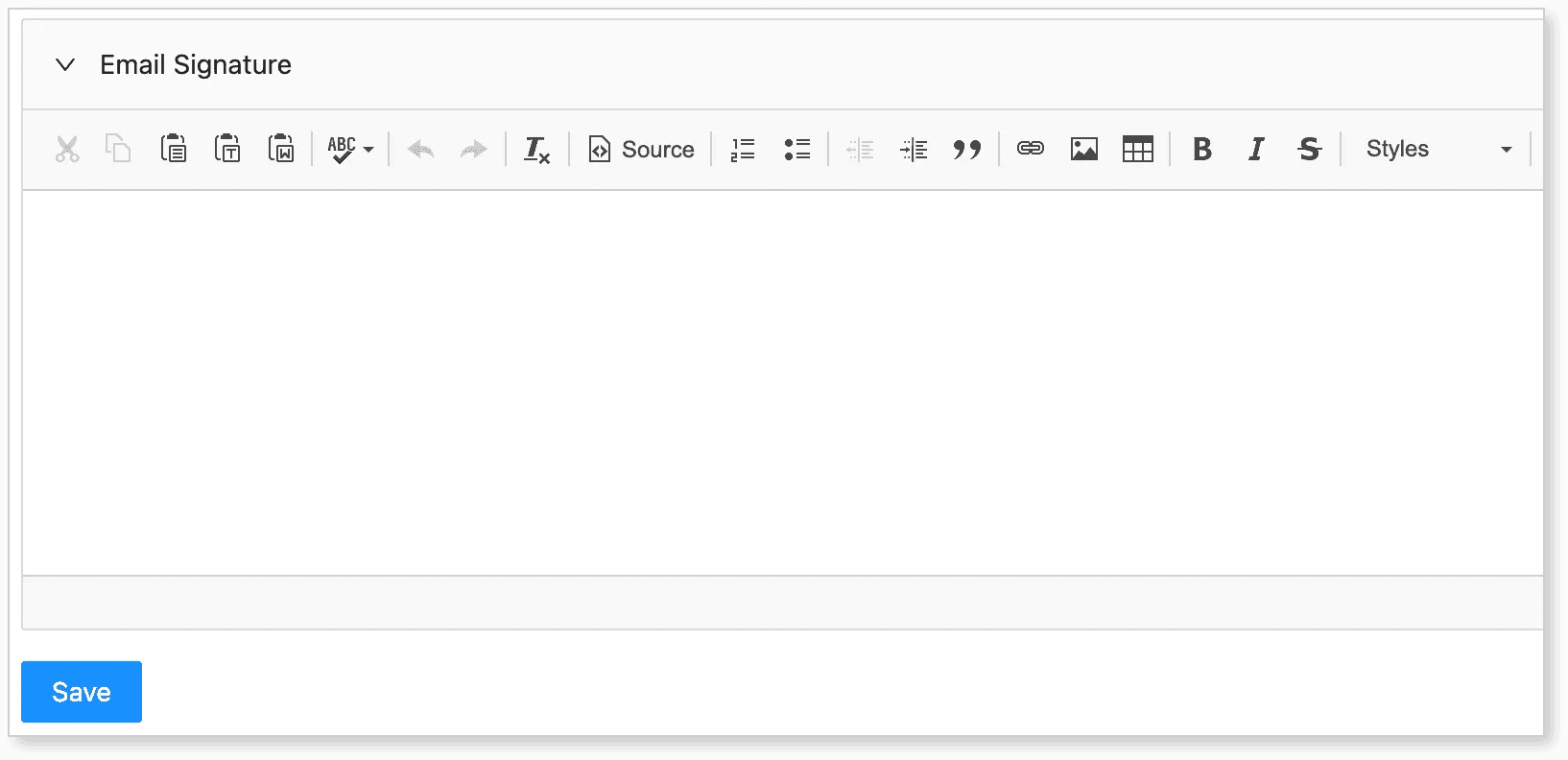
-
Click on the Signature dropdown.
-
Design or enter your email signature in the field provided.
-
Click Save.
Customizing the Email Dashboard
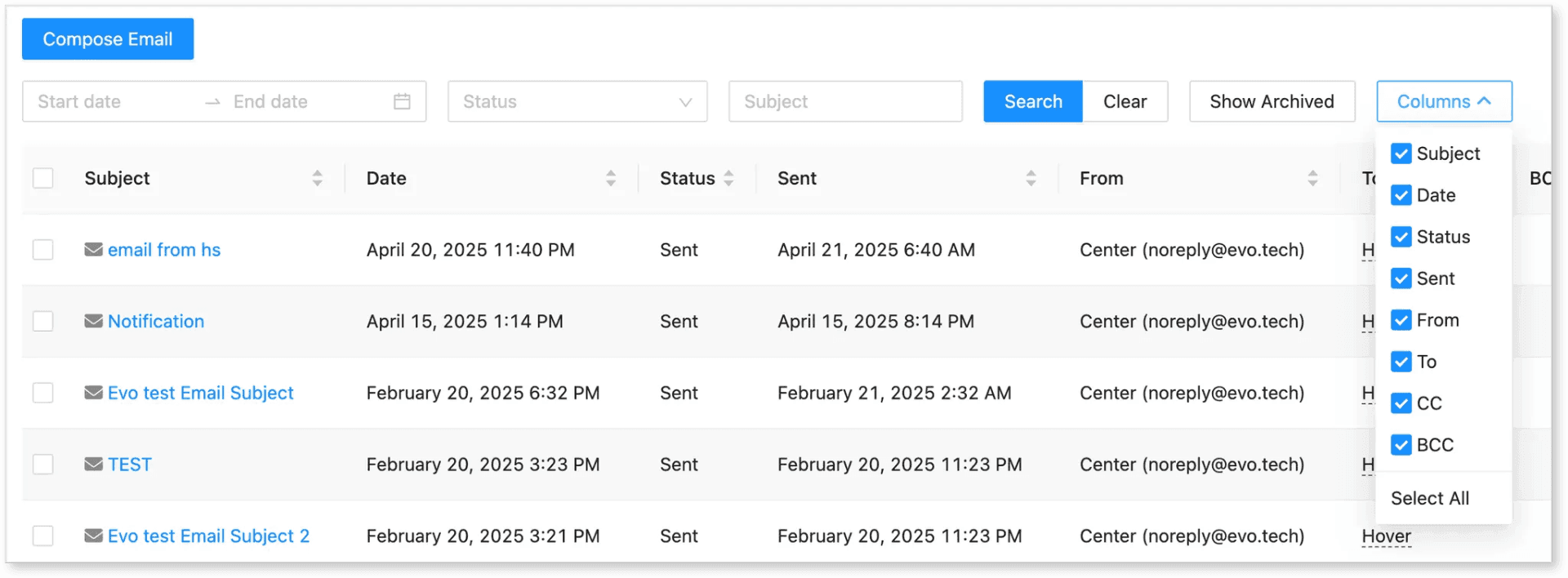
You can filter and organize your email dashboard using the following tools:
-
Start-End Date: Filter emails by date range.
-
Status: Sort by status (e.g. Draft, Not Sent Yet, Sent, Not Read, Read, Error).
-
Subject: Search for emails by subject line.
-
Archive: Display archived emails only.
-
Columns: Show or hide dashboard columns (checked = visible, unchecked = hidden).