
🧭 Overview
The Departments tab in the Evo Console allows you to manage departmental structures for each center in your organization. It helps in assigning users, handling requests, and organizing workflows more efficiently by department.
📍 Where to Access
-
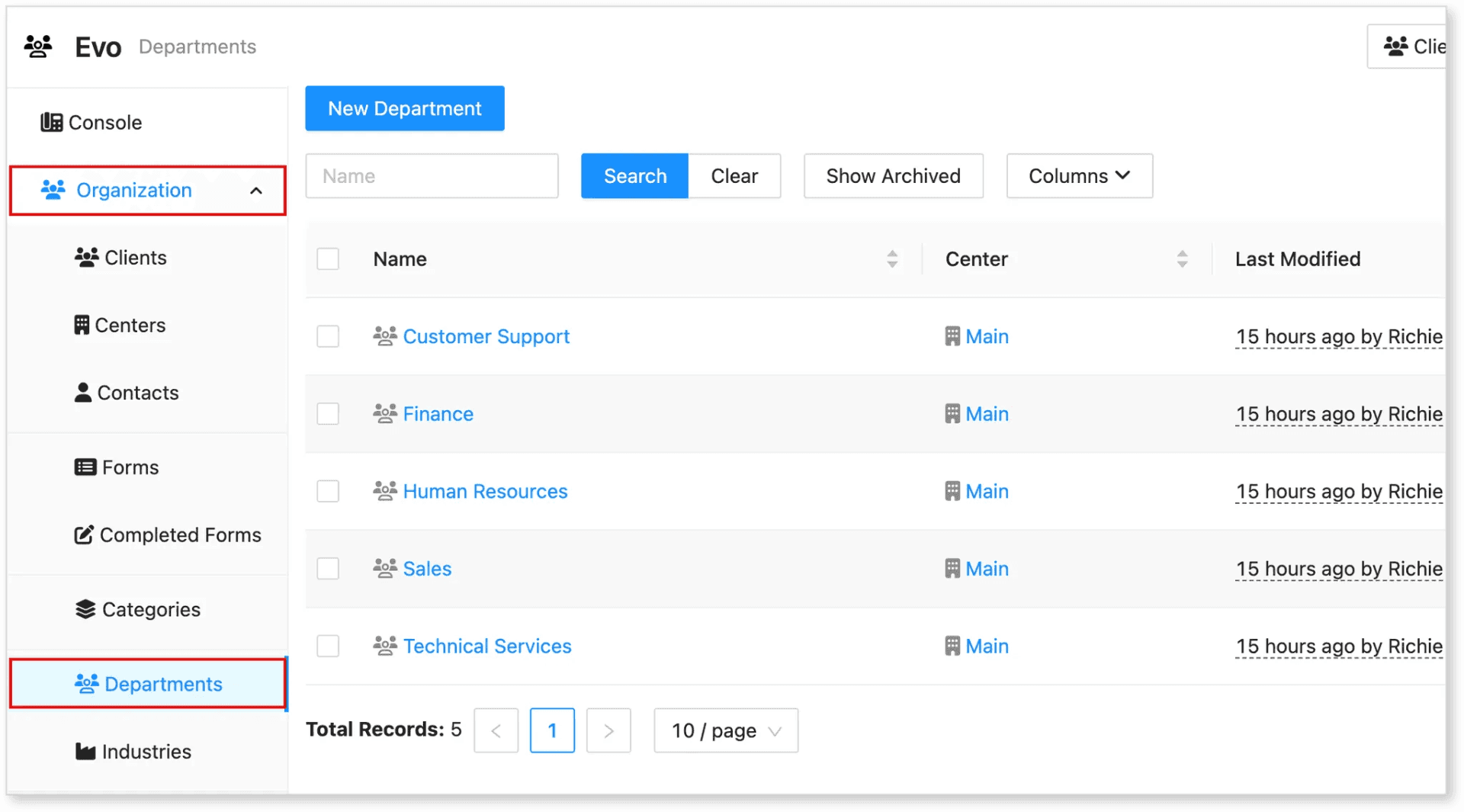
From the Hostedsuite dashboard, go to Organization in the left navigation panel
-
Click on Departments
You will see a list view with the following columns:
-
Name: The name of the department (e.g., Sales, Finance)
-
Center: The center the department belongs to (e.g., Main, Evotech)
-
Last Modified: Timestamp and user who last updated the entry
Additional controls available:
-
🔍 Search bar to filter departments by name
-
📁 Show Archived to display previously hidden/archived departments
-
⚙️ Columns button to customize visible fields
-
📄 Pagination options for navigating the list
➕ How to Add a New Department
To create a new department record:
-
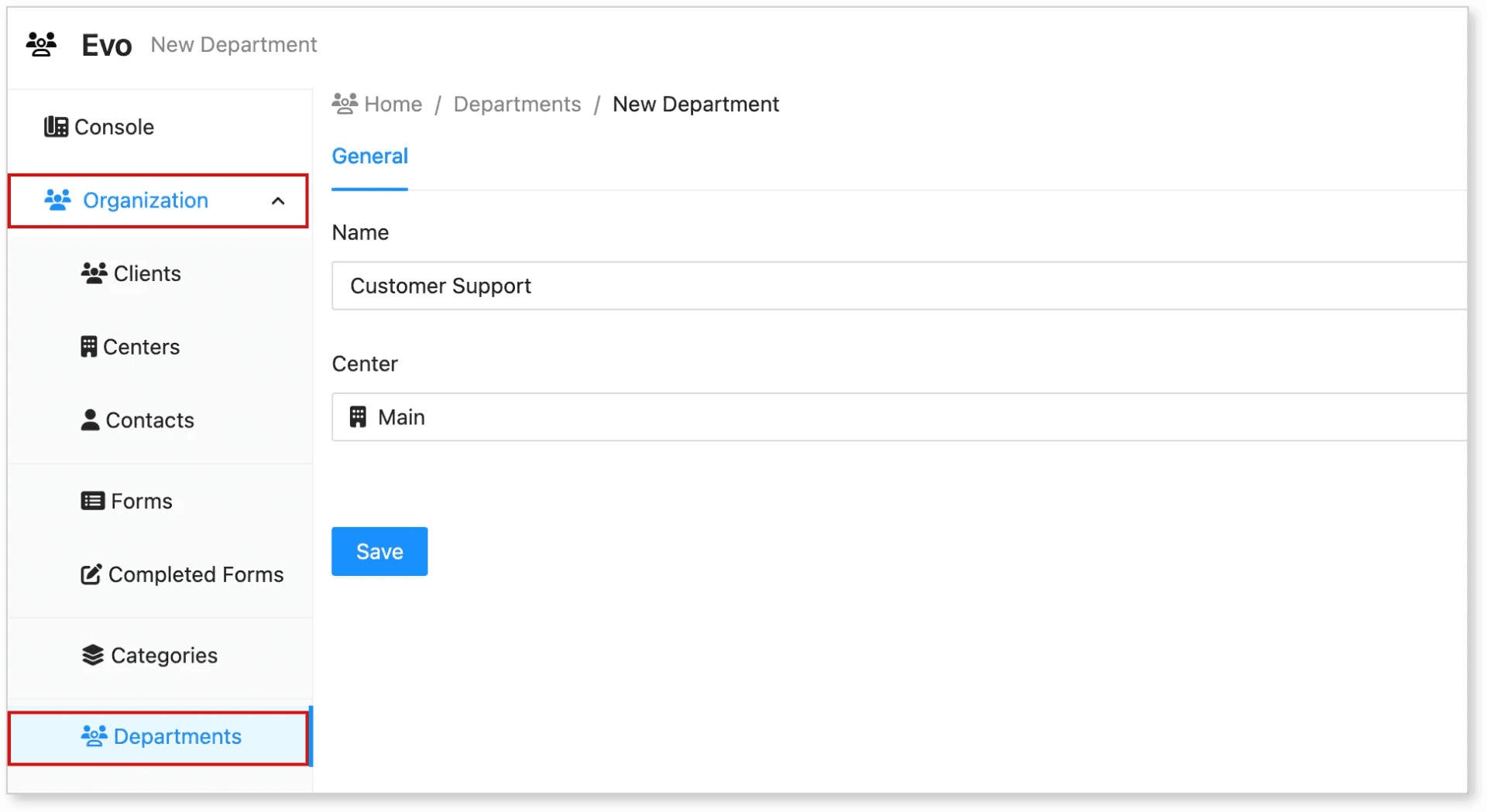
Click the “New Department” button at the top.
-
Fill out the department creation form:
-
Department Name
-
Associated Center
-
Any other required fields depending on your configuration
-
-
Click Save to finalize the department entry.
Your new department will now be listed in the main table and linked to the appropriate center.
🧪 Sample Departments You Can Add
Here are example departments you can use as test or reference data:
-
Customer Support
-
Sales
-
Human Resources
-
Technical Services
-
Finance
🛠️ Best Practices
-
Use unique and descriptive department names.
-
Ensure each department is assigned to the correct Center for accurate routing and reporting.
-
Archive unused or deprecated departments using the Show Archived feature to keep your data clean.
📞 Need Help?
For issues or setup support, contact Evo Support to assist with department management or troubleshooting.