
Note: This guide applies only to HostedSuite V2. The Call Disposition feature is not available in HostedSuite V3.
Call Dispositions help categorize the nature or outcome of a call for reporting and tracking purposes. This guide explains how to configure and utilize Call Dispositions in the system.
What is a Call Disposition?
A Call Disposition is a label or category assigned to a call, often used for reporting or analysis. For example: "Lead", "Voicemail", or "Support Request". Once set up, these can automatically apply to all calls for a specific client.
How to Set Up Call Dispositions
1. Create a Category with a Disposition Role
-
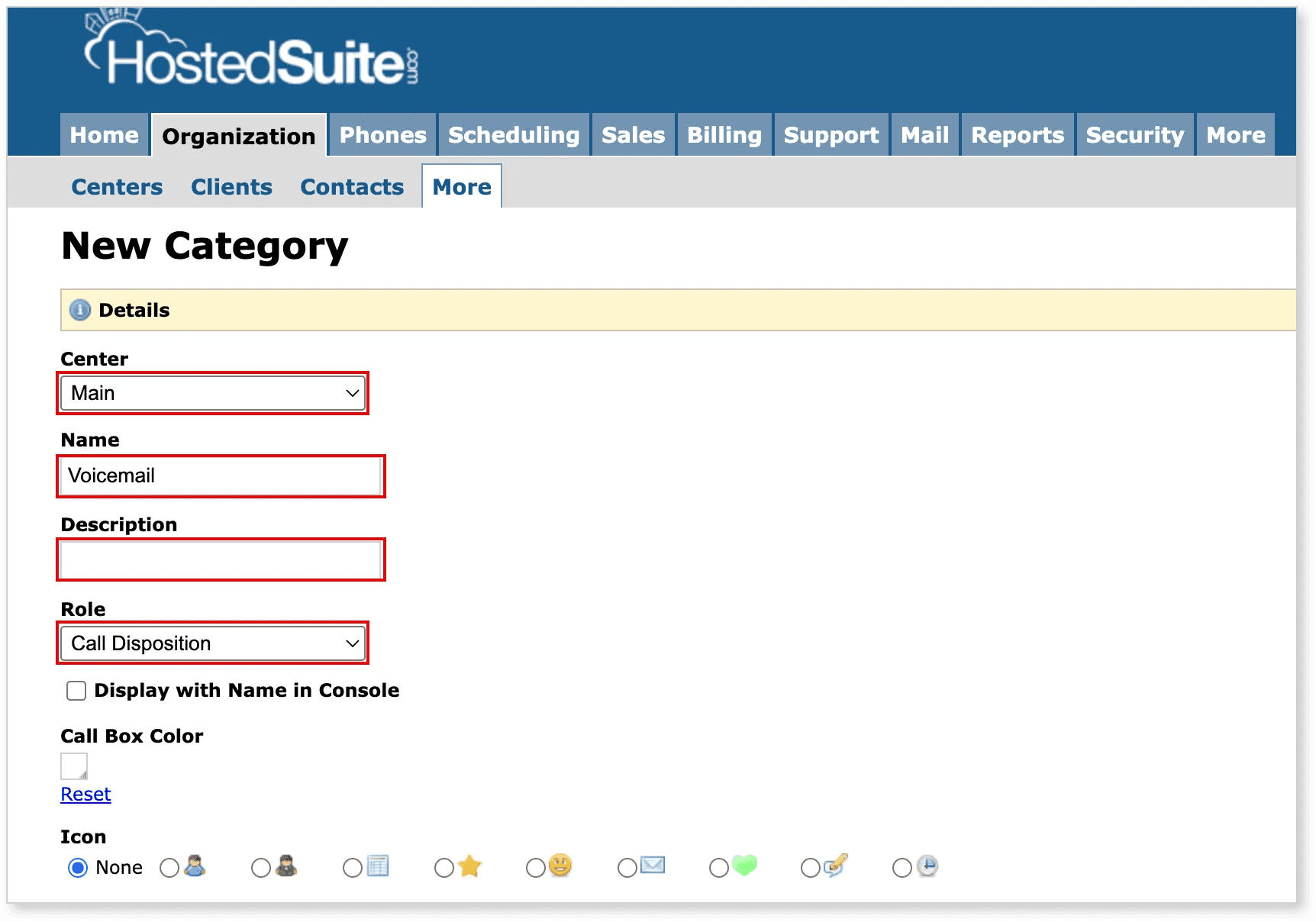
Navigate to your category management section.
-
Click to create a new category.
-
First, select a Center from the dropdown.
-
Then, enter a name for the category (e.g. "Voicemail").
-
Optionally, add a description to help identify the purpose of the disposition.
-
Finally, assign the Role: Call Disposition.
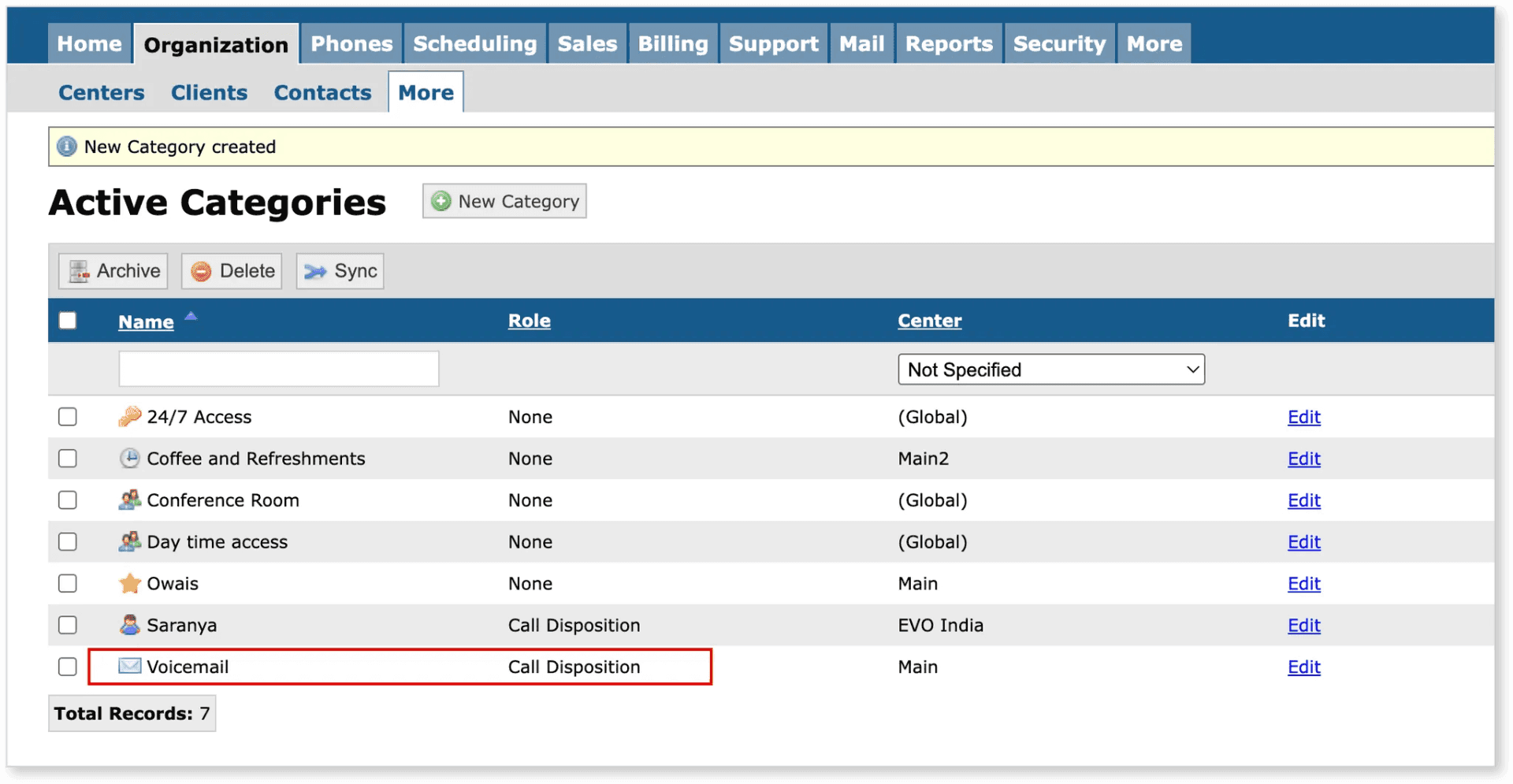
Once created, this category will be available for use in client call tracking and reports.
2. Enable Call Dispositions on Clients
-
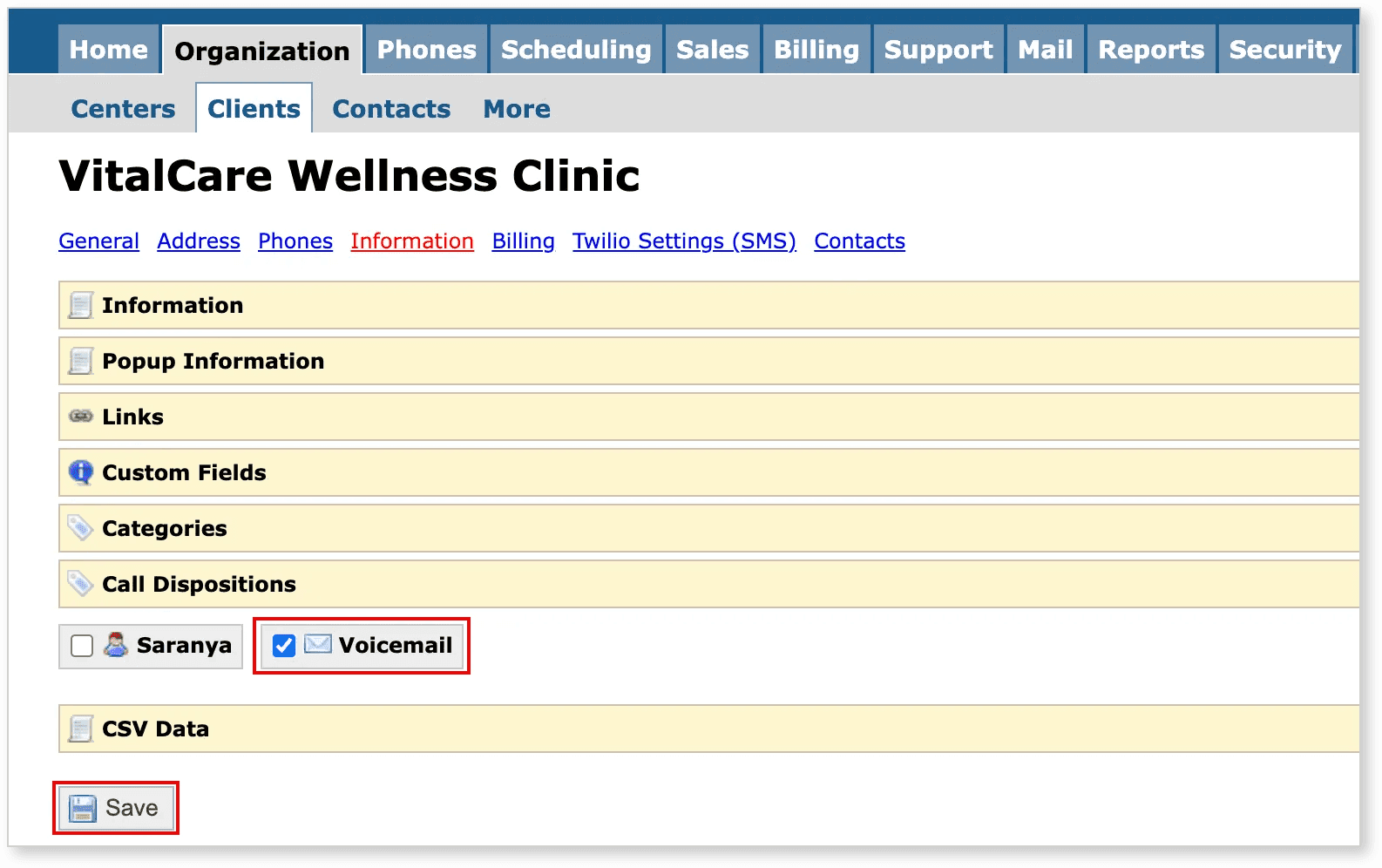
Go to the Organizations menu and select a client by clicking to open their profile.
-
Click on Edit.
-
Navigate to the Information section.
-
Click the Call Dispositions dropdown.
-
Put a check beside the disposition(s) you created earlier (e.g. "Voicemail").
-
Click Save to apply the changes.
Once enabled, these dispositions will automatically be assigned to calls associated with that client.
3. View Call Dispositions in Reports
-
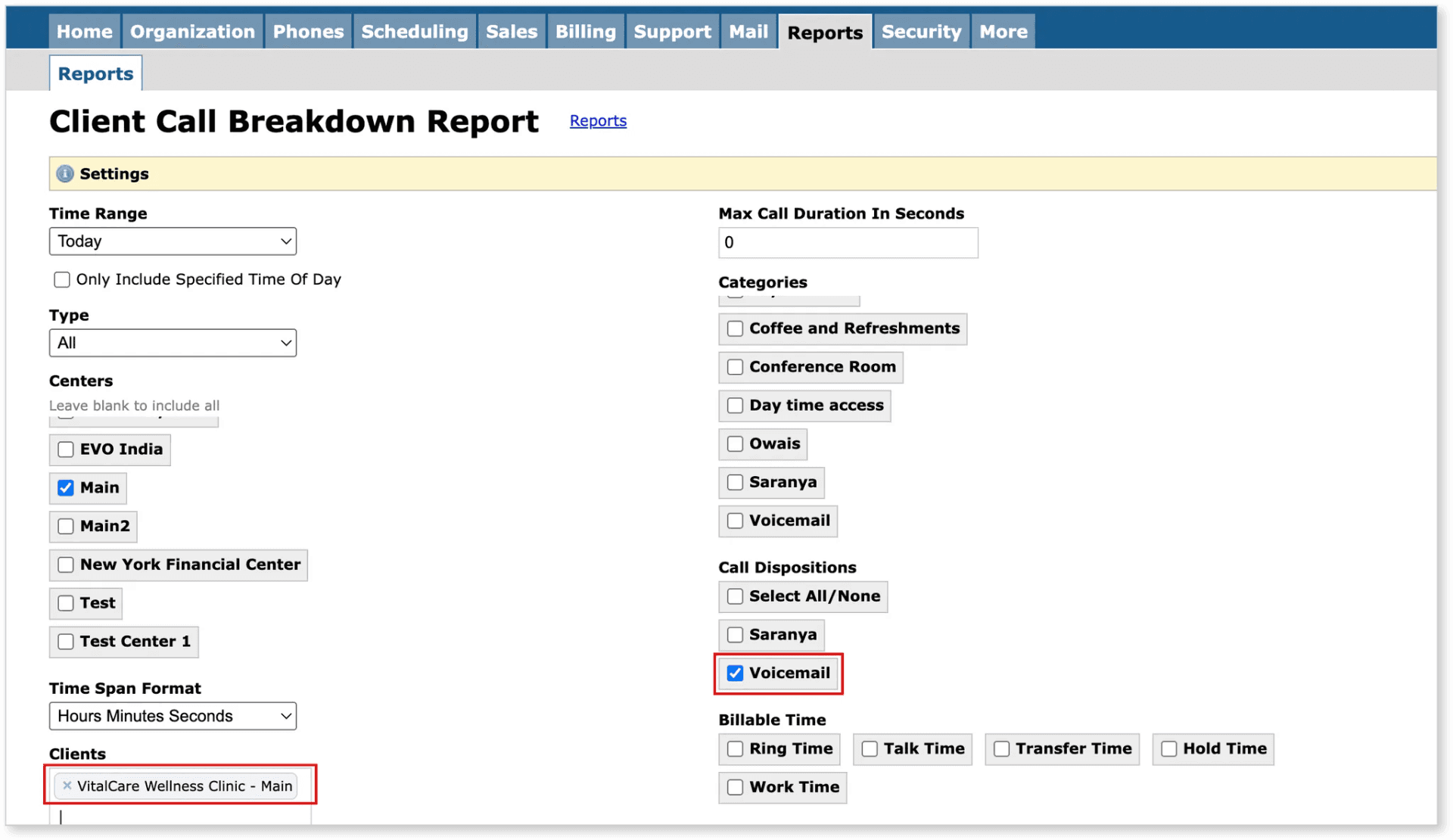
Go to the Reports section.
-
Open one of the available Call Reports.
-
Select a Center and a Client to generate the report.
-
In the Call Dispositions section, check the disposition(s) you want to include in the report (e.g. "Voicemail").
This will filter and display call data based on the selected disposition categories.
Important Notes
-
Agents cannot select a call disposition manually during or after the call.
-
If you want agent-driven input (e.g. selecting the call reason), use a form with a dropdown field:
-
Assign the form to the customer or globally.
-
The agent can then select the reason from the form.
-
Workarounds for Multiple Dispositions
If you need different disposition types based on various call scenarios:
-
Use different screen pops with associated screenpop reports.
-
Or create separate clients for each disposition category.
Example Use Cases
-
Sales tracking by categorizing calls as "Interested", "Callback Requested", or "Not Interested".
-
Support performance analysis via categories like "Resolved", "Escalated", or "Voicemail".
If you need help setting this up or creating screen pop reports, contact support.