
To add employees or staff for a company using the Contact form, follow these steps:
Adding New Contact - General
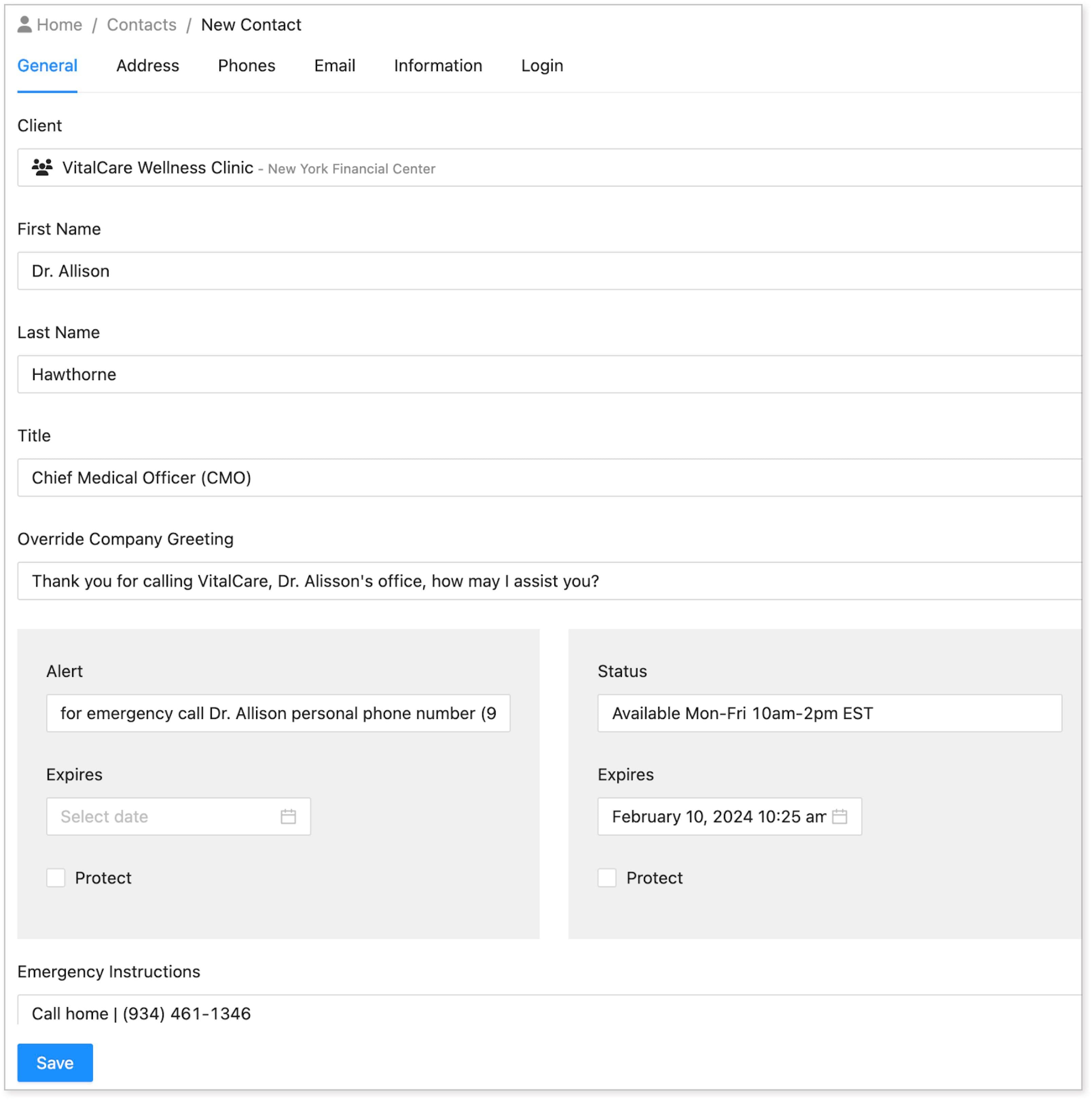
-
Click on Organization and select Contacts.
-
Click on New Contact.
-
Add employee contact information:
-
In the General tab, specify the company to which the person belongs. You can type the first few letters of the client’s name to search for the saved client.
-
Add other details for the new contact. For a list of details and their meanings, refer to the documentation [link to each field in the contact form].
-
-
Click Save to save changes.
A new contact will be added to your contact list. You can revisit this list whenever you need to add a new contact or make changes.