
🧭 Overview
The Categories tab in the Hostedsuite is used to manage and organize services, access types, or resource types offered to clients at different centers. Categories help structure forms, automate workflows, and segment service-related data.
📍 Where to Find It
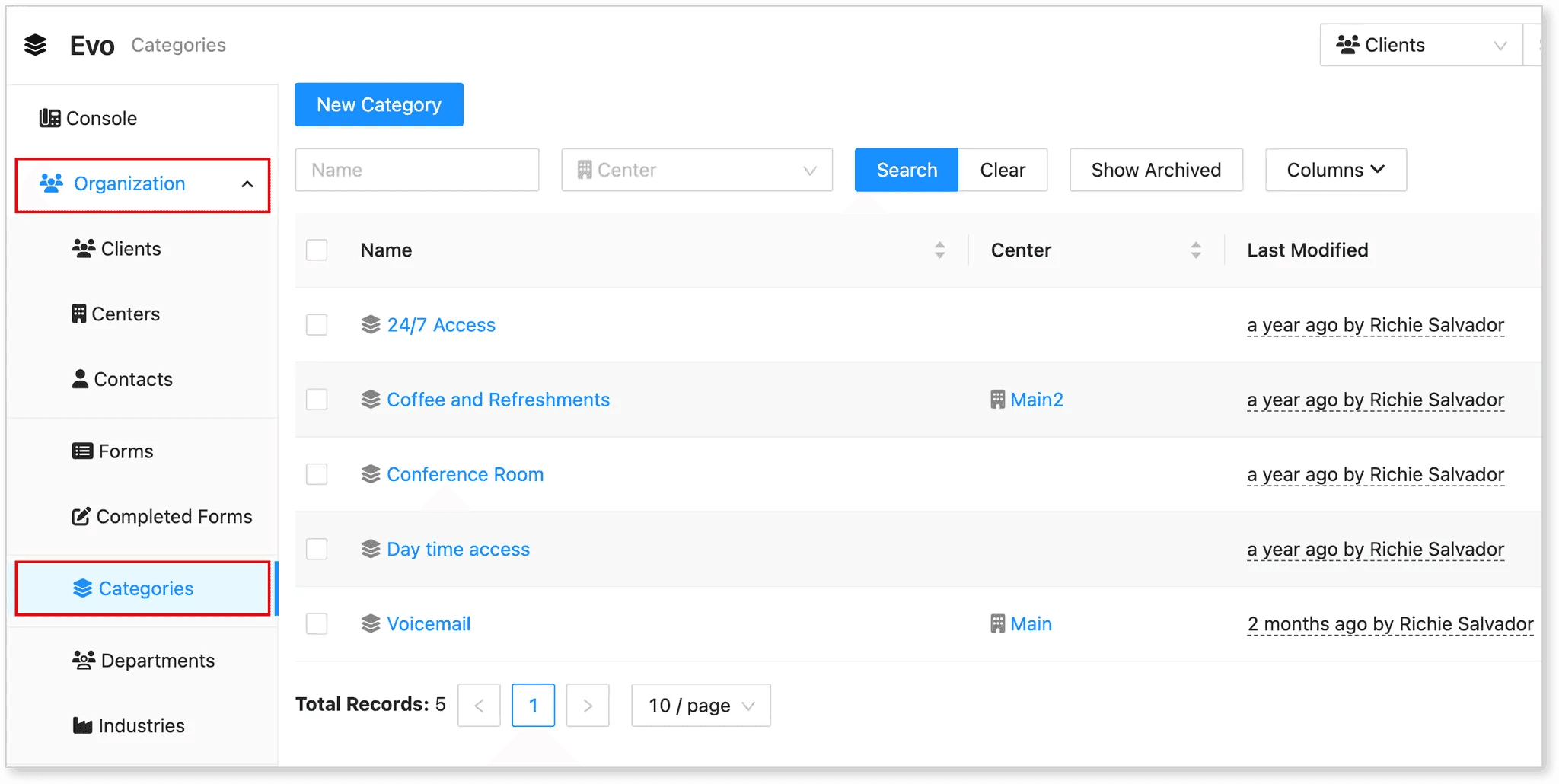
-
Go to the Hostedsuite dashboard
-
Select Organization from the left panel
-
Click on Categories
You'll find a list with the following columns:
-
Name: The name of the category (e.g., Voicemail, 24/7 Access)
-
Center: The associated center (e.g., Main, Evotech)
-
Last Modified: Date and user who last updated the entry
Other tools include:
-
🔍 Search by Name or Center
-
📁 Show Archived to view inactive/hidden categories
-
⚙️ Columns to customize table visibility
-
📄 Pagination controls (e.g., 10 / page)
➕ How to Add a New Category
To add a new category to the Evo Console:
-
Click “New Category” at the top of the Categories tab.
-
You’ll be directed to the New Category form located at:
Home / Categories / New Category
-
Fill in the following fields under the “General” section:
-
Name
Enter a clear and descriptive name for the category (e.g., “24/7 Access,” “Voicemail,” “Conference Room”). This is the primary label that will appear across the system.
-
Center
Select the appropriate Center (e.g., Main, EVO India) where this category will apply. Each category must be linked to a center to ensure proper filtering and usage.
-
Description (Optional)
Provide a brief explanation of what this category covers. This helps team members understand the purpose and use case.
-
Display with Name in Console (Checkbox)
If checked, the description (if provided) will also be shown alongside the category name in the console for better clarity.
-
Call Box Color (Optional)
Choose a color for the category’s call box. This is useful for visual identification—especially when categories are displayed in lists or schedules.
-
Icon (Optional)
Assign an icon that visually represents the category (e.g., phone icon for Voicemail, coffee cup for Refreshments). Icons help enhance user interface clarity.
-
-
After completing all necessary fields, click the “Save” button at the bottom to create the new category.
Once saved, the new category will appear in the Categories list and can be used in forms, automation workflows, or as part of service classification.
🧪 Sample Categories You Can Add
Here are some practical examples:
-
24/7 Access
-
Conference Room
-
Voicemail
-
Coffee and Refreshments
-
Day Time Access
These categories reflect resources or access levels that can be allocated per center.
✅ Best Practices
-
Keep naming clear and service-specific.
-
Use consistent category naming across centers to simplify reporting.
-
Archive outdated categories rather than deleting them for data integrity.
📞 Need Help?
For advanced setups or troubleshooting, contact Evo Support for assistance with categories, forms, or automation linkages.