
This guide explains how to handle customer requests for modifying phone settings, such as setting up outbound caller ID, extension numbers, and voicemail forwarding.
Searching for the Customer’s Account
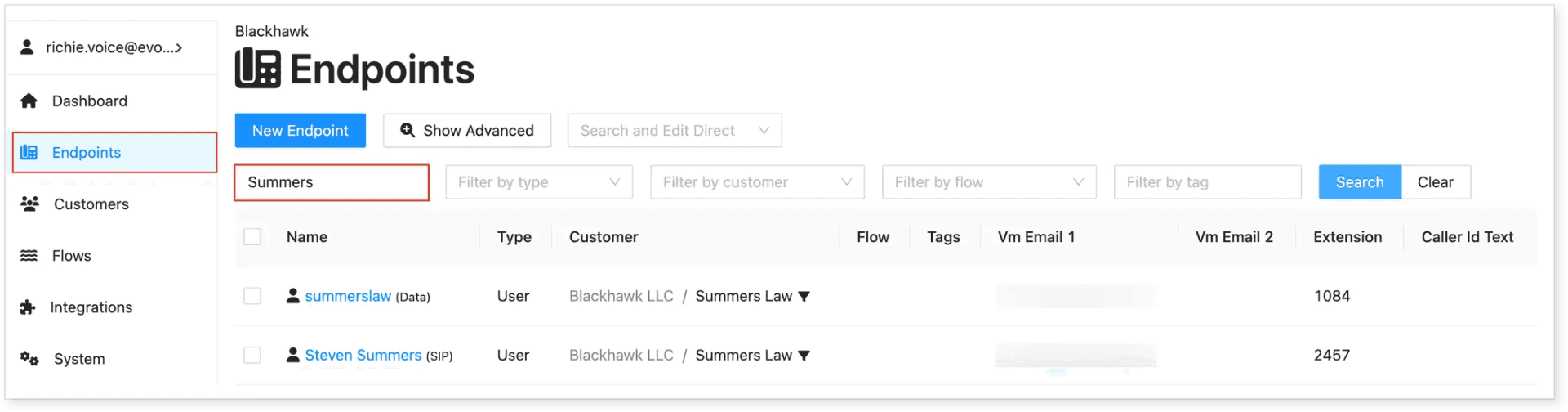
Before making any modifications, you need to locate the customer’s account or phone number.
Searching by Name
If you have the client’s name, follow these steps:
-
Use the “Filter by name” field.
-
Click the Search button.
Searching by Softphone or SIP Phone
If you have a softphone number or SIP phone number, you can locate the account using the following steps:

-
In the Filter by Type dropdown, select User.
-
In the Filter by User Mode, choose Softphone or SIP.
-
Use the Filter by Customer field to enter the client’s name.
This method also allows you to see how many SIP or softphones the client is currently using.
Making Phone Configuration Modifications
Changing the Caller ID
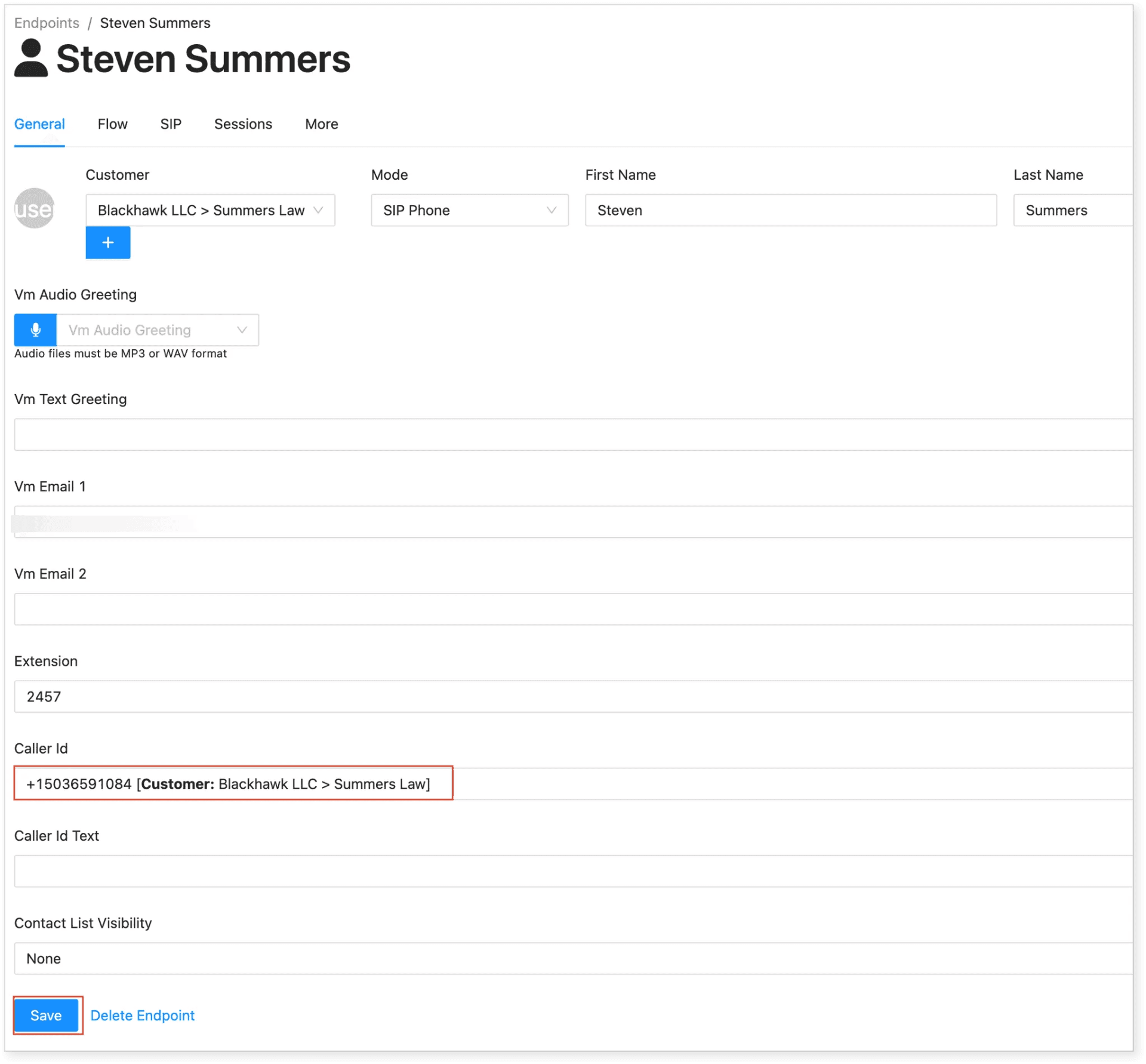
Once you’ve located the client’s account:
-
Click on the account name.
-
In the Caller ID field, enter the new caller ID.
-
Click Save.
Changing the Voicemail Email
To update the voicemail email:
-
Locate and open the customer’s account.
-
Scroll down to the VM Email 1 field.
-
Enter the new email address. (You can add up to two voicemail email addresses, or more depending on the client’s setup.)
-
Click Save.
Additional Phone Modifications
The same process applies for updating the following settings:
-
VM Audio Greeting
-
VM Text Greeting
-
Extension Number
-
Caller ID Text
Special Note for Caller ID Text in SIP
Some clients, like Intelligence Office, require a complete 10-digit number as their SIP phone setup rule. Ensure you follow this requirement when updating the Caller ID Text.