
Evo Voice supports Email functionality similarly to SMS messages, allowing you to manage incoming emails and engage with senders through flows and chat sessions.
Overview of Email Functionality
-
Create a New Email Endpoint
-
Assign a Flow to the Email Endpoint
-
Process Incoming Emails Using Nodes in the Flow
- Optionally, establish a chat session between the sender and an agent.
Step 1: Create an Email Endpoint
-
Navigate to Endpoints
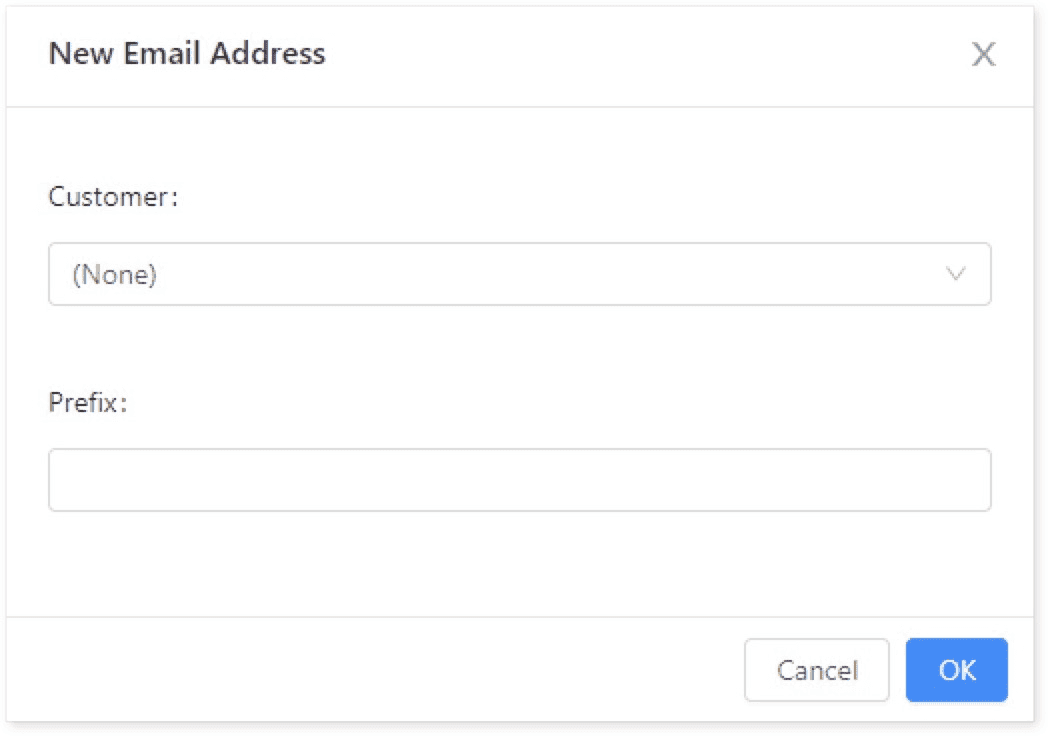
- Go to the Endpoints section and click New Endpoint > Email Address.
-
Configure the Email Address
-
Associate with a Customer: Link the email to a specific customer.
-
Specify a Prefix: Define a prefix that will be prepended to the email address.
- Example: A prefix of "cats" may create an address like
cats555@evovoice.mail.
- Example: A prefix of "cats" may create an address like
-
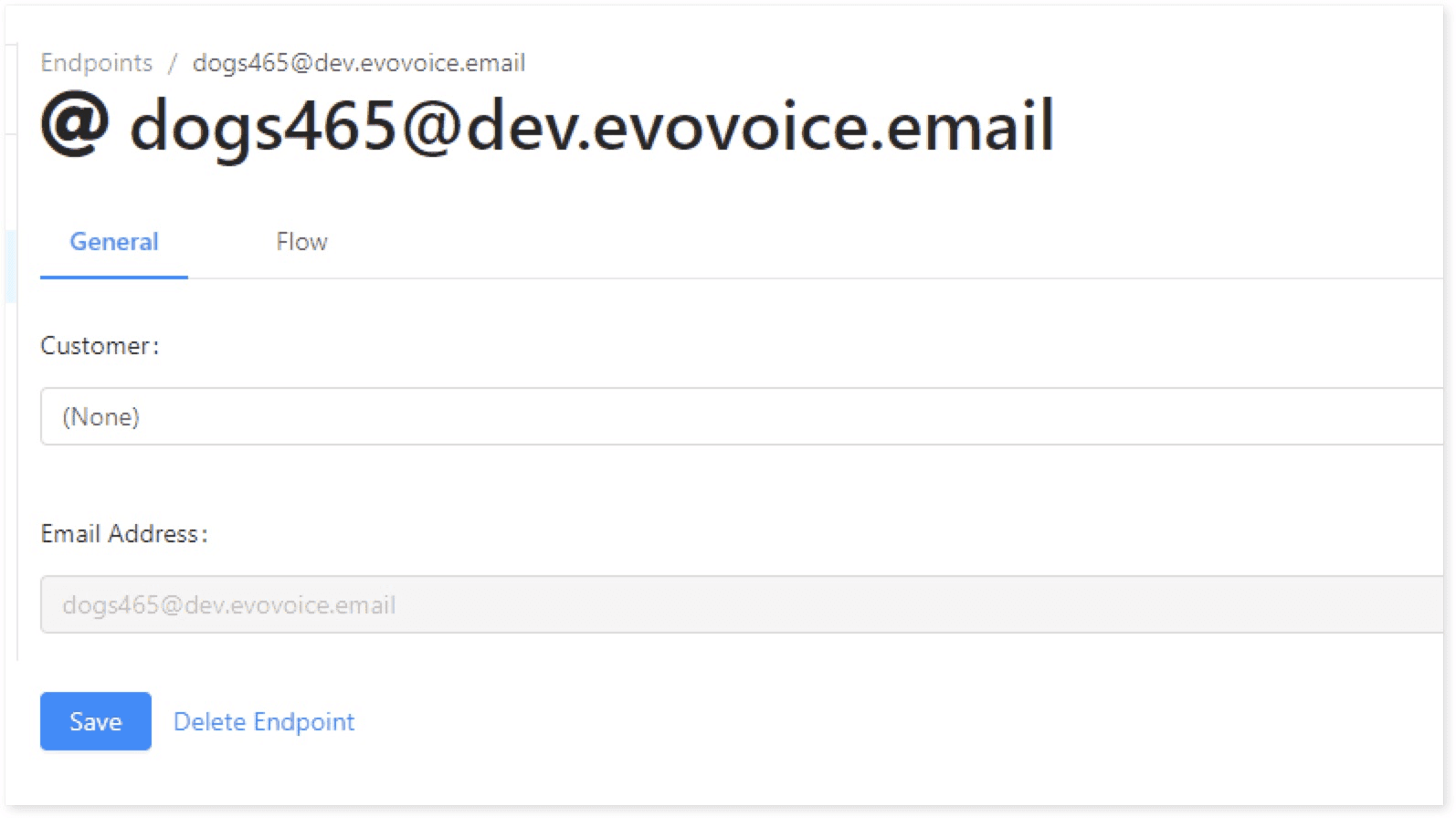
Note: You cannot use custom email addresses in Evo Voice; only system-generated ones are supported.
-
-
Save the Email Endpoint
- Once created, assign it to a Flow for processing incoming emails.
Using Your Own Email Address
-
Evo Voice does not allow direct use of your custom email addresses.
-
To integrate your email, set up a forwarding rule in your email manager to redirect messages to the Evo Voice-assigned email address.
Step 2: Set Up a Simple Email Flow
-
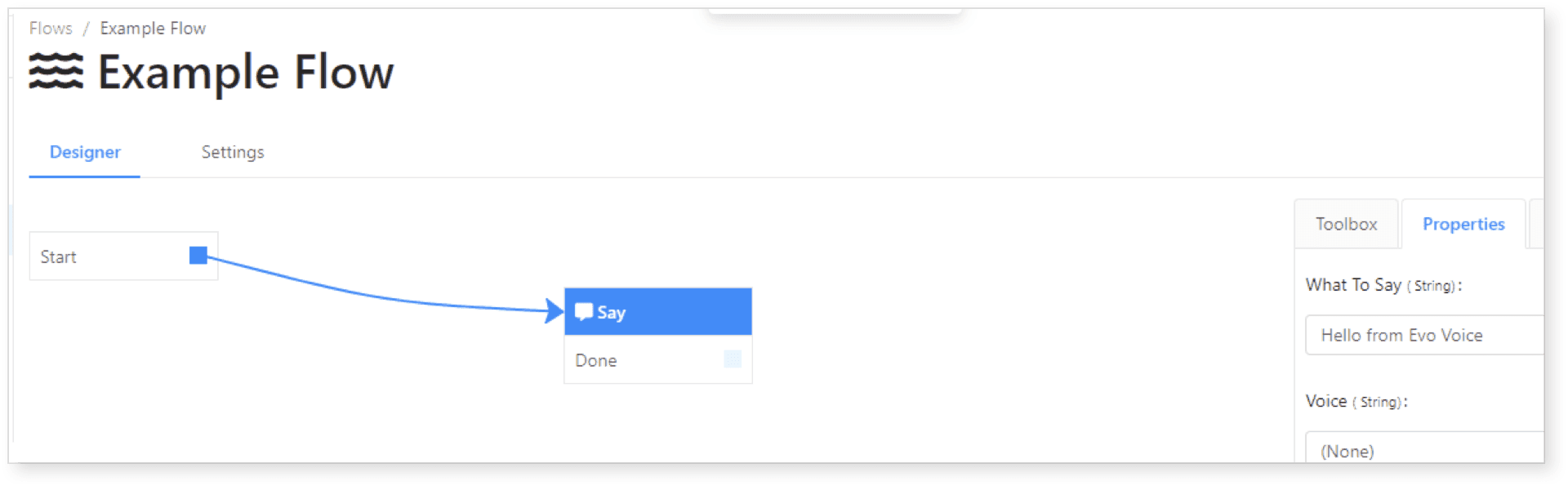
Create a New Flow
-
Assign your newly created email endpoint to a Flow.
-
Configure the Flow to handle incoming emails.
-
-
Example Flow
-
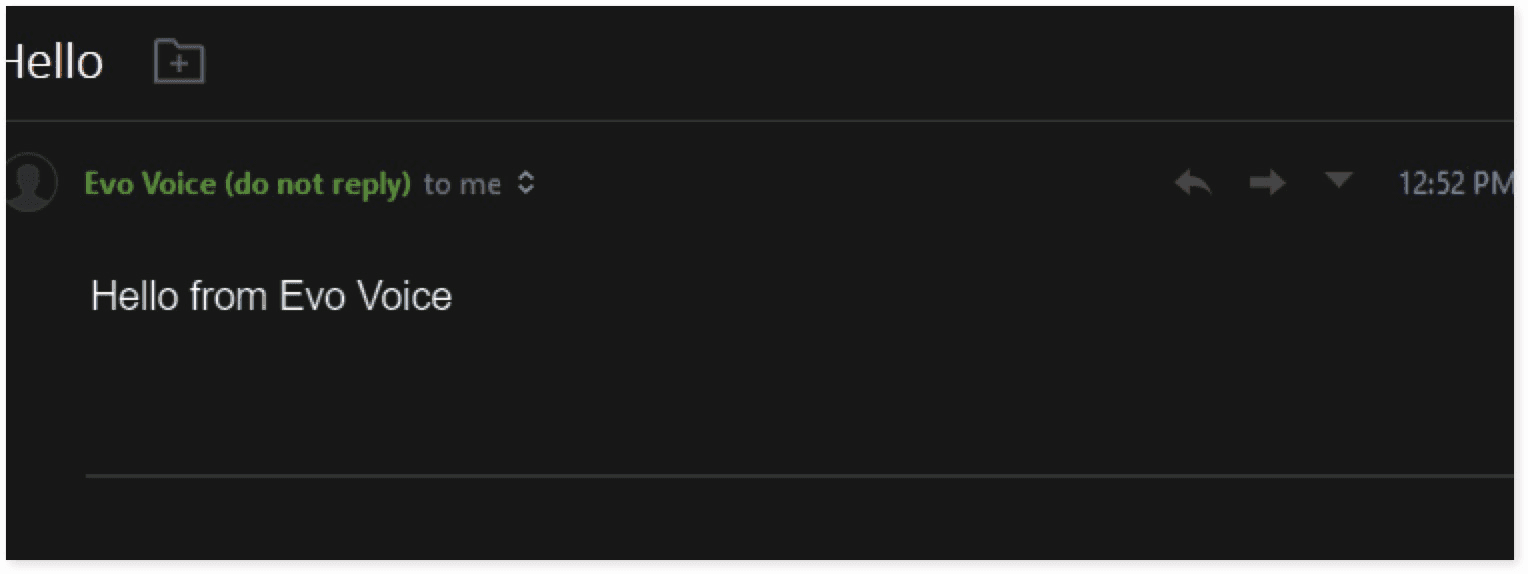
Incoming emails to the assigned address trigger a reply from the system:
Incoming Email:
emailaddress@evovoice.mailReply:
"Thank you for contacting us. We will respond shortly."
-
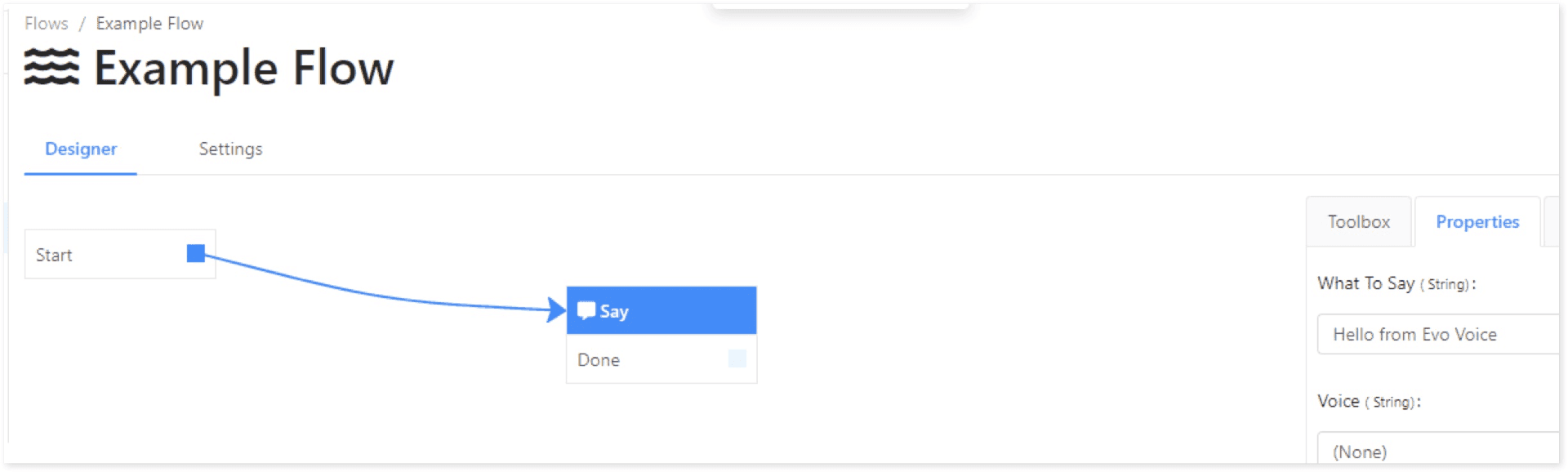
Step 3: Set Up an Email Chat Flow
-
Create a Chat Flow
- Configure the Flow to establish a chat session between the email sender and an agent.
-
Example Configuration
-
Incoming emails to the endpoint trigger a chat session with an agent (e.g., Una).
-
When an email is received:
-
The sender is placed into a chat with Una.
-
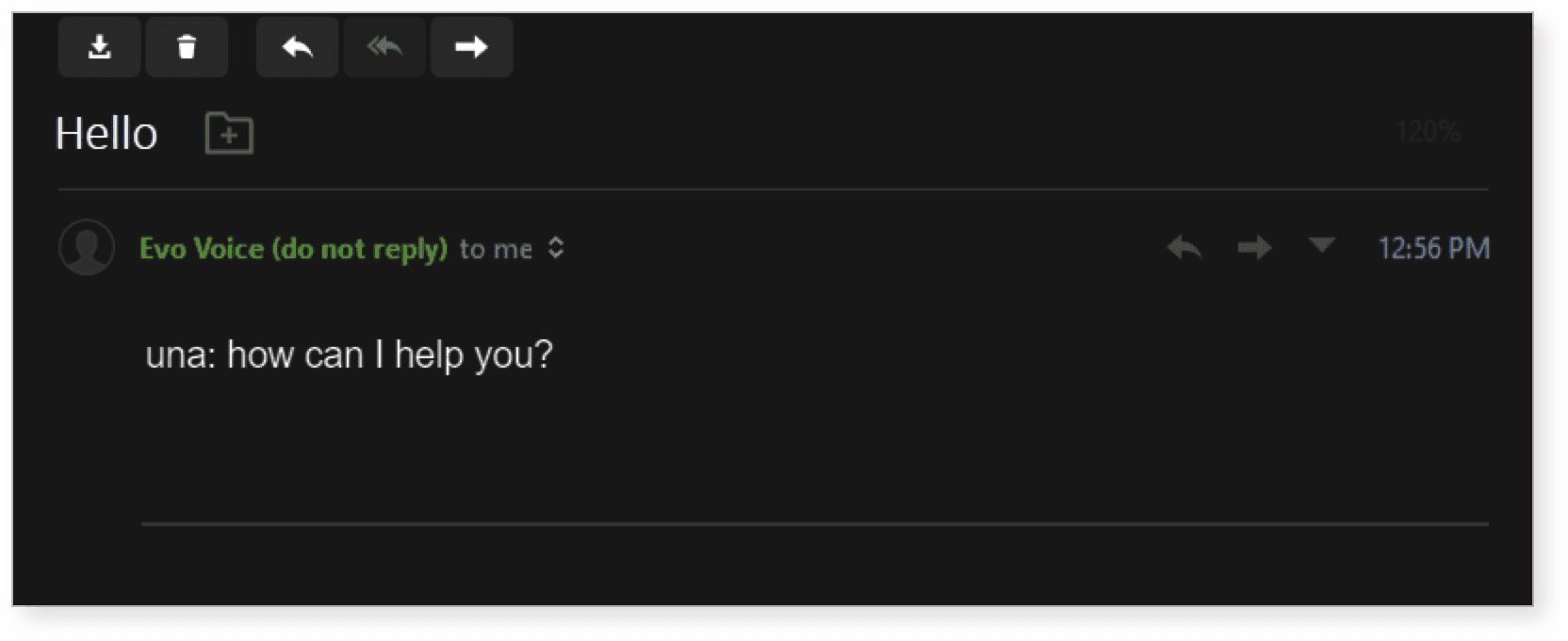
Una can reply directly, and the response is sent back to the sender via email.
-
-
-
Sample Interaction
-
Sender's Email:
"Hello, I need assistance."
-
Agent's Reply (via Una):
"Thank you for reaching out. How can I help you today?"
-
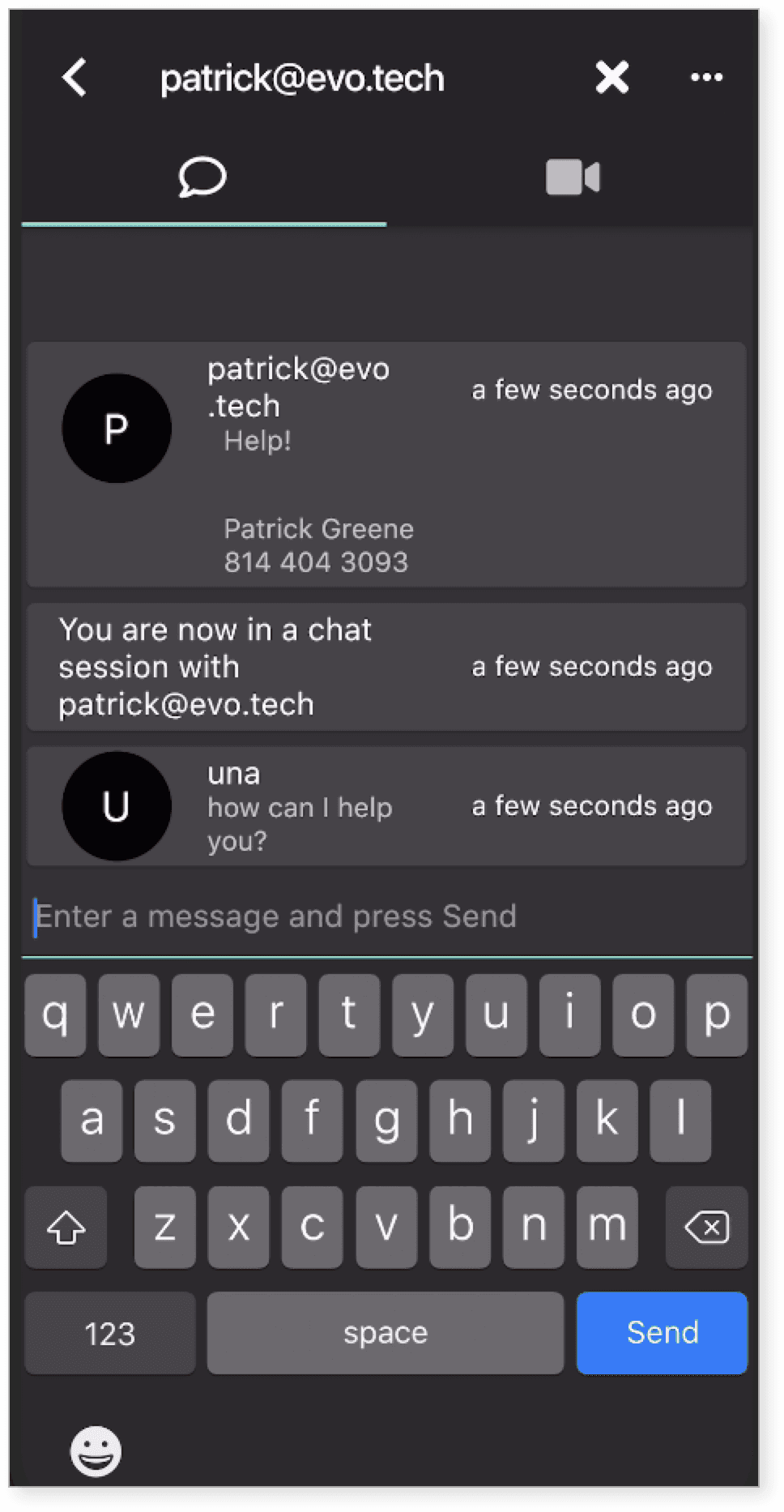
This back-and-forth continues until:
-
The sender types EXIT to end the conversation.
-
The agent ends the conversation through the app.
Key Points to Remember
-
Evo Voice assigns system-generated email addresses based on your specified prefix.
-
Forwarding rules are necessary to use your custom email address with Evo Voice.
-
Email flows operate similarly to chat channels, enabling seamless communication with users.
-
Chat sessions initiated via email can be managed just like other chat-based interactions in Evo Voice.
By following these steps, you can efficiently handle emails and interact with senders using Evo Voice's email functionality.