
Introduction
The Evo Voice App is a cross-platform application available on Android, iOS, and Web. It allows users to:
-
Make and receive calls using their Evo Voice number(s), including support for multiple numbers.
-
Chat with other users and administrators.
-
Modify Evo Voice settings, such as customer data and endpoint configurations.
-
Access voice messages for efficient communication.
Please note that the Evo Voice App is currently in beta.
Download
The Evo Voice App is available for iOS and Android at the following links:
iOS: Download from the App Store
Android: Download from Google Play
Administration / Signing In
To allow users to sign in to the Evo Voice App, you must first create a Soft Phone user in Evo Voice. For example:
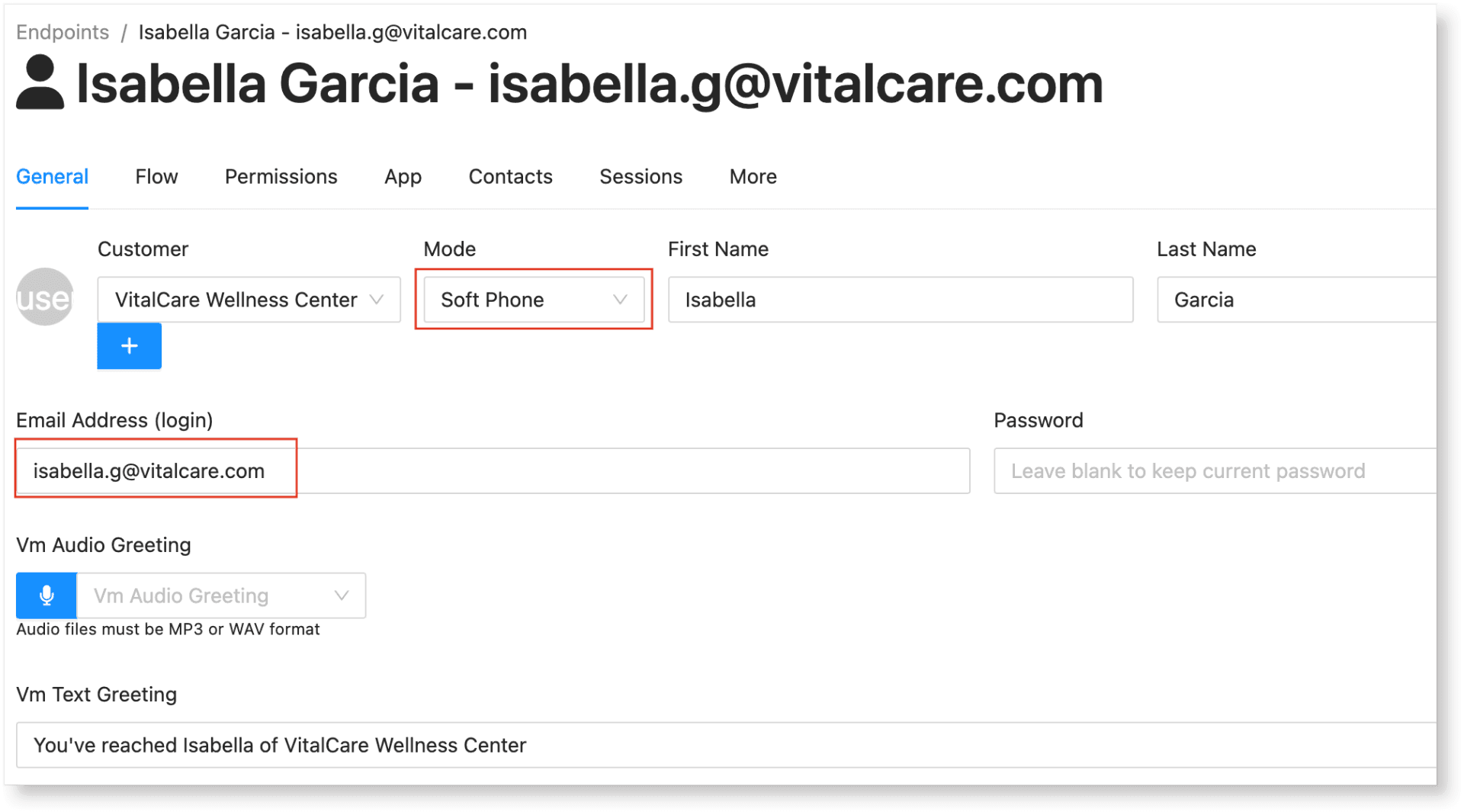
In the screenshot above, note the Email Address (login) field, as this will be used for signing in to the app along with the password.
It is crucial to assign Customers to these users, as this determines which endpoints they can modify. For example, in the image above, Isabella Garcia is assigned to the VitalCare Wellness Center. If you do not properly assign a Customer to your Soft Phone user, the end user may inadvertently gain access to numbers or make calls from endpoints they are not authorized to use.
Permissions
To control what data an app user can modify, there is a Permissions tab on the User’s details screen:
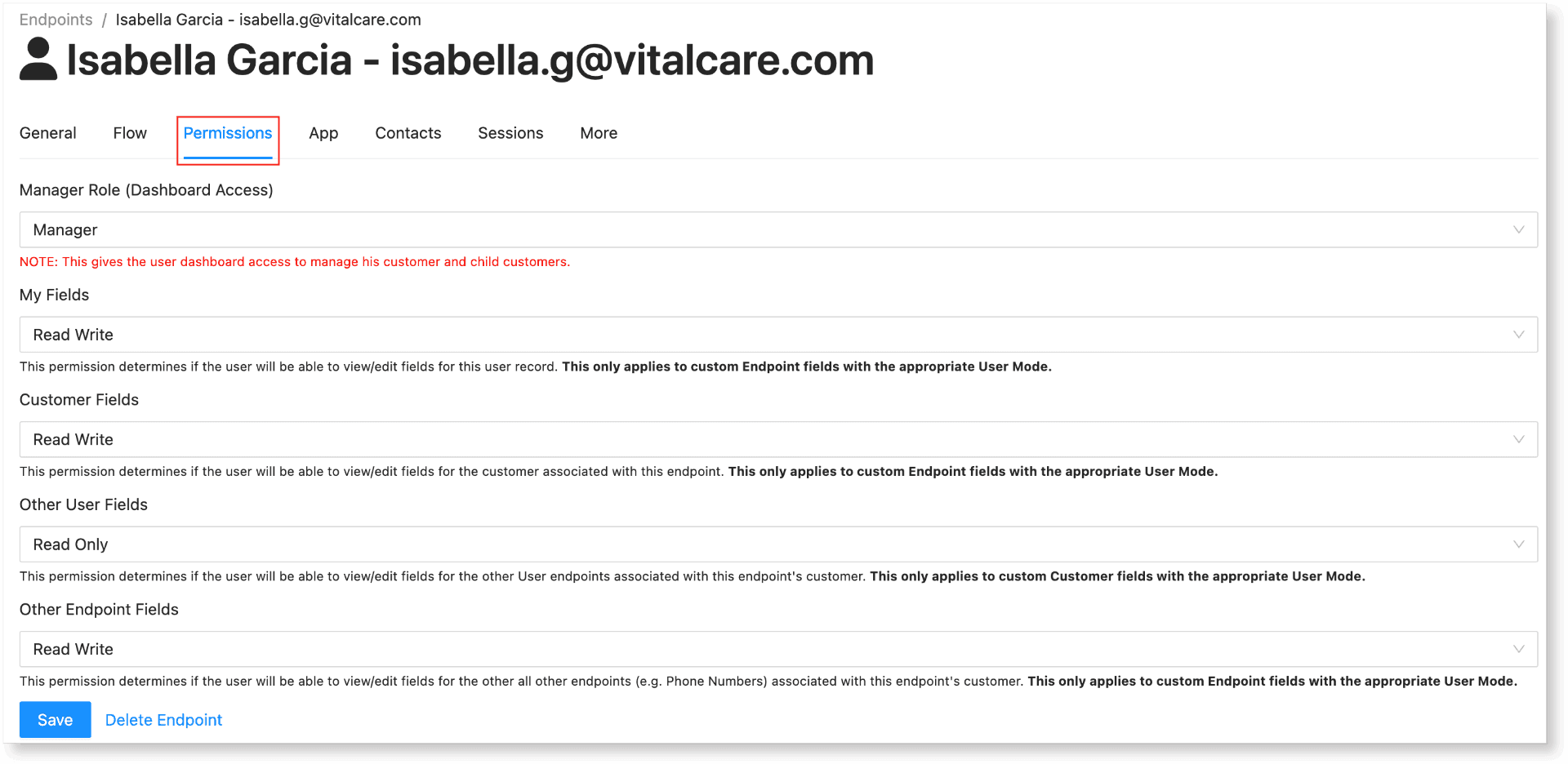
These permissions specify which settings (data) the user can modify, with descriptions below each field explaining the impact of changing it.
Please note:
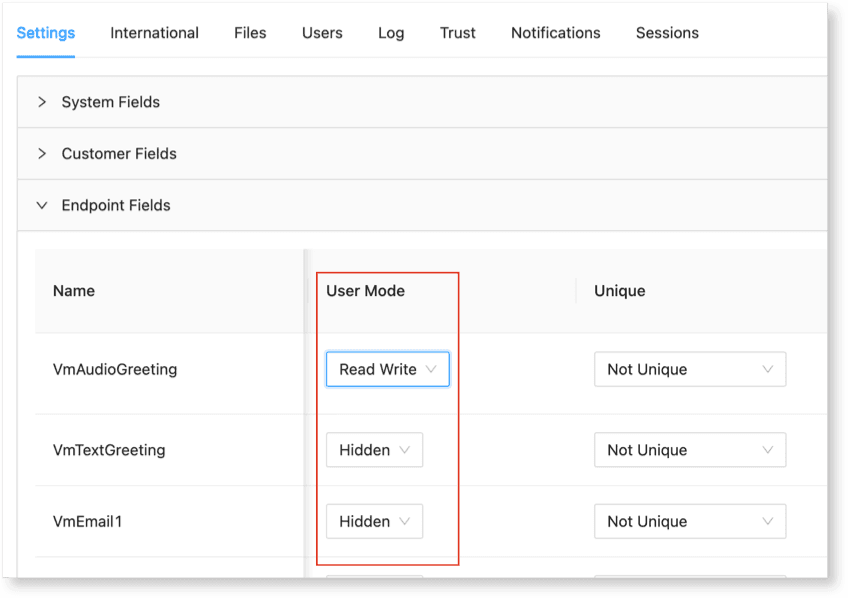
Only data fields (Customer or Endpoint) with a User Mode set to Read Only or Read Write will be visible to the app user.
Any fields with a different User Mode setting will remain hidden from the app user.
Access/Download
You can access the web app at http://app.evovoice.io (this will redirect to a secure location).
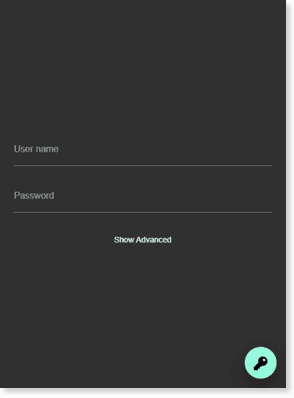
Users sign in to the app using the credentials assigned to the Soft Phone user that you created.
Note: Evo Voice administrators cannot sign in to the app with their dashboard login. You must create a Soft Phone user if you want to use the app.
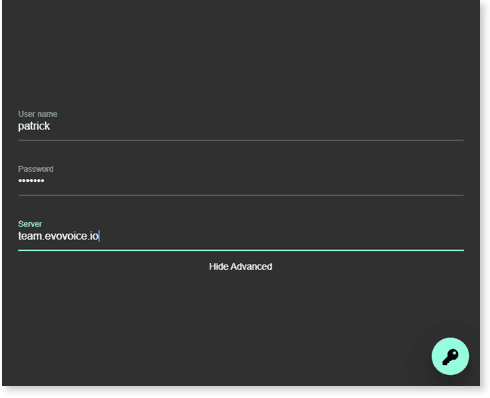
If you want to test the app using a non-standard server (such as team.evovoice.io), click the Advanced button and enter the server name into the Advanced field, e.g.:
Up Next: Learn more about managing conversations, settings, and contacts in the App Functionality section. Continue →