
App Functionality
Currently, the alpha version of the app provides the ability to modify User, Customer, and Endpoint Data (such as voicemail greetings, forwarding settings, etc.).
Conversations
Active calls or chats are displayed on the Conversations Tab. For example:
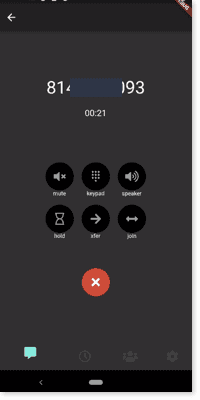
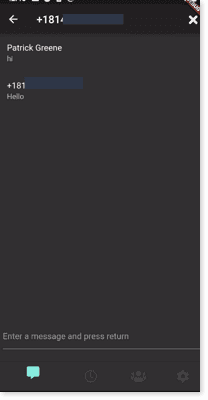
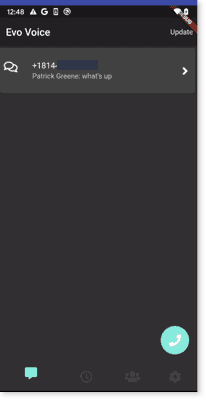
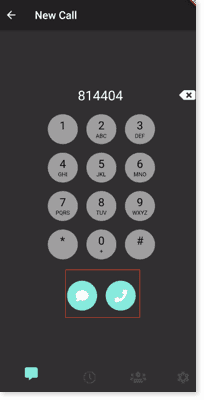
To start a new conversation:
-
Click the Phone button at the bottom right.
-
Enter a number.
-
Press either the Chat or Dial button.
Settings
The Evo Voice App allows users to modify various data fields that control their workflows.
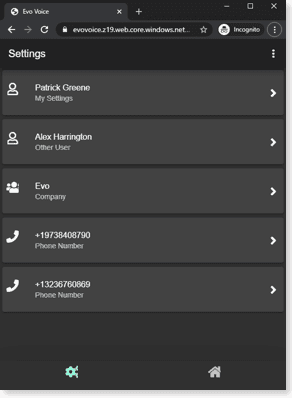
The Settings Tab (indicated by the Gears icon) displays all the "Settings Objects" that can be modified, depending on the user’s permissions.
For example, in the following screenshot, the app user has access to modify Customer data, other User data, and Endpoint data:
 If we adjust the user’s permissions to look like this:
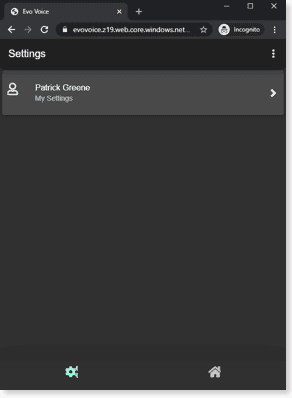
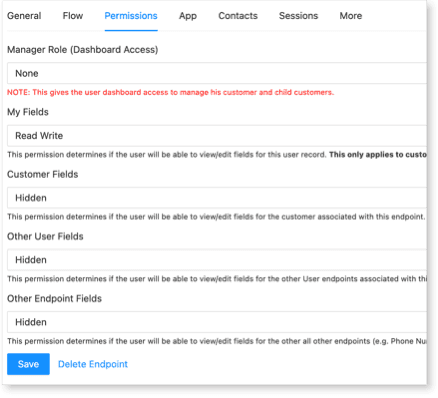 After refreshing the app, the user will only see:
To modify settings for a specific object, simply tap on the object. For example:
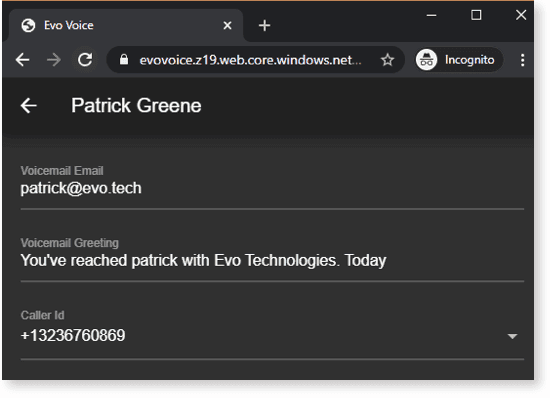
To save any changes, click the Save button at the bottom right.
Contacts
The Contact List in Evo Voice displays two types of contacts: Personal contacts and Corporate Directory contacts. Corporate contacts have a tie icon, while personal contacts do not.
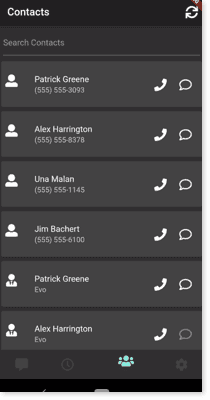
Personal Contacts
Currently, personal contacts can only be managed using the Evo Voice control panel, on the Endpoint Details screen > Contact tab.
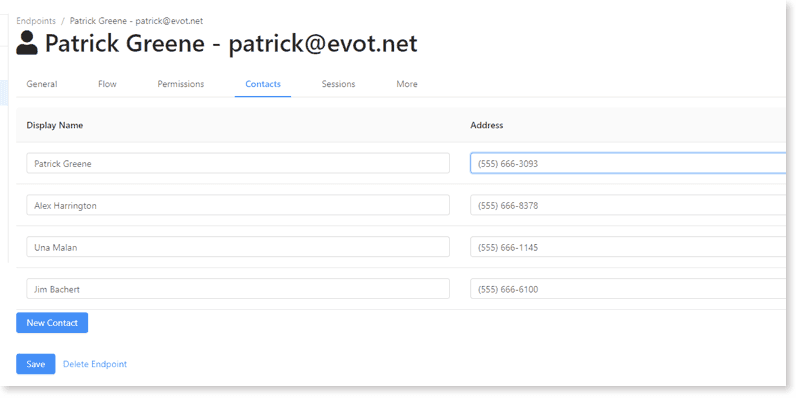
You can add, remove, or modify personal contacts on this screen.
Corporate Contacts
Corporate contacts are determined by the other Users within the app user’s Customer. For example, in the screenshot below, the app is signed in with a user from the Evo customer:
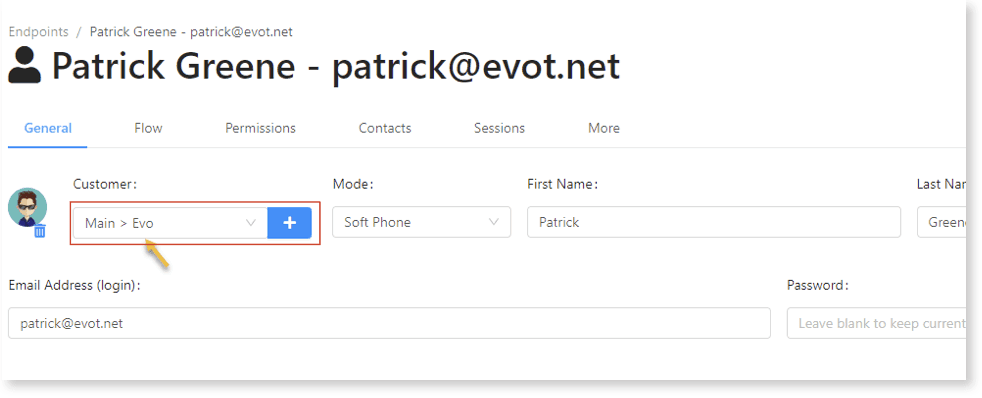
Here, we can see that the list of corporate contacts includes Alex and Patrick, who are both in the Evo customer.
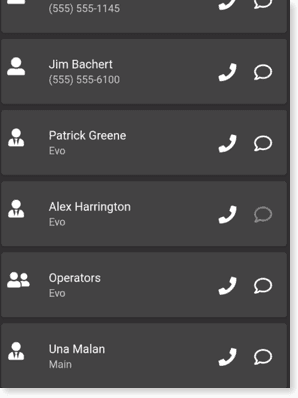
By default, only Users (SIP or Soft Phone) that are in the App user’s Customer (or children of it) are included.
However, in the screenshot above, notice that Una Malan is included, even though she is in the parent Main customer. This is because Una’s Contact List Visibility is set to Current Customer and Children on the Endpoint Details screen.
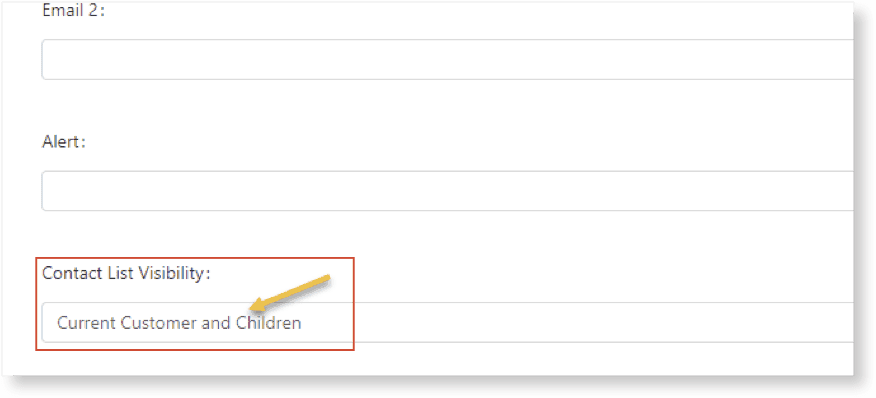
Finally, any Teams that are visible will also appear in the Contact List. For example:
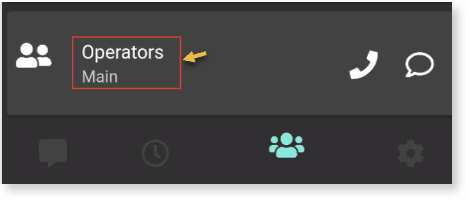
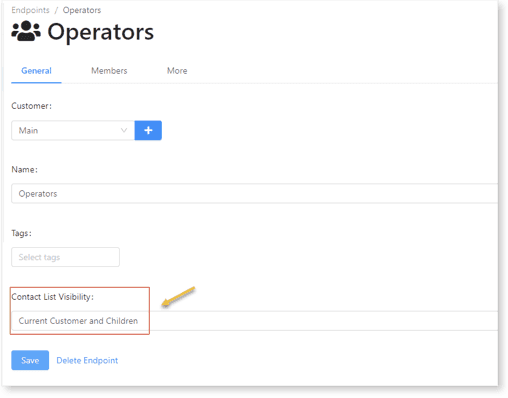
Calling or messaging a Team will call or message all members of that team.
Activity
The Activity Tab shows any notifications relevant to the signed-in user. This includes:
-
Voicemails received on any incoming phone number
-
Incoming/outgoing calls
-
Push notifications sent to the app
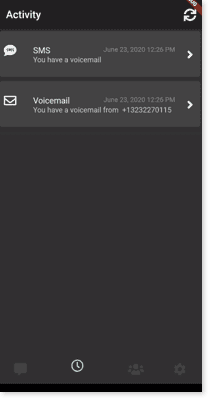
You can inspect a notification by tapping on it. Actions specific to that notification will then appear. For example:
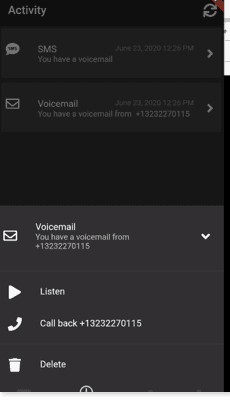
Notifications are always shown in order, from most to least recent, and are pulled in chunks of 20. To load more, tap the "Load More" button, which will appear at the bottom when there are additional notifications to display.