
Introduction
In Evo Voice, Customers represent a group of people whose calls are managed by your team. A customer could be a company, a team renting office space, or even your own business. Customers allow you to group Endpoints for billing and data purposes. By default, a new Customer only has a Name, but you can add more details by using Customer Fields.
Creating a New Customer
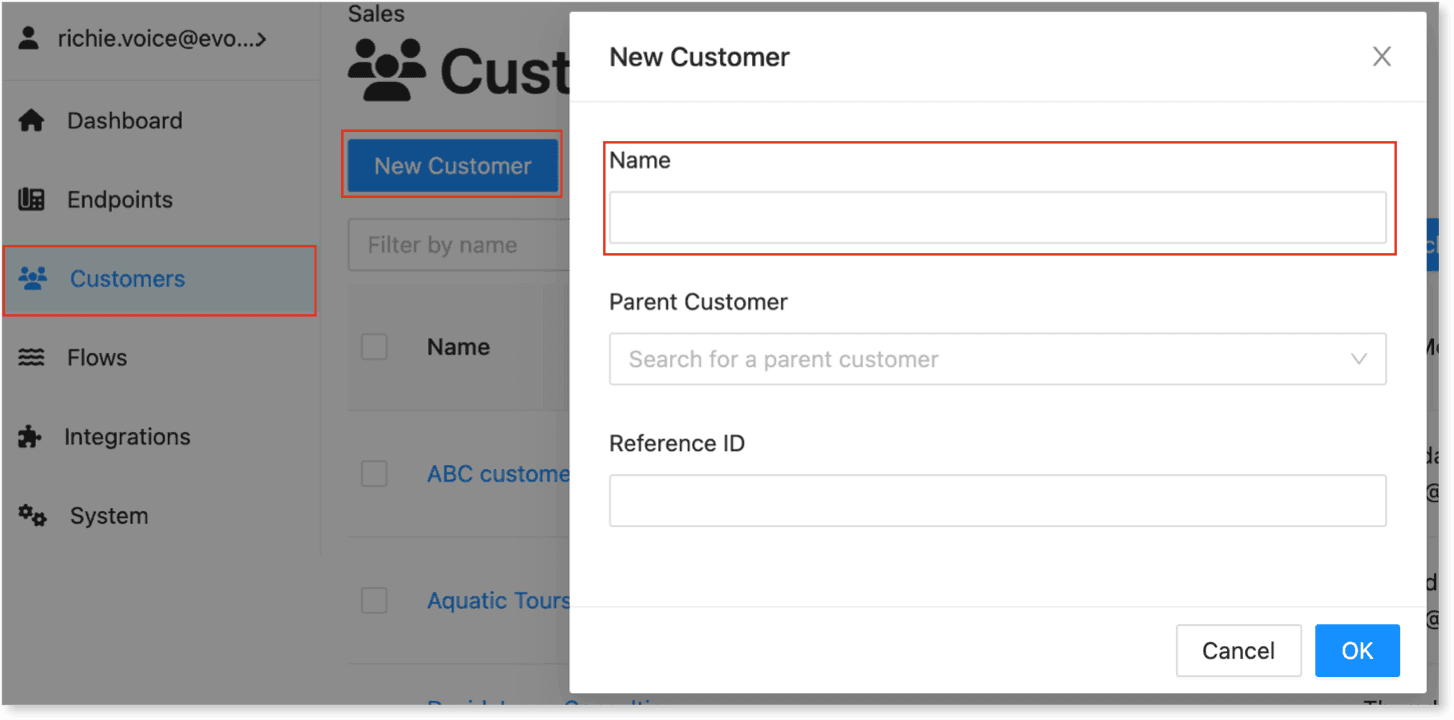
To create a new customer:
-
Go to the "Customers" section on the left.
-
Click the "New Customer" button.
-
By default, the new customer will only have a Name until you add more fields.
Customer Fields
You can add customized fields for each customer to personalize their communication setup.
Adding a Customer Field
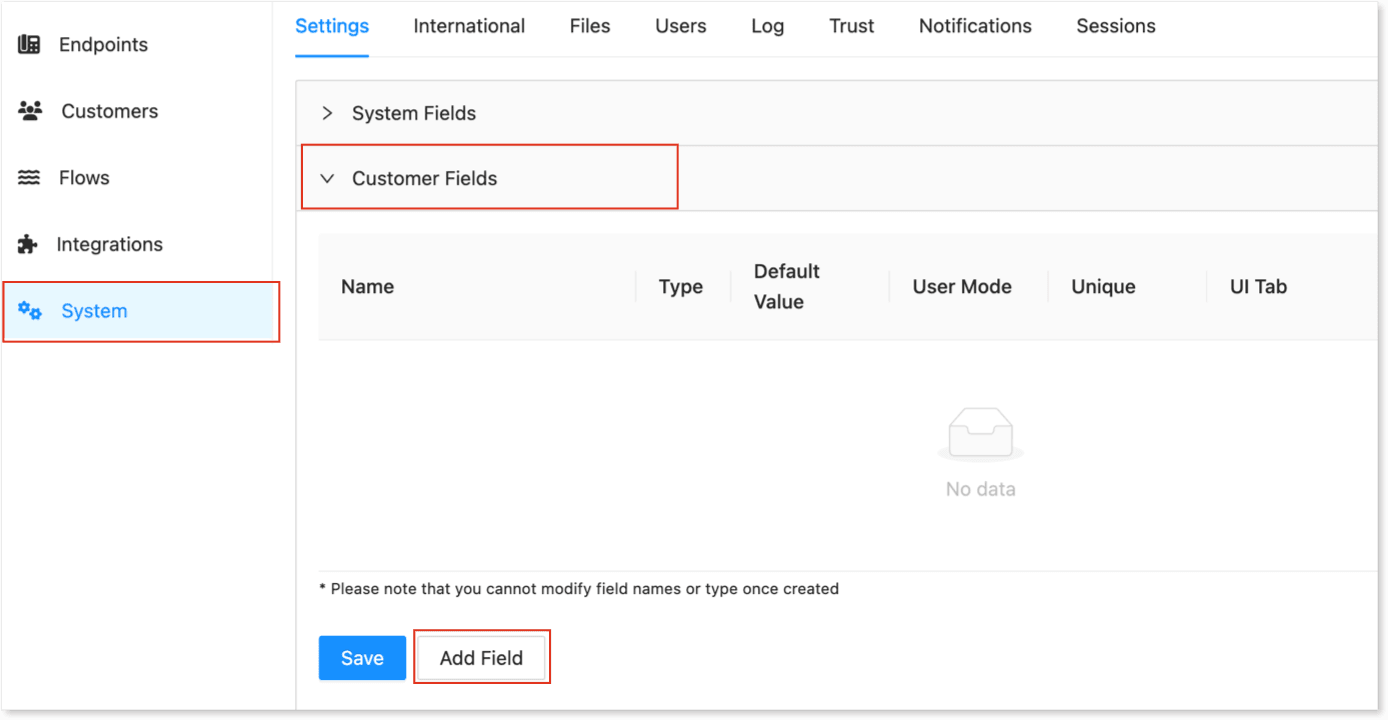
-
Go to the "System" section and click on the "Customer Fields" tab.
-
Click "Add Field," enter your field details, and then click "Save."
-
In the example below, we're adding a new field called Message with "String" as the type.
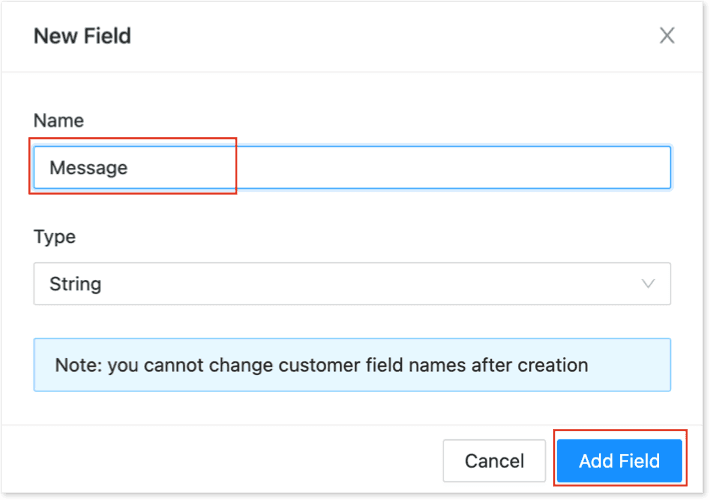
- After saving, your field will be ready to use in customer configurations and flows.
Modifying Customer Fields
Once a customer field is added, you can edit or modify it as needed:
-
Go to the "Customers" section.
-
Select an existing customer or add a new one.
-
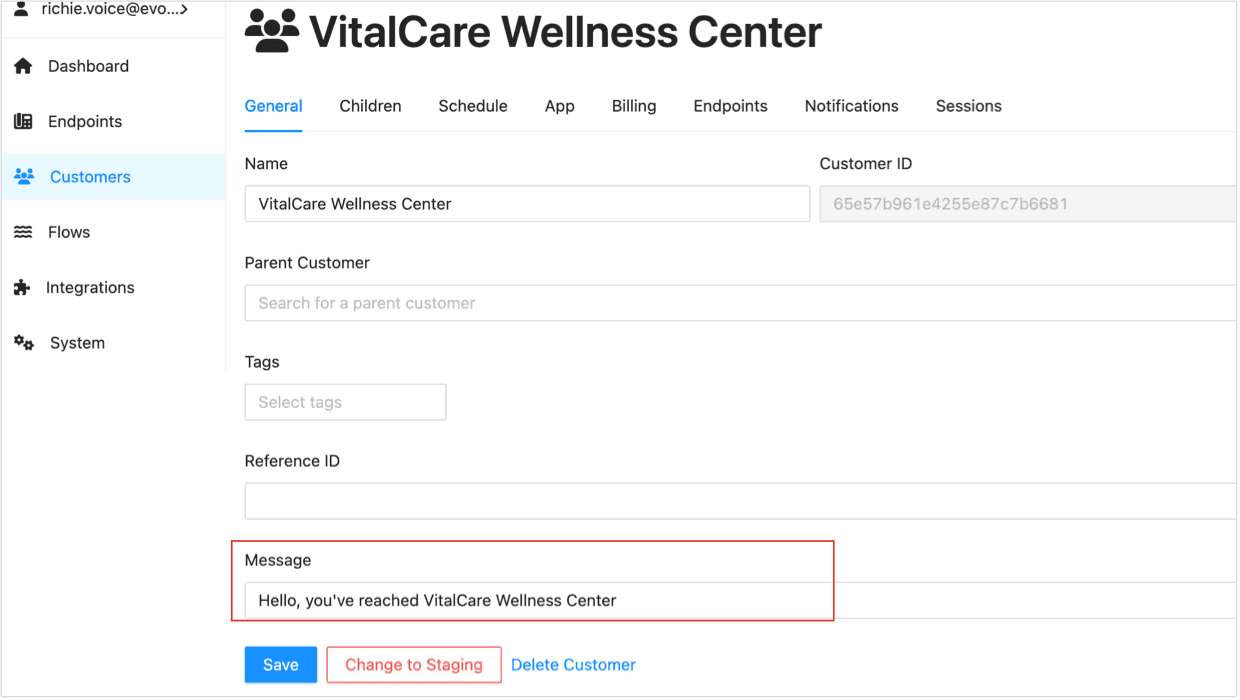
In the customer details, you can now modify the "Message" field or other customer fields.
-
For example, if you added the "Message" field, you can update its input value to customize the message for each customer.
Using Customer Fields in a Flow
Now that you have customer data, you can use it in a Flow:
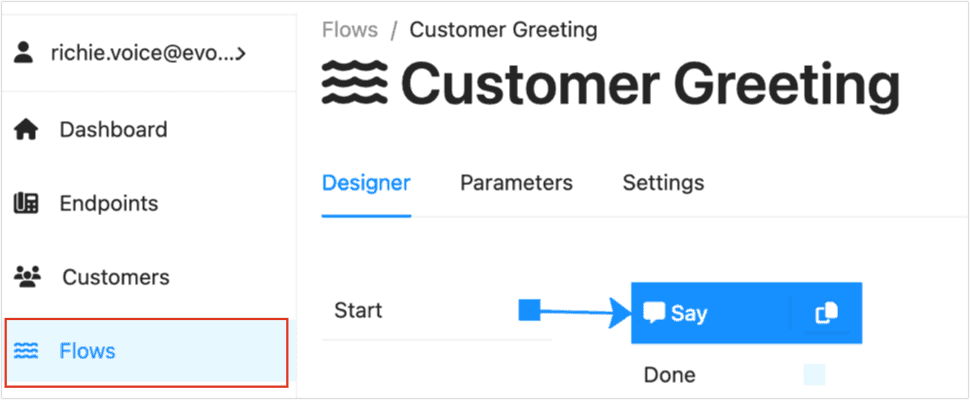
- Create a new Flow, for example, "Customer Greeting."
-
Add a "Say" node from the Toolbox.
-
Connect the Start node to the Say node.
-
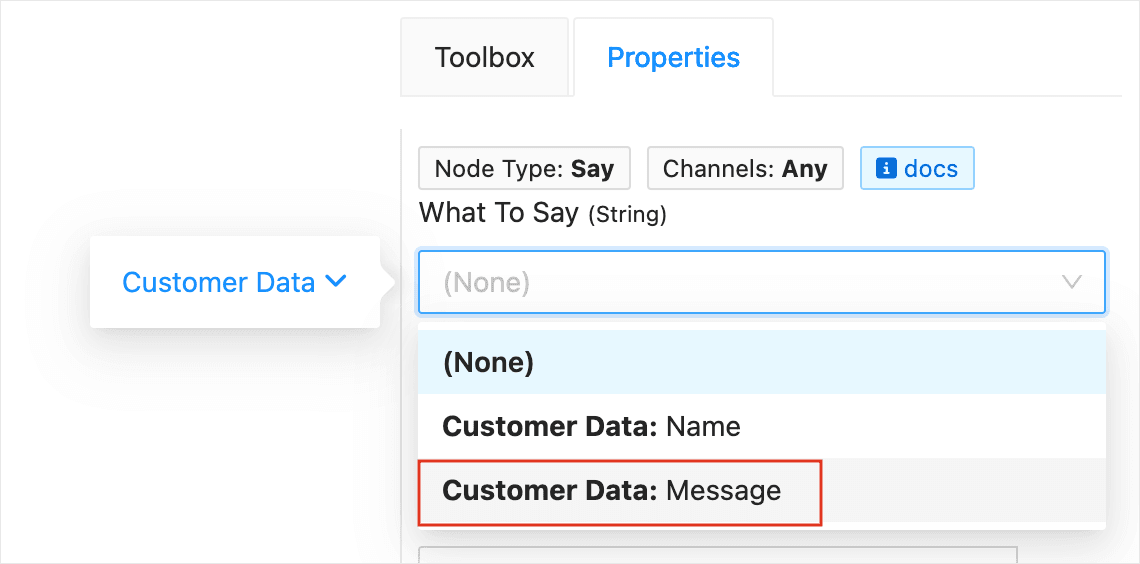
In the "What to Say" field, change from "Specific Value" to "Customer Data."
-
Select the field you created, e.g., "Message."
-
Save your Flow.
Assigning the Flow to an Endpoint
-
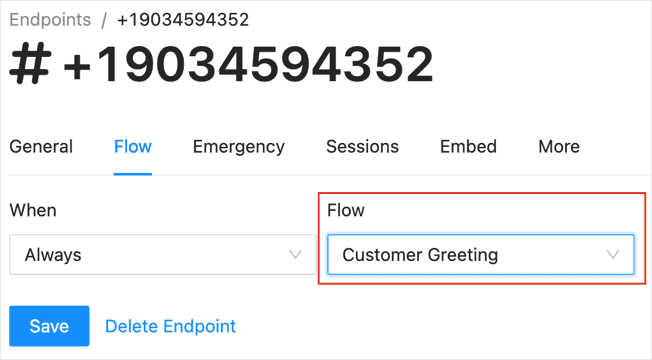
Go to the "Endpoints" section and edit an incoming phone number.
-
On the "General" tab, assign a Customer to the Endpoint.
-
On the "Flow" tab, select the "Customer Greeting" flow.
-
Save the Phone Number and test the flow by calling the number from a non-Voice phone.
Troubleshooting
If your setup doesn't work, check these common issues:
-
Forgot to assign the Flow to the incoming number? Make sure "Customer Greeting" is selected in the "Flow" tab.
-
Forgot to assign a Customer to your incoming number? Select a Customer in the "General" tab.
-
Didn't assign a Message to your Customer? Edit the customer and add a message.
-
Flow not configured correctly? Ensure that the "Say" node is connected and that it uses "Customer Data: Message."
Summary
Customers in Evo Voice are groupings of data that can be used in Flows. By adding Customer Fields, you can create customized experiences based on each customer's unique information, and you can incorporate this data into your Flows for personalized behavior.